

Brush Ninja is the quickest WigglyPaint alternative if you want a silly animated doodle in minutes, not hours. GIFs have been around since 1987, when CompuServe released the format [source: Wikipedia]. That is ancient internet magic. Yet they still work great for jokes, stickers, class projects, tiny ads, and weird bouncing cats.
TLDR: Try Brush Ninja for fast browser doodles, FlipaClip for phone and tablet animation, Wick Editor for more control, and Pixilart for pixel GIFs. If you need a 6-frame waving hand GIF for a classroom slide, Brush Ninja can get it done in about 5 minutes. For a cleaner 15-second sketch animation, FlipaClip is the better pick. If you love tiny pixel creatures, Pixilart is the most fun.
Why replace WigglyPaint?
WigglyPaint is charming. It has that playful, wobbly look. But sometimes you need more frames. Or easier exports. Or tools that work better on a phone. Honestly, it feels like some doodle tools make you fight the interface before you draw the first goofy eyeball.
The good news? You do not need fancy software. You need simple tools that let you draw, copy frames, tweak stuff, and export a GIF without crying into your keyboard.
1. Brush Ninja: Best for super quick animated doodles
Brush Ninja is a browser-based animation tool. It feels like digital sticky notes that can move. You draw a frame. Add another. Change the arm. Add a smile. Boom. Tiny animation.
It is great for:
- Simple GIFs for social posts.
- Classroom projects with kids.
- Birthday doodles and silly cards.
- Fast idea sketches before using a bigger app.
The interface is very friendly. You can make a bouncing ball or blinking face in a few minutes. No account is needed for basic use, which is lovely. Nobody wants to create a login just to draw a potato dancing.
The catch is the tool is basic. If you want layers, polished brushes, or a long animation, you may feel boxed in fast. Still, for quick GIFs, it is hard to beat.
2. FlipaClip: Best for phone and tablet sketches
FlipaClip is one of the most popular picks for hand-drawn animation. It works well on phones and tablets. If you like drawing with your finger or stylus, this one feels natural.
It has animation features that make life easier:
- Onion skin, so you can see the last frame faintly.
- Layers, so backgrounds and characters stay separate.
- Audio tools, handy for lip sync or short clips.
- Frame controls, so timing is not a guessing game.
Use FlipaClip when you want a sketch to feel more alive. A blinking eye. A waving character. A little dog running in place. It handles that better than most tiny doodle apps.
It drives me crazy that some export options and extra features may sit behind paid plans or app limits. Also, drawing on a small phone screen can feel cramped after 10 minutes. A tablet helps a lot.
3. Wick Editor: Best for more control in your browser
Wick Editor is a free browser tool for animation and simple interactive projects. Think of it as a step up from basic doodle apps. It gives you a timeline, drawing tools, objects, and more space to build scenes.
It is a good choice if you want:
- Longer animations with more moving parts.
- Shape-based drawings that stay clean.
- GIF or video exports for sharing.
- Small web projects with buttons or interaction.
Wick Editor is better for users who already understand frames. Not experts. Just people who know that animation is lots of tiny changes stacked together.
The annoying bit? It can feel heavier than Brush Ninja. A simple two-frame wiggle may take 20 seconds longer because there are more buttons to check. That is not a disaster. It just means Wick is better when your idea needs room.
4. Pixilart: Best for pixel GIFs and retro doodles
Pixilart is perfect if you like blocky art, tiny characters, game sprites, and retro GIFs. Instead of soft sketch lines, you work with pixels. This gives your GIF a cute old-school look.
Pixilart works well for:
- Pixel avatars with blinking eyes.
- Mini game sprites that walk or jump.
- Looping icons for profiles.
- Simple sticker-style GIFs.
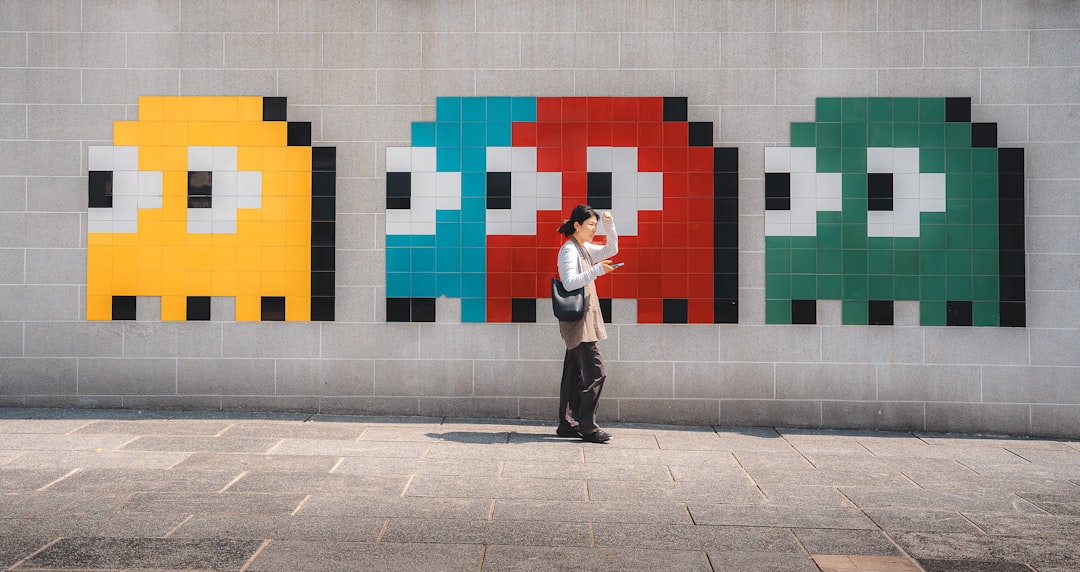
The best part is the grid. It keeps everything neat. You can move one pixel at a time. That sounds slow, but it is oddly relaxing. A 16 by 16 character can become a fun GIF with only 4 frames.
The downside is clear. Pixel art is a style, not a magic fix. If you want loose hand-drawn wiggles, Pixilart may feel too square. Literally.
Quick picking guide
- Pick Brush Ninja if speed matters most.
- Pick FlipaClip if you draw on a tablet.
- Pick Wick Editor if you want a fuller timeline.
- Pick Pixilart if you love retro pixel GIFs.
Simple tips for better animated doodles
- Start with 4 to 8 frames. Short loops are easier.
- Move one thing at a time. A mouth, arm, eye, or tail.
- Use fewer colors. Your GIF will look cleaner.
- Loop the action. Make the last frame lead back to the first.
- Keep it silly. A wobbly frog beats a stiff masterpiece.
Best overall pick? Use Brush Ninja first. It is fast, friendly, and fun. If you outgrow it, move to FlipaClip or Wick Editor. If you want chunky retro charm, Pixilart is waiting with tiny squares and big personality.