


A slow WordPress admin dashboard is usually caused by overloaded plugins, weak hosting, bloated database tables, or background tasks fighting for server resources. The front end of your site may load fine, while the admin area crawls. That happens because the dashboard runs extra checks, database queries, plugin scripts, updates, cron jobs, and editor tools that regular visitors never see.
TLDR: If your WordPress admin takes 8 to 15 seconds to load, start by checking plugins, hosting, database size, and object caching. In one common case, a store owner with 42 active plugins cut dashboard load time from 11.8 seconds to 3.4 seconds by disabling three heavy plugins and cleaning expired WooCommerce sessions. A good target is under 3 seconds for basic admin pages and under 5 seconds for product or page editors.
Why the WordPress Admin Feels Slower Than the Website
Your public pages can be cached. The admin area usually cannot. That alone makes a huge difference.
When someone visits your homepage, a caching plugin or CDN may serve a saved version. Fast. Simple. Cheap for the server. But when you open wp-admin, WordPress has to build the page fresh. It checks your role, loads plugin menus, pulls dashboard widgets, looks for updates, runs queries, and often talks to outside services.
Honestly, it feels like opening one settings screen should not take 9 seconds. Yet one bad plugin can make that happen.
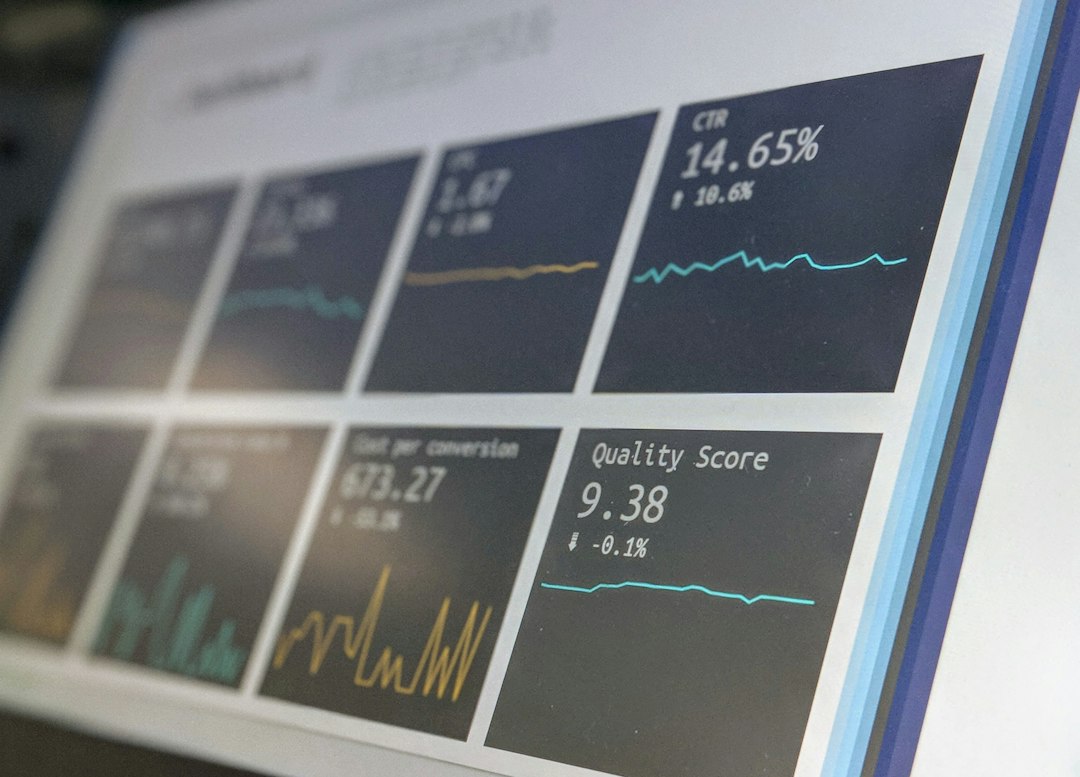
Common Causes of a Slow WordPress Admin Dashboard
1. Too Many Plugins
Plugins are the usual suspect. Not always because they are “bad,” but because each one adds code. Some add admin notices. Some load scripts on every admin page. Some run database queries even when they are not needed.
Security, SEO, form builders, page builders, analytics, backup tools, and eCommerce plugins can all slow down the admin area. The problem gets worse when several plugins do similar jobs.
- Two SEO plugins? One should go.
- Three analytics plugins? Pick one.
- Old plugins not updated in years? Replace or remove them.
2. Poor Hosting or Low Server Resources
Cheap shared hosting can work for a small blog. It often struggles with WooCommerce, membership sites, LMS sites, and large content libraries.
The dashboard needs CPU and memory. If your server has strict limits, admin pages will lag. You may notice this most when saving posts, opening orders, uploading media, or updating plugins.
Look for these server issues:
- Low PHP memory limit, such as 128 MB or less
- Old PHP version
- Slow database server
- No server-level caching
- High CPU usage during backups or scans
3. Bloated Database Tables
WordPress saves posts, pages, revisions, options, comments, transients, sessions, metadata, plugin settings, and more. Over time, the database collects junk.
Common clutter includes:
- Post revisions from years of editing
- Spam and trashed comments
- Expired transients
- Old plugin tables left behind after deletion
- WooCommerce sessions and logs
A bloated wp_options table is especially annoying. If too many autoloaded options load on every request, the dashboard slows down before you even click anything.
4. Heavy Page Builders and Editors
Visual builders make editing easier, but they can be heavy. The block editor, page builders, custom fields, templates, popups, and global styles may all load inside the admin.
Expect to waste time on slow save actions if a page has huge layouts, embedded widgets, sliders, custom fonts, and dozens of reusable sections. The editor becomes a mini application inside WordPress.
5. WooCommerce Admin Load
WooCommerce sites often have slower dashboards because orders, products, coupons, reports, subscriptions, and customer records create extra work.
The order screen can be brutal on a weak server. Add shipping plugins, payment gateways, tax tools, invoice plugins, and stock sync tools, and each admin click may trigger more queries.

6. External API Calls
Some plugins call outside services from the dashboard. This includes license checks, analytics panels, malware scans, email marketing stats, social feeds, currency rates, and update servers.
If that third-party service is slow, your admin page may wait. The worst part? The delay can feel random. One day the dashboard loads in 2 seconds. The next day it takes 12.
7. WordPress Cron Jobs
WordPress uses WP-Cron to run scheduled tasks. These can include backups, email sends, cleanup jobs, publishing scheduled posts, database maintenance, and plugin sync jobs.
By default, WP-Cron can run when someone visits the site. If many jobs pile up, the admin may slow down. This is common on stores and membership sites with frequent events.
8. Missing Object Cache
Object caching stores repeated database query results in memory. Without it, WordPress may ask the database the same questions again and again.
For busy sites, Redis or Memcached can make the admin feel much faster. This is especially true for WooCommerce, LMS, forums, and membership platforms.
How to Diagnose the Problem
Do not guess forever. Test in layers.
- Check load time: Use your browser’s developer tools or a plugin such as Query Monitor.
- Test plugins: Disable non-essential plugins on a staging copy, then reload admin pages.
- Check PHP errors: Look at error logs for repeated warnings or failed requests.
- Review database size: Look for huge options, sessions, logs, and revision tables.
- Compare hosting metrics: Watch CPU, RAM, disk I/O, and database usage.
Query Monitor is especially useful. It can show slow database queries, HTTP API calls, PHP errors, hooks, scripts, and memory use. If one plugin adds 150 queries to every admin page, you will see it.
Fast Fixes That Usually Help
Remove or Replace Heavy Plugins
Start with plugins you no longer need. Then look at plugins that overlap. If two tools do the same job, keep the lighter one.
Pay close attention to plugins that add dashboard widgets, admin notices, tracking panels, scans, or reports. These often slow down wp-admin more than the public site.
Upgrade PHP and Increase Memory
Use a supported PHP version, preferably PHP 8.1 or newer if your plugins and theme support it. Increase the WordPress memory limit to at least 256 MB. WooCommerce and builder-heavy sites may need 512 MB.
Clean the Database
Before any cleanup, take a full backup. Then remove old revisions, spam, trash, expired transients, and unused tables. For WooCommerce, clear expired sessions and old logs.
Do not blindly delete database tables. Some plugin tables are still needed even if their names look strange.
Limit Dashboard Widgets
Disable dashboard widgets you never read. Many widgets fetch news, analytics, SEO notices, or store stats. Each one can add load time.

Use a Real Cron Job
For busier sites, disable default WP-Cron and set a server cron job to run every 5 or 10 minutes. This keeps scheduled tasks from piling onto random visits.
Add Object Caching
If your host supports Redis or Memcached, enable it. This can reduce repeated database work and speed up admin screens that rely on many queries.
Move to Better Hosting
If you have optimized plugins and cleaned the database but wp-admin still drags, the server may be the wall. Managed WordPress hosting, VPS hosting, or cloud hosting with good CPU and database speed can make admin work feel normal again.
What “Good” Admin Speed Looks Like
A basic dashboard should load in about 1 to 3 seconds. Editing a large product or complex page may take 3 to 5 seconds. Anything above 7 seconds deserves attention. Above 10 seconds, productivity starts to hurt.
The best fix is rarely one magic setting. It is usually a mix: fewer heavy plugins, cleaner tables, better PHP settings, object caching, and hosting that matches the size of the site.
The short version: treat a slow WordPress admin as a server and database problem first, not just a browser problem. Fix the heavy work behind the screen, and the dashboard stops fighting you with every click.