

If your iPad displays “Not Charging”, the most common reason is simple: the device is connected to a power source that cannot deliver enough power. This often happens when using an old phone charger, a weak USB port on a computer, a damaged cable, or a low-quality power adapter. In many cases, the iPad is not broken; it is protecting itself from unreliable or insufficient power.
TLDR: Your iPad usually says “Not Charging” because the power adapter, cable, or USB port is not providing enough wattage. Use a genuine or reputable certified adapter, ideally 20W or higher for most modern iPads, and pair it with a good-quality cable. Also inspect the charging port, restart the iPad, and avoid charging in extreme temperatures. If the message remains with known-good accessories, the iPad may need professional battery or port service.
What “Not Charging” Actually Means
The “Not Charging” message can be confusing because your iPad may still appear connected to power. In some situations, the battery icon may show a plug symbol, but the battery percentage does not increase. In others, the iPad may charge very slowly only when the screen is off.
This message usually means the iPad detects power, but not enough to charge properly while the device is awake and in use. An iPad requires more power than an iPhone, especially when the screen brightness is high, apps are running, or the battery is very low. A small adapter that works fine for a phone may not be sufficient for a tablet.
The power adapter is the first thing to check. A weak adapter is the most common cause and the easiest fix.
The Power Adapter Fix: Use the Right Wattage
iPads need a charger that can deliver adequate wattage. Many older USB power bricks are rated at only 5W, which is usually not enough for an iPad. Some older iPads shipped with 10W or 12W adapters, while many newer models work best with 18W, 20W, or higher USB C Power Delivery chargers.
As a practical rule, use the following guidance:
- Older iPads with Lightning: Use a 10W or 12W Apple-style adapter at minimum, or a reputable 20W USB C adapter with a certified USB C to Lightning cable.
- Modern iPads with USB C: Use a 20W USB C Power Delivery adapter or higher.
- iPad Air and iPad Pro models: A 20W, 30W, or higher USB C Power Delivery charger is appropriate. Higher-wattage chargers from reputable brands are safe because the iPad draws only the power it can use.
- Avoid unknown or very cheap adapters: Poorly made chargers can deliver unstable voltage, overheat, or fail to negotiate power correctly.
If your iPad says “Not Charging”, unplug it from the current adapter and test it with a known-good 20W or higher USB C charger. Leave it connected for at least 10 to 15 minutes, especially if the battery is very low.
Do Not Rely on Computer USB Ports
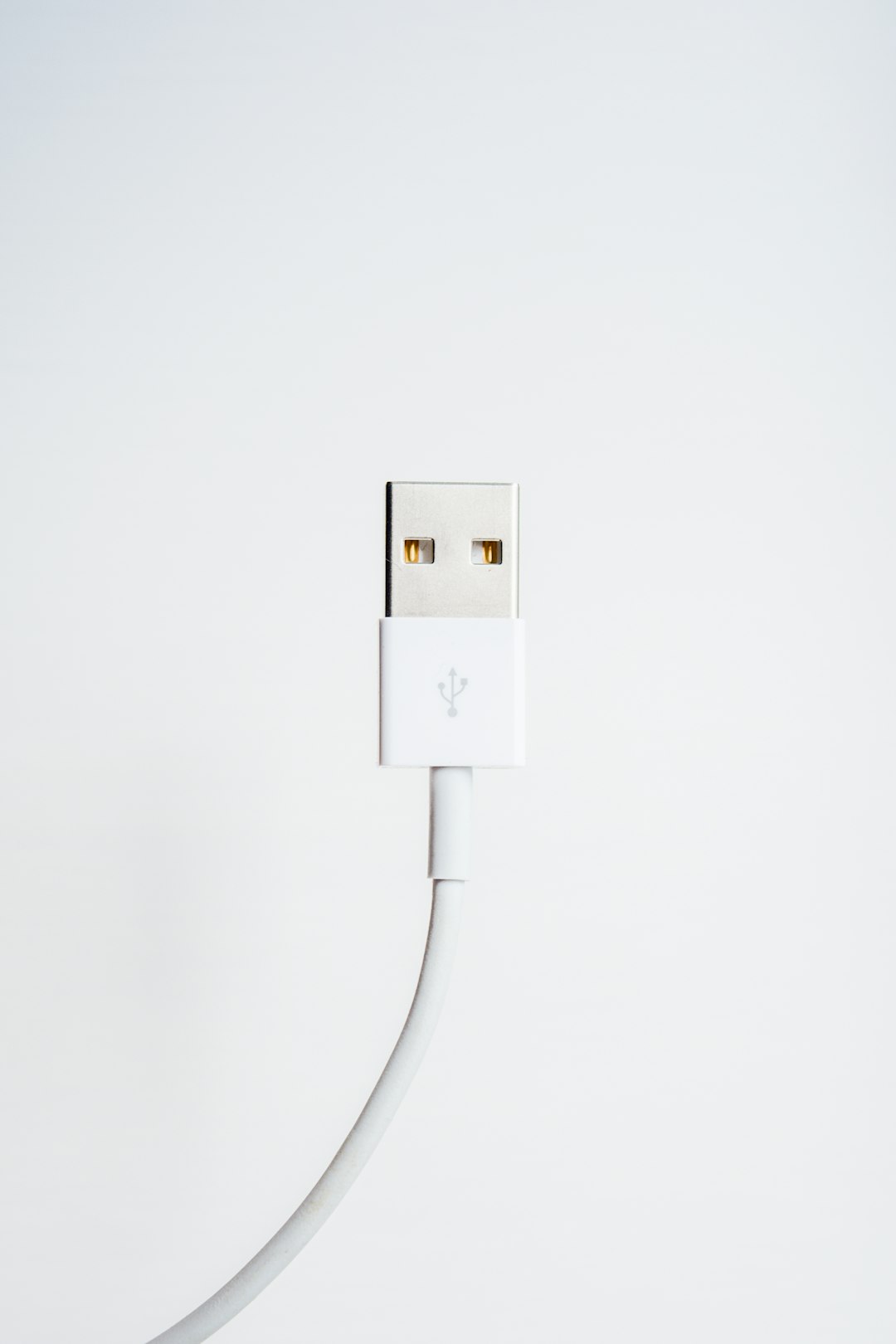
Another common cause is charging from a laptop, desktop computer, keyboard, monitor, car stereo, or USB hub. These ports often provide less power than a wall adapter. Some older computer USB ports provide as little as 2.5W to 4.5W, which is far below what an iPad needs.
This is why an iPad may show “Not Charging” when connected to a computer but charge normally from a wall outlet. The computer may still sync data with the iPad, but that does not mean it is capable of charging it effectively.
For troubleshooting, always connect the iPad directly to a wall outlet using a reliable adapter. Do not use a USB hub, extension dock, or monitor port until you have confirmed the iPad charges correctly from the wall.
Check the Cable Carefully
A faulty cable can cause the same warning as a weak power adapter. The cable may look normal from the outside but fail internally. Frayed wires, bent connectors, loose ends, or low-quality charging cables can prevent the iPad from negotiating proper power.
Inspect the cable for:
- Visible damage, including cracks, fraying, or exposed wiring.
- Loose connector ends that wiggle excessively when plugged in.
- Discoloration or burn marks, which may indicate overheating.
- Intermittent charging when the cable is moved.
- Non-certified accessories that may not support proper charging standards.
If possible, test with another cable that you know works with a similar iPad. For Lightning models, use an Apple or MFi-certified cable. For USB C iPads, use a quality USB C cable that supports charging, not just data transfer.
Inspect and Clean the Charging Port
Dust, lint, and debris in the iPad charging port can block a proper connection. This is especially common if the iPad is carried in a bag, used by children, or kept in a case that traps dust. A partially blocked port can allow the cable to fit loosely, causing the iPad to detect power inconsistently.
Before cleaning, turn the iPad off and unplug all accessories. Use a flashlight to look inside the port. If you see lint or debris, remove it gently with a soft, dry, non-metal tool. Do not use liquid cleaners, sharp metal objects, or excessive force. Damaging the pins inside the port can create a more serious repair issue.

After cleaning, reconnect the cable firmly. The connector should sit straight and feel secure. If it still feels loose with multiple cables, the charging port may be worn or damaged.
Restart the iPad and Watch for Software Issues
Although charging problems are often hardware-related, software can sometimes cause incorrect battery readings or charging status messages. A restart clears temporary system errors and can restore normal charging detection.
To restart most iPads, hold the top button and either volume button until the power slider appears, then turn the device off. Wait about 30 seconds, then turn it back on. For iPads with a Home button, hold the top button until the slider appears.
After restarting, plug the iPad into the recommended power adapter and check whether the message disappears. You should also update iPadOS if an update is available. Apple occasionally improves charging behavior, USB accessory compatibility, and battery reporting through software updates.
Temperature Can Stop Charging
Your iPad may refuse to charge normally if it is too hot or too cold. Battery charging is controlled carefully to prevent damage. If the iPad has been left in direct sunlight, inside a hot car, near a heater, or in freezing conditions, it may show charging warnings or charge slowly.
Move the iPad to a room-temperature location and let it rest for at least 20 to 30 minutes. Do not place it in a refrigerator or near direct heat. Once the device returns to a safe temperature, connect it to a proper adapter and try again.
Remove Power-Hungry Accessories
Some accessories can consume power while the iPad is charging. External drives, USB hubs, keyboards, audio interfaces, card readers, and adapters can reduce the power available to the battery. If the iPad says “Not Charging” while accessories are connected, disconnect everything except the charging cable.
Then plug the iPad directly into the wall adapter. If it charges normally, the accessory setup may require a powered hub or a stronger USB C Power Delivery charger. This is particularly relevant for iPad Pro and iPad Air users who connect multiple USB C devices.
How to Confirm the Adapter Is the Problem
To identify whether the adapter is causing the issue, perform a controlled test:
- Use a wall outlet that you know works.
- Connect a reputable 20W or higher adapter.
- Use a known-good cable.
- Remove all accessories and cases that may interfere with the connector.
- Restart the iPad.
- Charge for 15 minutes with the screen off.
If the iPad starts charging normally, the old adapter was likely underpowered or failing. If the message remains, repeat the test with a second cable. If two good adapters and two good cables produce the same result, the issue is more likely with the iPad itself.
When the Battery Is Extremely Low
If the iPad battery is fully drained, it may need time before it shows normal charging behavior. Plug it into a proper wall adapter and leave it undisturbed for at least 30 minutes. A deeply discharged battery can take several minutes before the iPad responds, especially if the adapter is only barely powerful enough.
Do not repeatedly unplug and replug the charger during this period. Let the charging system stabilize. If the iPad does not respond after an hour with a known-good adapter and cable, there may be a battery, charging port, or logic board issue.
Safety Warning: Avoid Risky Chargers
It can be tempting to buy the cheapest charger available, but power quality matters. A poor-quality adapter may not meet safety standards and can cause overheating, unstable charging, or premature battery wear. In the worst cases, unsafe adapters can damage the device or create a fire risk.
Use chargers from Apple or reputable manufacturers that clearly state their wattage and support for USB C Power Delivery where appropriate. If a charger becomes unusually hot, makes noise, smells burnt, or causes the iPad to connect and disconnect repeatedly, stop using it immediately.
When to Seek Professional Repair
If you have tested a reliable power adapter, a good cable, a clean charging port, and a different wall outlet, but the iPad still says “Not Charging”, the problem may require service. Possible causes include a worn charging port, damaged internal connector, failing battery, or power management fault.
You should seek professional help if:
- The cable does not fit securely in the port.
- The iPad charges only at a certain angle.
- Multiple chargers and cables fail.
- The iPad gets unusually hot while plugged in.
- The battery drains quickly even after charging.
- There is visible corrosion, liquid damage, or physical damage.
A qualified technician can test the charging current, inspect the port, and determine whether the battery or internal hardware needs replacement. Avoid attempting internal repairs unless you are trained, because iPads are difficult to open without damaging the display or battery.
Final Recommendation
When an iPad says “Not Charging”, start with the power adapter. Replace weak phone chargers and computer USB ports with a reliable wall adapter rated at 20W or higher for most current models. Then verify the cable, clean the charging port, restart the device, and charge in a normal-temperature environment.
Most cases are resolved by using the correct adapter and cable. If the warning persists after careful testing, treat it seriously and have the iPad inspected. Charging problems can worsen over time, and early diagnosis helps protect both the device and the battery.