


If you spend any amount of time on a computer, you have likely pressed Ctrl + W—sometimes intentionally, sometimes by accident. It is one of those keyboard shortcuts that feels small yet carries surprising power. With a simple two-key combination, you can instantly close a browser tab, a document, or even an entire window depending on the software you are using. But what exactly does Ctrl + W do, and why has it become such a universal shortcut across operating systems and applications?
TLDR: Ctrl + W is a keyboard shortcut primarily used to close the current tab or window in most applications. In web browsers, it closes the active tab; in document editors, it closes the current file. It helps users work faster by reducing reliance on the mouse. However, pressing it accidentally can cause you to lose unsaved work if you are not careful.
The Core Function of Ctrl + W
At its most basic level, Ctrl + W closes the currently active window or tab within an application. The exact result depends on the program you are using:
- Web browsers: Closes the active tab.
- Microsoft Word or Google Docs: Closes the current document.
- File Explorer (Windows): Closes the active window.
- Tabbed software (like Slack or VS Code): Closes the selected tab or file.
This shortcut is part of a broader family of keyboard commands designed to streamline workflow. Rather than moving your mouse to click a small “X” in the corner of a window, Ctrl + W lets you perform the same action instantly from the keyboard.
How Ctrl + W Works in Web Browsers
For most users, Ctrl + W is most familiar in the context of web browsers such as Chrome, Edge, or Firefox. In this environment, it closes the active tab without shutting down the entire browser (unless it is the last open tab).

This function is especially useful when you:
- Have many tabs open and want to quickly reduce clutter.
- Finish reading an article and want to close it immediately.
- Accidentally open a link in a new tab.
One important detail: if you close a tab by accident, most browsers allow you to reopen it using Ctrl + Shift + T. This complementary shortcut has saved countless users from losing important pages.
Ctrl + W in Document Editors
In programs like Microsoft Word, Excel, or Adobe applications, Ctrl + W typically closes the active file. Unlike browser tabs, closing a document might have consequences if your work has not been saved.
Fortunately, modern software usually detects unsaved changes. When you press Ctrl + W on an unsaved document, you are typically prompted with a warning such as:
- “Do you want to save your changes?”
- “Save before closing?”
This built-in safeguard prevents accidental data loss. Still, it reinforces the idea that Ctrl + W is a command that should be used thoughtfully.
Why Ctrl + W Improves Productivity
Keyboard shortcuts are all about speed and efficiency. Each time you switch from keyboard to mouse, you lose a fraction of a second. Over the course of a workday, those seconds add up.
Here are several ways Ctrl + W enhances productivity:
- Minimizes hand movement – Your fingers stay on the keyboard.
- Encourages focused work – Quickly close distractions.
- Helps manage multitasking – Shut down completed tasks instantly.
- Reduces repetitive clicking – Especially helpful when dealing with many tabs.
Power users—such as programmers, writers, designers, and researchers—often rely heavily on shortcuts like Ctrl + W to streamline their workflow.
Differences Across Operating Systems
Although Ctrl + W is widely recognized, its behavior can vary slightly depending on your system.
On Windows and Linux, Ctrl + W is the standard shortcut for closing tabs and documents.
On Mac, the equivalent shortcut is Command (⌘) + W rather than Ctrl + W. Apple systems use the Command key for most primary shortcuts, while Ctrl often performs secondary actions.
Despite these differences, the logic remains consistent: the shortcut closes the current view without necessarily shutting down the entire application.
Ctrl + W vs. Alt + F4
People sometimes confuse Ctrl + W with another well-known shortcut: Alt + F4. While both are used to close things, they are not the same.
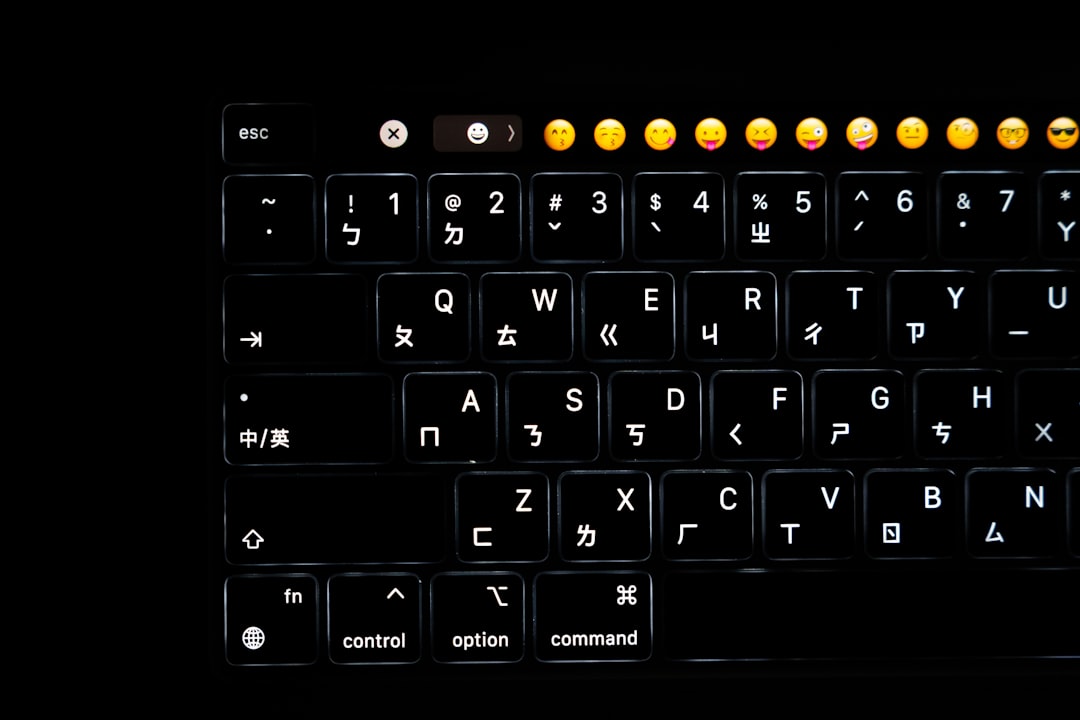
- Ctrl + W: Closes the current tab or document within an application.
- Alt + F4: Closes the entire application window.
For example, in a browser with ten open tabs:
- Pressing Ctrl + W closes only the active tab.
- Pressing Alt + F4 shuts down the entire browser.
This distinction is crucial, especially in work environments where accidentally closing an entire application could interrupt your workflow.
Common Mistakes and Accidental Presses
Because Ctrl + W sits close to other common shortcuts like Ctrl + Q or Ctrl + E, it is surprisingly easy to hit by mistake. Many users have unintentionally closed:
- An important research tab.
- A long email draft.
- A project file with unsaved changes.
In browsers, recovery is usually simple thanks to the “Reopen Closed Tab” feature. In document-based programs, however, recovery may depend entirely on autosave systems.
This is why it is wise to:
- Enable autosave whenever possible.
- Save your work frequently (Ctrl + S).
- Know the undo or recovery shortcuts for your application.
Advanced Uses in Professional Software
Ctrl + W is not limited to browsers and word processors. In advanced tools like coding environments and design platforms, it plays a key role in navigating complex projects.
For example:
- Visual Studio Code: Closes the active file tab.
- Photoshop: Closes the active document.
- Project management tools: Closes specific panels or views.

In software development, where dozens of files may be open simultaneously, Ctrl + W becomes an essential way to declutter your workspace without interrupting the entire program.
The Design Philosophy Behind Ctrl + W
The widespread adoption of Ctrl + W reflects an important principle in user interface design: consistency. When shortcuts behave similarly across programs, users build muscle memory.
This consistency means:
- Less cognitive effort.
- Fewer mistakes.
- Faster adaptation to new software.
Software developers intentionally map common actions—such as open, save, print, and close—to predictable keyboard combinations. Ctrl + W naturally fits into this ecosystem as the logical “close current item” companion to Ctrl + S (save) and Ctrl + O (open).
Security and Privacy Implications
Though it seems simple, Ctrl + W can also play a subtle role in privacy. Imagine you are viewing sensitive information in a shared setting. Instantly closing a tab with a quick keystroke is often faster than navigating with a mouse.
However, remember that closing a tab does not erase browsing history. It only removes the active view. True privacy requires additional steps such as clearing history or using private browsing modes.
Can You Customize Ctrl + W?
Some applications allow users to reassign keyboard shortcuts. In customizable environments like advanced text editors or accessibility tools, you may be able to change what Ctrl + W does.
That said, modifying such a universally recognized shortcut can lead to confusion—especially if you frequently switch between programs. For most users, it is best to leave default shortcut mappings in place.
Final Thoughts
Ctrl + W may seem like a small detail in the vast world of computing, but it represents the elegance of well-designed shortcuts. With just two keys, you can close tabs, manage files, and maintain a clean digital workspace. It boosts productivity, encourages efficient habits, and has become nearly universal across platforms.
Understanding what Ctrl + W does—and how it differs from similar shortcuts—empowers you to navigate your digital environment with confidence. The next time you press it, you will know exactly what is happening behind that simple, efficient command.