

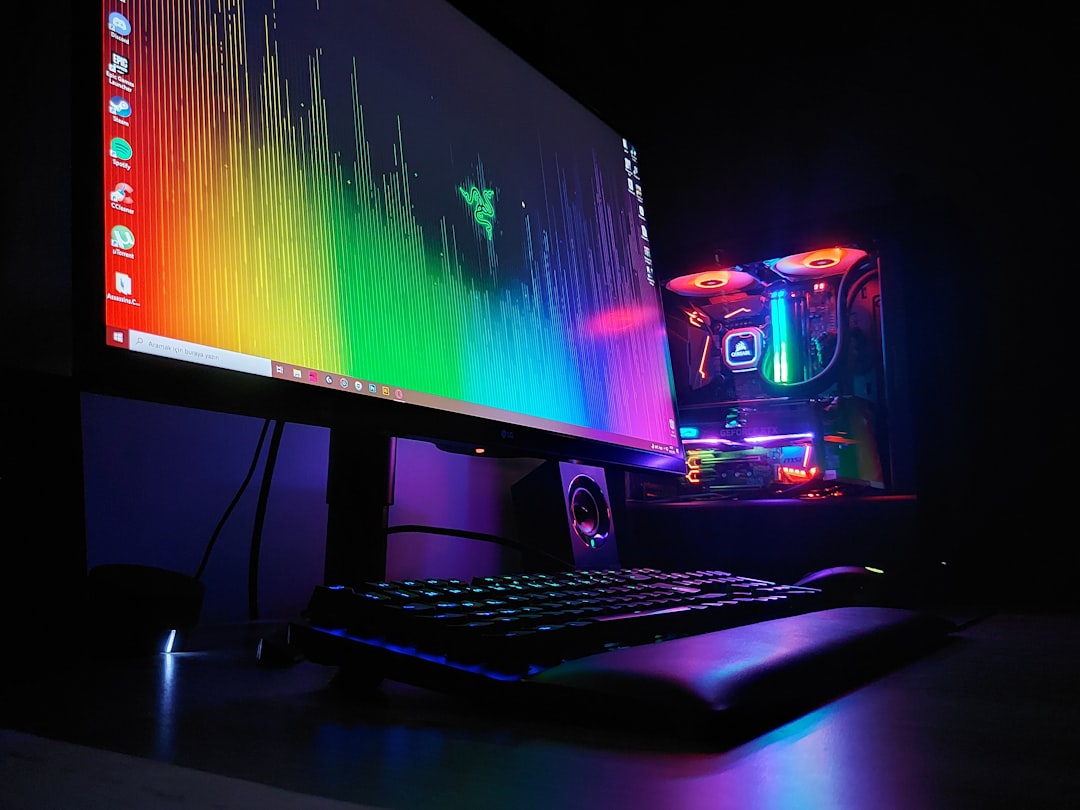
The best video editor for gaming content is the one that cuts gameplay fast, handles high frame rates cleanly, and makes captions, effects, audio, and exports painless. A gaming creator does not need the most expensive studio tool on day one. They need software that matches the content: quick highlights, funny commentary, long YouTube edits, Shorts, TikToks, montages, reviews, or stream recaps.
TLDR: A gaming editor should pick video editing software based on speed, format support, audio control, GPU performance, and easy exports for YouTube and short video platforms. For example, a creator recording 1440p at 60 fps may save 20–30 minutes per upload by using an editor with proxy editing and hardware encoding. A streamer turning a 3-hour VOD into six clips needs fast trimming, auto captions, and templates more than cinema-grade color tools. For most creators, the best choice is the tool that removes boring steps without crushing video quality.
What Gaming Video Editing Software Must Do Well
Gaming footage is not like a simple talking-head video. It often has fast motion, detailed HUDs, bright effects, dark scenes, team chat, game audio, webcam overlays, and sudden volume spikes. A weak editor can make clean gameplay look muddy after export. That is painful, especially when the original capture looked sharp.
A strong video editor for gaming should support:
- High frame rates, especially 60 fps, 120 fps, or higher.
- Common capture formats from OBS, ShadowPlay, Xbox Game Bar, PlayStation, and capture cards.
- Hardware acceleration for smoother playback and faster rendering.
- Multi track editing for gameplay, webcam, voice, music, subtitles, and effects.
- Clean audio tools for noise reduction, ducking, EQ, and volume matching.
- Export presets for YouTube, Shorts, TikTok, Instagram Reels, and Discord clips.
Honestly, it feels like some editors were built by people who never trimmed a 4-hour stream. If a simple cut takes two extra seconds every time, that becomes a real problem after 300 cuts.

Match the Editor to the Content Type
Not every gaming channel needs the same software. A montage editor, a commentary creator, and a streamer all work in different ways.
For Highlights and Funny Clips
Highlight creators need speed. The editor should let them scrub through long recordings, mark key moments, trim dead air, and add zooms, captions, sound effects, and memes quickly. Auto scene detection can help, but manual control still matters.
Best features to seek: ripple delete, keyboard shortcuts, marker tools, auto captions, meme overlays, quick zoom presets, and fast vertical exports.
For Commentary Videos
Commentary needs clean voice audio. A creator may record gameplay first, then add voice later. Or they may capture live commentary during gameplay. Either way, the editor must keep voice clear above game sound.
The audio panel matters more than flashy transitions. Good tools include noise cleanup, compressor, limiter, voice isolation, and audio ducking. If the commentary sounds thin or buried, viewers leave.
For Montages
Montages depend on rhythm. The software should make speed ramps, beat cuts, motion effects, shake, glow, and color tweaks easy. It also needs strong preview performance. Laggy playback ruins timing.
For competitive games like Valorant, Fortnite, Apex Legends, Rocket League, or Call of Duty, sharp exports matter. A montage with smeared motion looks cheap, even when the plays are great.
For YouTube Gaming Videos
YouTube gaming videos need structure. The editor should handle long timelines, chapter builds, background music, webcam layouts, callouts, screenshots, and thumbnails pulled from the video. It should also export in high bitrate formats without weird color shifts.
A 10-minute YouTube video may include 30 to 80 cuts, several audio tracks, captions, overlays, and a branded intro. The software must stay stable. Crashes during long edits are the kind of thing that makes creators stare at the wall for five minutes.
Key Features to Compare Before Choosing
- Performance: The program should play footage smoothly at half or full resolution. Proxy editing is useful for 4K captures.
- Ease of use: A clean interface helps new creators publish sooner. Advanced tools are valuable only if they do not slow every edit.
- Caption tools: Auto captions help retention on Shorts and Reels. They also help viewers watching without sound.
- Audio control: Voice, game sound, music, and Discord chat often need separate treatment.
- Templates: Presets for intros, lower thirds, kill counters, subtitles, and end screens save time.
- Effects: Zoom, blur, tracking, masks, green screen, motion graphics, and transitions support gaming edits.
- Export control: The editor should offer bitrate, resolution, codec, frame rate, and platform presets.
- Price: Free tools can work well. Paid tools make sense when they save time or add needed features.
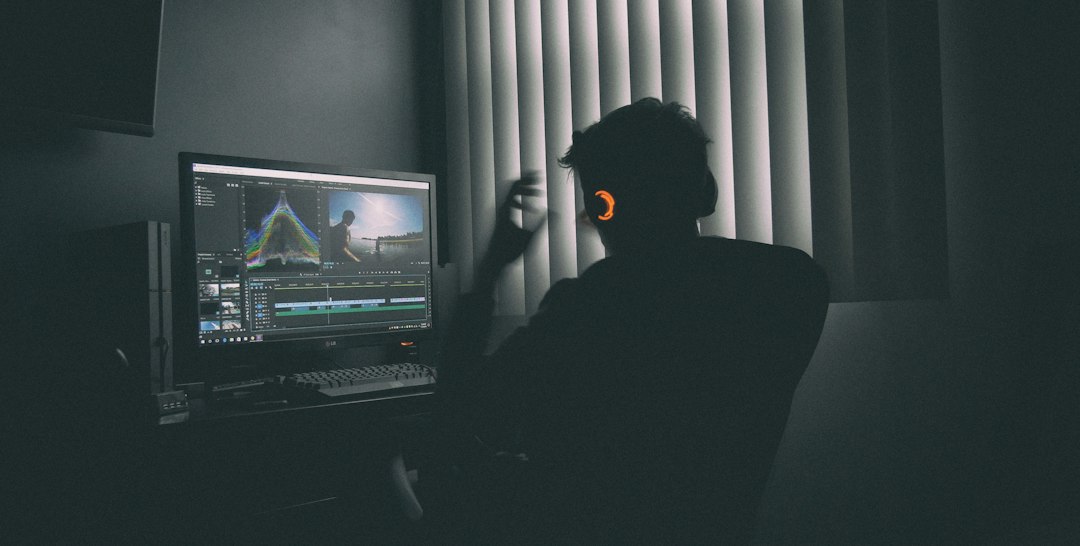
Free vs Paid Video Editors for Gaming
Free editors are often enough for beginners. They can cut clips, add music, place captions, and export for YouTube. The tradeoff is usually slower workflow, fewer effects, watermarks, limited exports, or weaker support for heavy footage.
Paid editors are better when a creator posts often. A channel uploading three times per week may care less about the monthly fee and more about saving an hour per video. The math is simple. If software saves four hours per month, and the creator values that time at $20 per hour, a $15 subscription starts to make sense.
The catch is that expensive does not always mean better. Some professional apps are incredible, but clunky for simple gaming clips. A creator should test a trial version with real gameplay footage before paying.
Export Settings That Keep Gameplay Sharp
Bad export settings can wreck a good edit. Fast games need enough bitrate to preserve motion. For YouTube, many creators export at 1080p 60 fps or 1440p 60 fps. Uploading 1440p can sometimes trigger better processing quality on YouTube, even if the source was 1080p.
Common gaming export settings include:
- Resolution: 1920×1080 or 2560×1440 for standard YouTube videos.
- Frame rate: Match the source, often 60 fps.
- Codec: H.264 for broad support, H.265 for smaller files if supported.
- Bitrate: Around 20–40 Mbps for 1080p 60 fps, higher for 1440p or 4K.
- Audio: AAC, 320 kbps when possible.
Workflow Tips for Gaming Creators
A smart workflow matters as much as the editor. Creators should record separate audio tracks when possible. Game sound, microphone, Discord chat, and music are much easier to fix when they are not smashed into one track.
They should also build reusable project templates. A template can include intro timing, caption style, webcam frame, music levels, end screen, and export presets. This keeps videos consistent and cuts repeat work.
For streamers, markers are gold. A creator can press a hotkey during a good moment, then find it later inside the recording. That beats scrubbing through hours of footage while trying to remember where the clutch play happened.
Final Buying Checklist
Before choosing video editing software, a gaming creator should answer a few practical questions:
- Does it play the creator’s actual gameplay footage without stutter?
- Can it export clean 60 fps video for YouTube?
- Are captions fast to create and edit?
- Can voice audio be cleaned and balanced?
- Does it support vertical clips for Shorts and TikTok?
- Is the interface quick enough for repeated edits?
- Does the price match the channel’s upload schedule?
The right editor should make gaming content easier to finish. It should not fight the creator at every trim, export, and caption change. For most channels, the winning choice is the software that keeps gameplay crisp, audio clear, and publishing simple.
FAQ
What is the best video editor for gaming videos?
The best choice depends on the creator’s content style, budget, and computer specs. A beginner may prefer a simple editor with templates and auto captions. A montage editor may need stronger effects, color tools, and speed ramp controls.
Does gaming content need 60 fps editing?
Most gaming content looks better at 60 fps, especially shooters, racing games, sports games, and action titles. Slower games can still work at 30 fps, but 60 fps usually feels smoother.
Should a creator edit in 4K?
Only if the system can handle it and the audience benefits from it. Many gaming channels use 1080p or 1440p. Proxy editing can make 4K footage much easier to work with.
Are auto captions worth using?
Yes. Captions help short clips perform better with silent viewing. They also make commentary easier to follow, especially when game audio is loud.
What matters more, effects or audio?
For most gaming videos, audio matters more. Viewers may forgive simple visuals, but harsh microphone noise or buried commentary often pushes them away fast.