

Use OpenSSH first on Ubuntu if you want fast, reliable remote administration. Add Cockpit when you want a clean browser dashboard for users, logs, storage, services, and basic server checks. Ubuntu treats OpenSSH as the normal SSH server option, installed through the openssh-server package [source: Ubuntu].
TLDR: For most Ubuntu servers, enable SSH with OpenSSH and use it as your main remote access tool. It is lightweight, scriptable, and works well over slow links. Cockpit is better when a junior admin needs to restart services, inspect logs, or check CPU load without memorizing shell commands. Example: on a small team with 12 Linux servers, OpenSSH may handle 90% of admin work, while Cockpit covers the visual checks and quick fixes.
OpenSSH on Ubuntu: the reliable default
OpenSSH is the tool most Linux admins expect to find. It gives you secure terminal access over the network. You log in, run commands, copy files, edit configs, restart services, and fix broken things before coffee gets cold.
To enable SSH on Ubuntu, run:
sudo apt update
sudo apt install openssh-server
sudo systemctl enable --now ssh
sudo systemctl status ssh
Then connect from another machine:
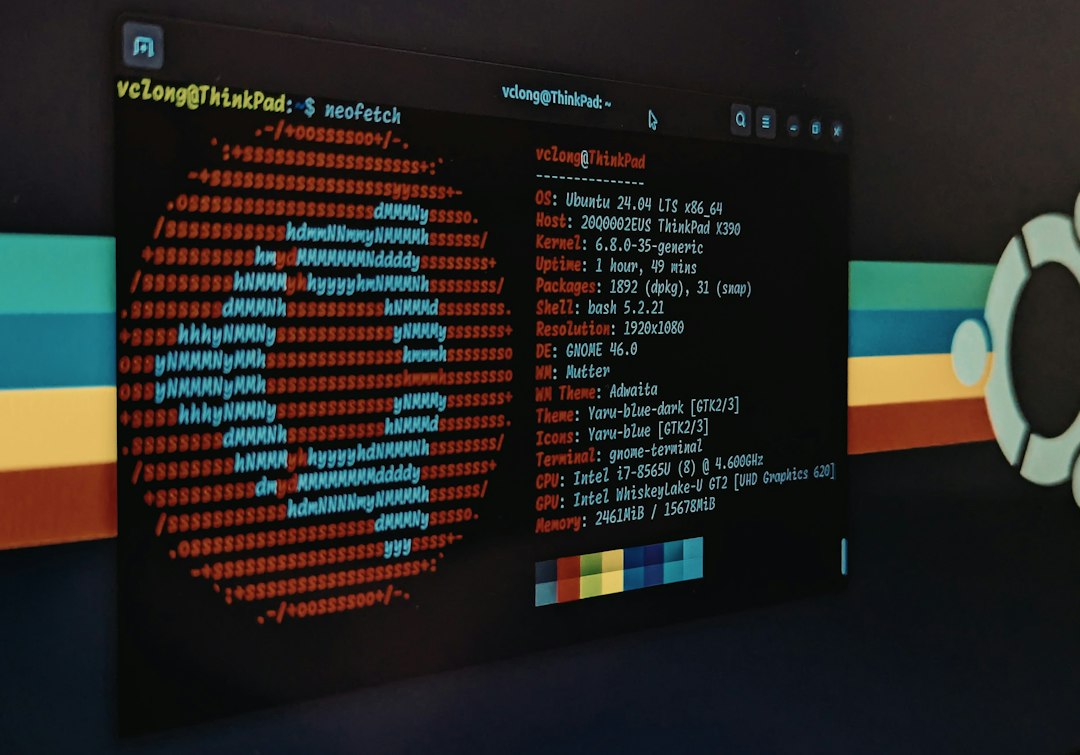
ssh username@server_ipThat is the beauty of it. No web panel. No extra browser tab. No waiting for dashboards to load. Just a shell prompt.
OpenSSH is best for:
- Experienced admins who live in the terminal.
- Automation with scripts, Ansible, rsync, and cron jobs.
- Low resource servers with limited RAM or CPU.
- Remote repair when the web stack is broken.
- Secure file transfers with
scporsftp.
The catch is that SSH assumes you know what you are doing. A mistyped command can break a service in seconds. It also gives no friendly dashboard. If you want graphs, logs, storage views, or user panels, you build that yourself or add another tool.
Cockpit on Ubuntu: remote admin in a browser
Cockpit is a web-based Linux admin console. It lets you manage a server from a browser. You can view system load, storage, services, logs, networking, user accounts, and software updates. It runs on port 9090 by default [source: Cockpit].
Install it on Ubuntu with:
sudo apt update
sudo apt install cockpit
sudo systemctl enable --now cockpit.socket
Then open:
https://server_ip:9090Log in with a local Ubuntu user account. If that user has sudo rights, Cockpit can perform admin tasks.
Cockpit is useful because it shows the server in plain English. You can see failed services without typing systemctl --failed. You can inspect logs without remembering journalctl flags. You can check disk usage before a full partition ruins your week.
Honestly, it feels like Cockpit saves time during simple checks, but adds a few extra seconds when all you needed was one command. Opening a browser, accepting a certificate warning, and logging in can take 10 to 20 seconds longer than typing an SSH command.

OpenSSH vs Cockpit: which one should you use?
Use OpenSSH when speed matters. It is the better primary access method. It works across almost every Linux setup. It is also easier to lock down with keys, firewall rules, and two-factor add-ons.
Use Cockpit when visibility matters. It helps when the person working on the server is not a daily Linux user. It also helps during handoffs. A teammate can see service status, logs, and storage without asking, “What command shows that again?”
| Feature | OpenSSH | Cockpit |
| Interface | Terminal | Web browser |
| Best for | Admins, scripts, repairs | Monitoring, basic tasks, teams |
| Resource use | Very low | Higher, but still modest |
| Learning curve | Medium to high | Low to medium |
| Automation | Excellent | Limited |
Security basics you should not skip
Do not expose remote tools carelessly. It drives me crazy that many fresh servers still allow password SSH logins from the public internet. That is asking for bot traffic.
Start with these steps:
- Use SSH keys instead of passwords.
- Disable root SSH login in
/etc/ssh/sshd_config. - Allow only needed users with
AllowUsers. - Use UFW to restrict ports.
- Keep Ubuntu updated with security patches.
- Put Cockpit behind a VPN if possible.
If you manage staff devices, app access, and accounts as well as Linux servers, this is where broader IT management platforms may fit better. OpenSSH and Cockpit manage servers. They do not replace full device administration or employee access controls.
For schools, the same idea applies. A Linux server may run file shares, web apps, or student tools, but the office may still need school administration software for records, billing, and communication.

Best practical setup
The smartest Ubuntu setup is not OpenSSH or Cockpit. It is usually both.
Enable OpenSSH for core administration. Lock it down with keys. Keep it available for repairs, automation, and emergency access. Then add Cockpit for visual checks, service restarts, and quick reviews by less technical teammates.
If the server is tiny, skip Cockpit. If the team is mixed, install it. If security rules are strict, place Cockpit behind a VPN and expose only SSH with key-based login. That gives you speed, control, and a friendlier view without turning remote administration into a mess.