


When an iOS update goes smoothly, you barely notice it. But when it fails, it can feel like your digital life just vanished. Contacts disappear, photos won’t load, apps won’t open, and in worst-case scenarios, your iPhone gets stuck in recovery mode. The good news? In most cases, your data is not permanently lost. With the right steps, you can recover your information and get your device back to normal.
TL;DR: iPhone data loss after an iOS update failure is common but often reversible. If you’ve backed up your device to iCloud or a computer, restoration is usually straightforward. Even without a backup, third-party recovery tools can often retrieve photos, messages, and other data. Acting quickly and following the correct recovery path significantly improves your chances of success.
Let’s walk through what causes data loss during updates, what you should do immediately, and the most effective recovery methods available.
Why iOS Updates Sometimes Fail
Apple invests heavily in making updates seamless, but failures still happen due to:
- Insufficient storage space
- Interrupted internet connection
- Low battery during installation
- Software conflicts or corrupted files
- Beta version instability
When an update is interrupted or fails mid-process, the device can enter recovery mode, display the Apple logo indefinitely, or reboot continuously. In some cases, you may be forced to restore the device, which risks data loss if no backup exists.

First Steps After an Update Failure
Before attempting advanced recovery, follow these critical steps:
- Do not factory reset immediately. This can overwrite recoverable data.
- Check iCloud.com to see if your contacts, photos, and notes are still synced.
- Connect to your computer and open Finder (macOS Catalina and later) or iTunes (older macOS/Windows).
- Create a backup in its current state if possible.
Even a partial backup may preserve important information.
Recovering from an iCloud Backup
If you previously enabled iCloud Backup, recovery is fairly simple:
- Go to Settings > General > Transfer or Reset iPhone.
- Select Erase All Content and Settings.
- During setup, choose Restore from iCloud Backup.
- Sign in and select the most recent backup.
Important: The backup must have been created before the failed update occurred.
Pros of iCloud Recovery
- Wireless and convenient
- Automatically saves photos, messages, app data
- No computer required
Cons
- Limited free storage (5GB)
- Backup may be outdated
- Slow restore depending on internet speed
Recovering from Finder or iTunes Backup
If you regularly back up your iPhone to a Mac or PC, this is often the fastest and most complete recovery method.
Steps:
- Connect your iPhone to the computer.
- Open Finder or iTunes.
- Select your device.
- Click Restore Backup.
- Choose the most relevant backup file.
This method typically restores:
- Photos and videos
- App data
- Messages and iMessage history
- Call logs
- Device settings
If your phone is stuck in recovery mode, you may need to choose Update first rather than Restore, as Restore erases the device completely.

No Backup? Third-Party Recovery Tools
If you never created a backup, all hope is not lost. Several reputable recovery tools can scan your device and retrieve accessible data fragments directly from internal storage.
Popular iPhone Data Recovery Tools
| Tool | Best For | Recovery Modes | Ease of Use |
|---|---|---|---|
| Dr Fone | Beginner friendly recovery | Device scan, iTunes, iCloud | Very Easy |
| iMobie PhoneRescue | Deep data extraction | Device, backup, iCloud | Easy |
| Tenorshare UltData | Selective data recovery | Direct device recovery | Moderate |
| iMyFone D Back | Recover without full restore | iOS device and backups | Easy |
What These Tools Can Recover
- Deleted photos and videos
- Messages and WhatsApp chats
- Contacts
- Notes
- Safari history
- App documents
Keep in mind that success rates vary depending on:
- How soon you attempt recovery
- Whether new data has overwritten old files
- Extent of corruption from the failed update
Recovering Data from iCloud Without Full Restore
One lesser-known option involves logging into iCloud.com from a browser. You may be able to manually retrieve:
- Photos from iCloud Photos
- Contacts
- Calendar entries
- Notes
- Files in iCloud Drive
This method is especially helpful if you only need specific items rather than a full device rollback.
What If Your iPhone Is Stuck in Recovery Mode?
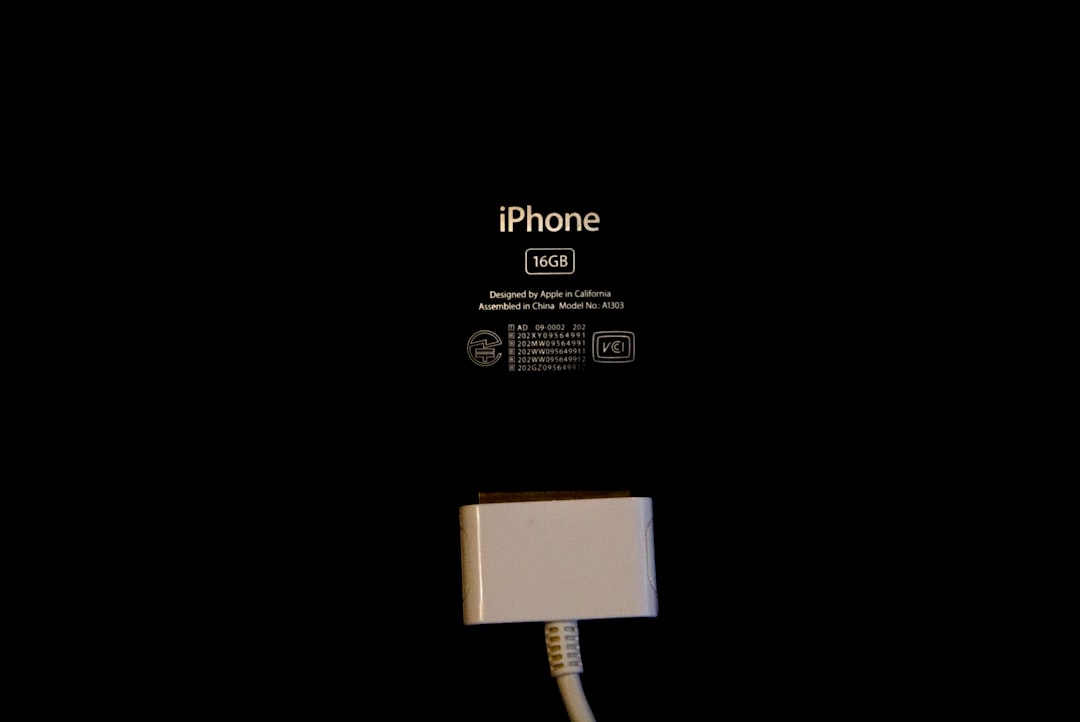
If the screen shows a cable pointing toward a computer, your device is in recovery mode. You have two options:
- Update: Attempts to reinstall iOS without deleting data.
- Restore: Erases everything and installs the latest iOS version.
Always try Update first. If it fails, restoration may be your only choice.
Advanced Option: Using DFU Mode
Device Firmware Update (DFU) mode is a deeper restore option that reloads both firmware and software. It can fix severe update corruption but does erase data unless you have a backup to restore afterward.
This method is recommended only when:
- Your iPhone won’t boot at all
- Standard recovery mode fails
- The device is bricked after a beta update
How to Prevent Future Update Data Loss
Prevention is much easier than recovery. Before installing any future iOS update:
- Create both iCloud and computer backups.
- Ensure at least 50% battery or connect to power.
- Free up extra storage space.
- Use stable Wi Fi.
- Avoid installing beta updates on your primary device.
Pro Tip: Keeping dual backups (cloud and local) dramatically improves recovery flexibility.
Common Myths About iPhone Data Loss
Myth 1: Data is permanently deleted immediately.
Reality: Deleted data often remains recoverable until overwritten.
Myth 2: Apple Support can always restore your files.
Reality: Apple cannot access or restore personal user data without backups.
Myth 3: Factory reset will fix everything safely.
Reality: Resetting without backup risks permanent loss.
How Long Do You Have to Recover Data?
Time is critical. When your iPhone loses data due to update failure:
- Avoid installing new apps.
- Do not record new videos.
- Minimize device usage.
New data can overwrite deleted fragments, making third-party recovery impossible.
When Recovery Isn’t Possible
Unfortunately, there are situations where recovery may not succeed:
- No backup exists
- Device storage has been overwritten
- Severe hardware failure occurred
- Encryption key corruption
While rare, these scenarios remind us why routine backups are essential.
Final Thoughts
An iOS update failure can feel catastrophic, especially when photos, contacts, and messages suddenly disappear. But in most cases, your data isn’t truly gone — it’s simply inaccessible. Whether through iCloud, Finder backups, or specialized recovery software, there are multiple pathways to getting your information back.
The key is to stay calm, avoid rash decisions like immediate factory resets, and methodically explore recovery options. The faster you act — and the less you use the device — the higher your success rate.
And once your data is restored? Make backups a habit. Because the best recovery strategy is making sure you never need one in the first place.