

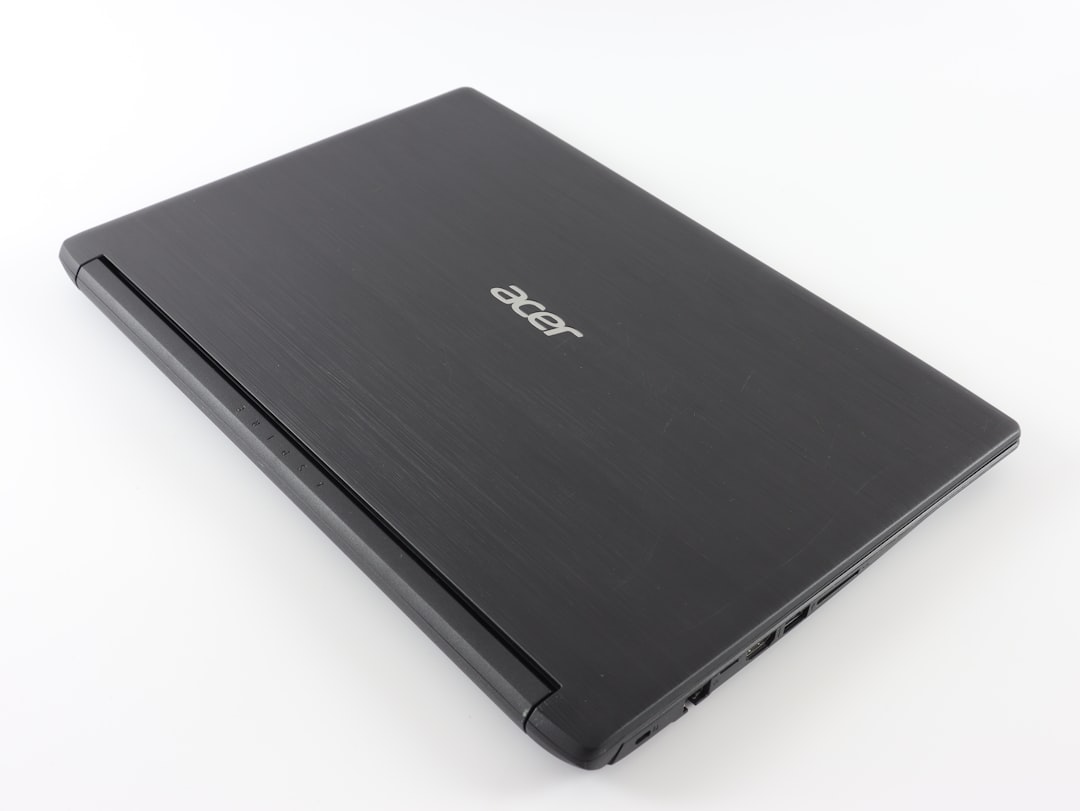
Taking a screenshot is one of the most essential skills for modern computer users, especially when working on an Acer Windows laptop. Whether you need to save a confirmation screen, capture an error message for support, or share part of your work with a colleague, knowing how to take a screenshot efficiently can save time and enhance productivity. Fortunately, Windows provides multiple built-in methods to take screenshots, and Acer laptops fully support each of these functionalities.
TL;DR
If you’re trying to take a screenshot on your Acer Windows laptop, the fastest method is pressing the PrtScn key to copy the entire screen to the clipboard. For more control, use Windows + Shift + S to open the Snipping Tool for selecting portions of your screen. You can also save screenshots directly to a file using Windows + PrtScn. All these methods are built into Windows, with no additional software required.
1. Using the Print Screen Button (PrtScn)
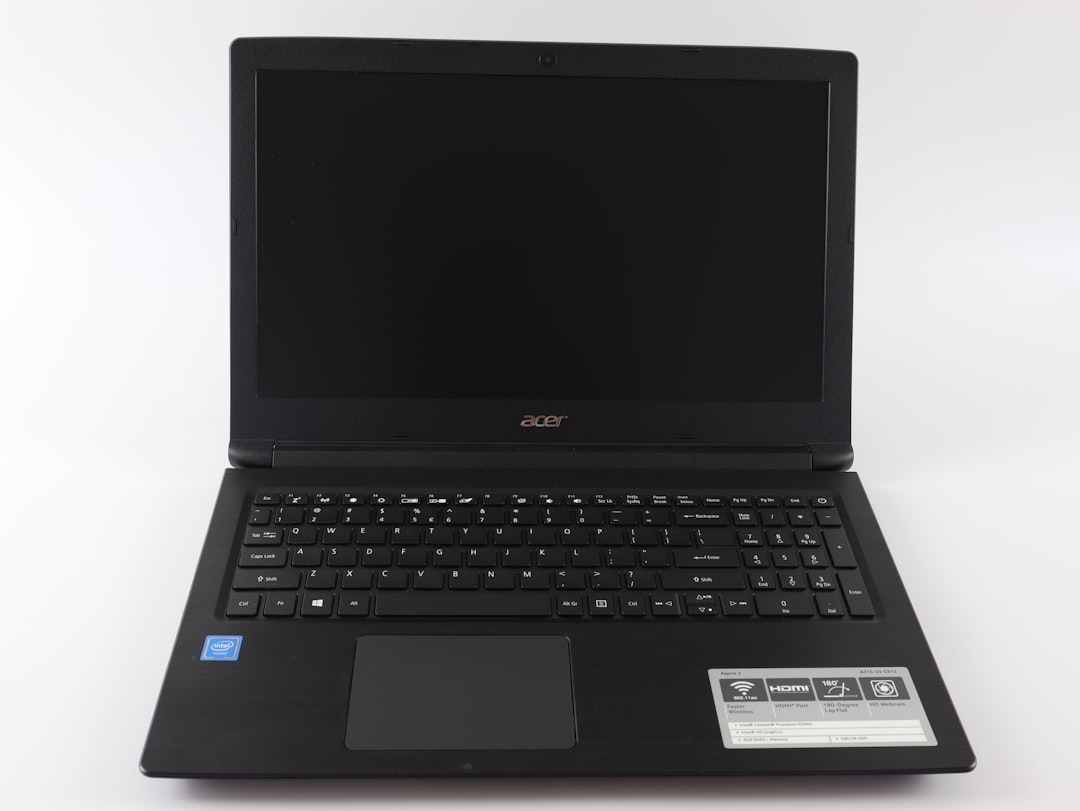
Most Acer laptops have a dedicated Print Screen key, abbreviated as PrtScn. This button is usually found in the top row of the keyboard, often near the F12 key or to the right of the F keys.
When you press PrtScn by itself:
- The system captures the entire screen, including all monitors if you’re using dual displays.
- The captured image is copied to the system’s clipboard.
- You must open an image editing tool such as Microsoft Paint or a word processor, then use Ctrl + V to paste the screenshot and save it.
This method is fast but requires an extra step to save the image. It is ideal for quickly sharing something via chat or email that you can paste directly.
2. Saving a Screenshot Directly: Windows + PrtScn
If you’d prefer to skip the copying and saving steps, press Windows Key + PrtScn simultaneously on your keyboard. This method instantly saves the screenshot as a file.
Here’s what happens:
- The full screen is captured immediately.
- The image is saved in Pictures > Screenshots as a PNG file.
- This method is best for systematic data collection or creating documentation.
On some Acer laptop models, you may need to press Fn + Windows + PrtScn if the PrtScn button is a secondary function key.
If you’re unsure whether your laptop captured the screenshot, a brief dimming of the screen is a clear indicator.
3. Using Snip & Sketch or the Snipping Tool
Windows 10 and Windows 11 come with enhanced tools for taking custom screenshots. The most helpful among them are the Snip & Sketch tool and the classic Snipping Tool. These tools allow more control and flexibility:
How to Launch Snip & Sketch (Windows 10 and 11)
Use the shortcut Windows + Shift + S. Your screen will dim slightly and present different snipping options at the top of the screen, such as:
- Rectangular Snip – Draw a box for a specific region.
- Freeform Snip – Draw a custom shape with your mouse.
- Window Snip – Select a specific application window.
- Full-screen Snip – Capture the whole screen.
Once you capture the snip, it is copied to the clipboard and a notification appears. You can click it to open and edit or annotate the screenshot within the Snip & Sketch interface.
Accessing the Classic Snipping Tool
On older Acer laptops or if you prefer a graphical interface, search for “Snipping Tool” in the Start Menu. It provides similar functionality but is gradually being replaced by Snip & Sketch in newer versions of Windows.
4. Taking a Screenshot of a Specific Window
To capture a specific window, use the following shortcut:
Alt + PrtScn
This will capture only the active window on your Acer laptop and copy it to the clipboard. As with the basic PrtScn method, open Paint or another editor to paste and save the screenshot.
This method is perfect for software documentation where you only need to highlight one application window without distracting background elements.
5. Using the Game Bar for Screenshots (Built-in for Windows 10 & 11)
Windows comes with an integrated tool called the Xbox Game Bar, mainly designed for gamers but fully functional for regular screenshots too. Here’s how to use it:
- Press Windows + G to open the Game Bar.
- In the overlay, click the Camera icon or press Windows + Alt + PrtScn.
- The screenshot is automatically saved in: Videos > Captures.
This is great not only for gamers but also for capturing high-quality, time-stamped screenshots of any active application window.

6. Taking Screenshots with Third-party Applications
Although Windows provides robust built-in tools, some users may require advanced features such as scrolling capture, scheduled screenshots, or automatic uploads. Trusted third-party applications include:
- Lightshot – Simple interface with online upload features.
- Snagit – Professional-grade software for detailed editing, annotations, and video screenshots.
- ShareX – Open-source and highly customizable screenshot tool.
If your Acer laptop is used for work or content creation, these tools may offer valuable additional capabilities.
7. Quick Troubleshooting Tips
If you’re having trouble taking a screenshot on your Acer laptop, consider the following common issues:
- PrtScn not responding? Use Fn + PrtScn as some keyboards require the Fn key to activate certain buttons.
- Nothing is saved? Confirm whether you used a combination that saves automatically or only copied the image to the clipboard.
- Game Bar not appearing? Ensure it’s enabled in your system settings under Settings > Gaming > Xbox Game Bar.
8. Organizing and Managing Your Screenshots
Having a consistent approach to storing and naming your screenshots can be crucial, especially in business environments. Here are a few tips:
- Create folders by date or project to keep files organized.
- Use descriptive filenames instead of generic ones like “Screenshot (1).” For example, “Invoice_June2024.png” is better.
- Back up your screenshots to cloud services like OneDrive or Google Drive for easy access across devices.
Conclusion
Taking a screenshot on an Acer Windows laptop is straightforward thanks to a variety of built-in keyboard shortcuts and tools provided by Windows. Whether you’re using the age-old PrtScn key or the more advanced Snip & Sketch or Game Bar, there’s a method that fits every user’s needs. Understanding which option to use in different situations will make your computing experience more efficient and less frustrating. By organizing and storing your screenshots systematically, you’ll always have quick access to the visuals that matter most.
Master these methods and you’ll be using your Acer laptop like a pro in no time.