

Discovering a threat like Trojan:Win32/Vigorf.A on your Windows computer can be alarming. This detection typically indicates that malicious software has infiltrated your system and may be performing harmful actions in the background. Trojans are particularly dangerous because they disguise themselves as legitimate files while creating backdoors, stealing information, or downloading additional malware. Acting quickly and methodically is essential to protect your data and restore your system’s security.
TLDR: Trojan:Win32/Vigorf.A is a dangerous malware threat that can compromise your system and personal data. Disconnect from the internet, run a full antivirus scan in Safe Mode, and remove suspicious programs or files. Use trusted security software to complete the cleanup and ensure your system is fully updated. Finally, change passwords and monitor for unusual activity to prevent further damage.
Understanding Trojan:Win32/Vigorf.A
Trojan:Win32/Vigorf.A is classified as a Trojan horse, meaning it masquerades as legitimate software to trick users into installing it. Once active, it may:
- Download additional malware or spyware
- Steal sensitive information such as passwords or banking details
- Modify system settings and registry entries
- Disable security software
- Create remote access points for attackers
Unlike some forms of malware that immediately alert users through obvious symptoms, Trojans often operate silently. You may notice subtle signs such as system slowdowns, unexpected pop-ups, browser redirects, or unfamiliar processes running in Task Manager.
Immediate Actions to Take
If you suspect or confirm the presence of Trojan:Win32/Vigorf.A, take the following steps immediately:
- Disconnect from the Internet. Unplug your Ethernet cable or disable Wi-Fi to prevent further communication with remote servers.
- Avoid entering sensitive information. Do not log into banking, email, or other critical accounts until the threat is removed.
- Do not ignore the warning. Some users dismiss alerts as false positives. Always verify with a reputable security scan.
These early actions can significantly reduce the risk of data theft or further infection.
Step 1: Boot into Safe Mode
Safe Mode starts Windows with minimal drivers and services, preventing many forms of malware from actively running.
To enter Safe Mode on Windows 10/11:
- Click Start → Settings → System → Recovery.
- Under Advanced startup, click Restart now.
- Select Troubleshoot → Advanced options → Startup Settings.
- Click Restart.
- Press 4 or F4 for Safe Mode, or 5 for Safe Mode with Networking.
Running scans in Safe Mode improves the chances of detecting and removing hidden threats.
Step 2: Run a Full Antivirus Scan
Use a trusted and updated security solution to scan your computer. Windows Security (formerly Windows Defender) is built into Windows and can effectively detect Trojan:Win32/Vigorf.A.
To run a full scan with Windows Security:
- Open Start and type Windows Security.
- Select Virus & threat protection.
- Click Scan options.
- Choose Full scan.
- Click Scan now.
A full scan may take considerable time, depending on your system size. Allow it to complete without interruption. If the Trojan is detected, follow the recommended removal or quarantine steps immediately.
Note: If the threat persists after one scan, consider using a reputable third-party malware removal tool for a second opinion.
Step 3: Remove Suspicious Programs
Trojans often arrive bundled with seemingly legitimate applications. Review recently installed software and uninstall anything suspicious.
To uninstall programs:
- Press Windows + R, type
appwiz.cpl, and press Enter. - Review the list of installed programs.
- Look for unfamiliar or recently installed software.
- Select the suspicious program and click Uninstall.
Pay close attention to programs installed around the time you first noticed unusual behavior.
Step 4: Check Startup Programs
Many Trojans configure themselves to launch at startup.
To review startup items:
- Press Ctrl + Shift + Esc to open Task Manager.
- Click the Startup tab.
- Disable entries that appear suspicious or unknown.
Research unfamiliar startup items before disabling them to avoid disrupting legitimate system processes.
Step 5: Inspect System Files and Registry (Advanced)
This step is recommended for advanced users only. Trojans may create or modify registry entries to maintain persistence.
You can use the System File Checker tool:
- Open Command Prompt as Administrator.
- Type
sfc /scannowand press Enter.
This command scans and repairs corrupted system files. Avoid manually editing the Windows Registry unless you are confident, as incorrect changes can cause system instability.
Step 6: Clear Temporary Files
Temporary files may contain malicious remnants.
- Press Windows + R.
- Type
%temp%and press Enter. - Select all files and delete them.
Then repeat the process with temp and prefetch (administrator permission may be required).
Step 7: Reset Browsers
Some Trojans alter browser settings to redirect traffic or inject malicious ads.
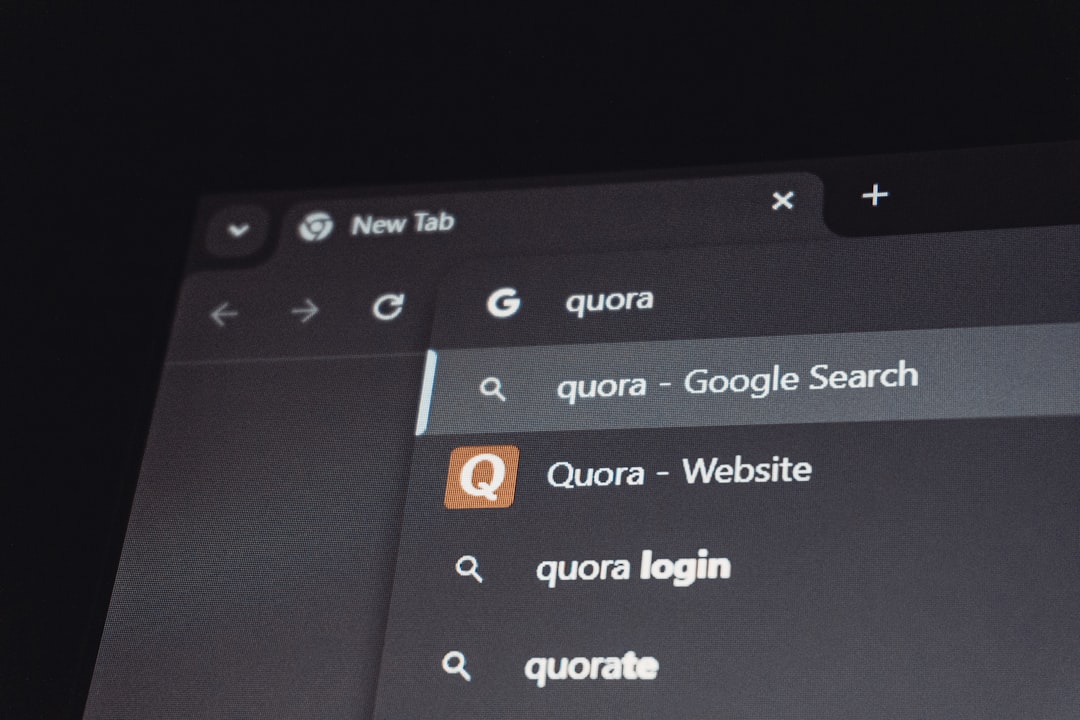
To reset most browsers:
- Open browser settings.
- Navigate to Advanced settings.
- Select Restore settings to their original defaults.
Also remove any suspicious extensions.
After Removal: Essential Security Steps
Removing the Trojan is only part of the process. You must also safeguard your accounts and data.
- Change all passwords, especially for email and financial accounts.
- Enable two-factor authentication wherever possible.
- Update Windows via Settings → Windows Update.
- Back up important data to a secure external drive or cloud storage.
- Monitor financial accounts for suspicious activity.
If you suspect sensitive data was exposed, consider contacting your financial institutions as a precaution.
When to Consider System Restore or Reset
If Trojan:Win32/Vigorf.A continues to reappear despite removal attempts, you may need stronger measures:
- System Restore: Revert Windows to a point before the infection occurred.
- Reset This PC: Reinstall Windows while keeping or removing personal files.
A complete reinstall is often the most reliable way to eliminate deeply embedded threats.
How to Prevent Future Trojan Infections
Prevention is your strongest defense. Follow these best practices:
- Download software only from official and trusted sources.
- Avoid clicking suspicious email attachments or links.
- Keep Windows and all applications updated.
- Use real-time antivirus protection at all times.
- Be cautious of pirated software and “cracked” programs.
Practicing safe browsing habits significantly reduces the risk of encountering Trojans like Vigorf.A.
Final Thoughts
Trojan:Win32/Vigorf.A is a serious security threat that should never be ignored. While removal can be accomplished using built-in Windows tools and reputable antivirus software, thoroughness is critical. Carefully follow each step, ensure your system is fully updated, and verify that no suspicious behavior remains.
If you feel uncertain at any stage, seeking assistance from a certified IT professional may be the safest course of action. Cyber threats continue to evolve, but with vigilance, proper tools, and proactive security practices, you can restore your system’s integrity and protect your data against future attacks.