

The fastest fix is to remove “PC App Store” from Windows Settings first, then use a malware removal tool if the pop-ups return. Microsoft says Windows apps can be removed through Settings > Apps > Installed apps, which should be the first stop for a visible unwanted program [source: Microsoft]. If the alerts keep coming back, the problem is likely adware, a browser extension, or a background task. That is when a scanner earns its keep.
TLDR: Windows Settings works well when PC App Store is a normal installed app. Malware removal tools are better when pop-ups return after uninstalling, open random web pages, or appear every 10 to 15 minutes. For example, in a small office with 12 Windows PCs, a Settings clean-up may take about 5 minutes per device, while a full malware scan can take 20 to 45 minutes but finds hidden leftovers. The smart order is simple: uninstall, disable notifications, check startup, then scan.
Why PC App Store Pop-Ups Appear
PC App Store pop-ups usually come from one of three places. The first is the actual PC App Store program. The second is browser notification spam. The third is adware hiding behind a different name.
It drives many users crazy because the pop-up often looks like a regular update alert. It may claim apps are outdated. It may push “recommended” downloads. Some versions appear right after boot, which makes the PC feel infected even before a browser opens.
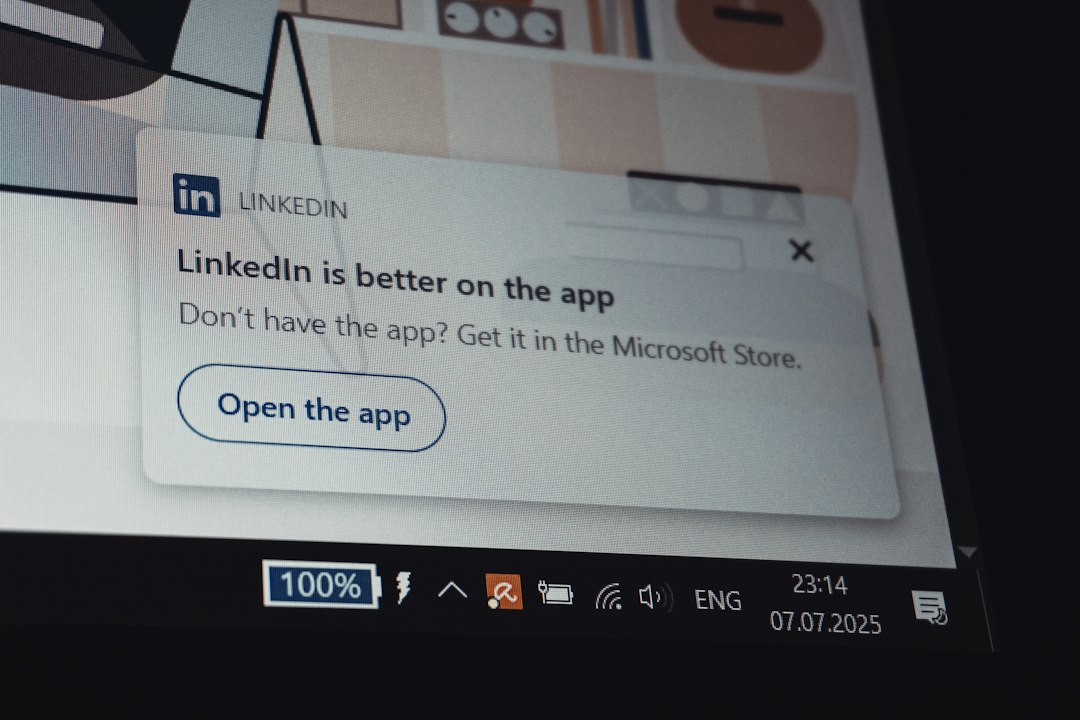
Not every pop-up means the computer is in danger. Still, these alerts should not be ignored. They can lead to extra installers, fake update pages, or bundled software. That is how one annoying notice turns into five unwanted programs.
Option 1: Remove It with Windows Settings
Windows Settings should be the first method when PC App Store appears in the installed apps list. It is built into Windows, quick, and does not require another download.
- Open Settings.
- Go to Apps.
- Select Installed apps.
- Search for PC App Store.
- Click the three dots and choose Uninstall.
- Restart the PC.
After restart, the user should check whether the pop-ups stop. If they do, the issue was likely a standard unwanted app. This is the best-case result.
Windows Settings can also reduce pop-ups from allowed apps. The user can open Settings > System > Notifications and turn off alerts for suspicious apps. This helps when the program is not dangerous but still noisy.
The catch is that Settings only removes what Windows can clearly see. If adware installed browser extensions, scheduled tasks, or extra services, Settings may miss them. The main app goes away, but the pop-ups creep back later.
Option 2: Use Malware Removal Tools
Malware removal tools are the better choice when the pop-ups survive uninstalling. They can scan folders, startup entries, browser settings, registry items, and hidden background processes.
Windows Security is a good first scan because it is already included with Windows. A user can run it from Windows Security > Virus & threat protection > Scan options. A Full scan is slower, but it checks more locations than a quick scan.
Third-party malware tools can also help, especially when the issue is adware or a potentially unwanted program. Microsoft describes potentially unwanted apps as software that may cause ads, slowdowns, or unexpected extra installs [source: Microsoft].
Honestly, it feels like overkill to run a 40-minute scan for one pop-up. But if the alert returns after removal, the scan saves time in the end. Repeating the same uninstall three times is worse.
Windows Settings vs Malware Tools: Which Should Be Used?
The right choice depends on the symptoms.
- Use Windows Settings if PC App Store is listed under installed apps.
- Use Windows Settings if the pop-up only appears as a normal app notification.
- Use a malware tool if the pop-up returns after uninstalling.
- Use a malware tool if browsers open random tabs or search pages.
- Use both if the PC feels slower, shows new toolbars, or has unknown apps.
For most users, the best order is this: uninstall the app, remove notification rights, check browser extensions, then scan. That order avoids wasted effort. It also reduces the risk of installing another tool when Windows alone can fix the issue.
Extra Places to Check
If the pop-ups continue, the user should check the browser. Chrome, Edge, and Firefox can allow websites to send notifications. A shady site can send alerts that look like system messages.
Browser extensions should be reviewed too. Any extension with a vague name, poor spelling, or no clear use should be removed. Search settings should also be checked. Adware often changes the default search engine.
Startup apps are another common hiding spot. In Windows, Task Manager > Startup apps shows programs that launch with the PC. If PC App Store or a strange updater appears there, it should be disabled.
Safe Removal Tips
- Do not click the pop-up to “fix” the issue.
- Do not download tools promoted by the pop-up itself.
- Restart after uninstalling.
- Run one trusted scanner at a time.
- Back up key files before major cleanup.
If a work computer is involved, the user should contact IT. Business devices may have admin rules, remote management, or approved security tools. Random removals can break required software.
FAQ
Is PC App Store a virus?
Not always. It may be a potentially unwanted app. Still, its pop-ups can lead to risky downloads, so removal is a good idea.
Can Windows Settings remove all PC App Store pop-ups?
Only if the pop-ups come from the installed app or normal notifications. Hidden adware may need a malware scan.
Why do pop-ups come back after uninstalling?
Leftover startup entries, browser notification permissions, extensions, or scheduled tasks may still be active.
Should a user pay for a removal tool?
Not at first. Windows Security and trusted free scanners can often remove basic adware. Paid tools may help with repeated infections.
What is the safest first step?
The safest first step is to uninstall PC App Store through Windows Settings, restart, then run a full security scan if anything returns.