

If you think your iPhone has malware, update iOS first, remove unknown profiles and apps, check your Apple ID, then erase the phone only if the problem continues. iPhone malware is rare, but it is not fake. Apple says Lockdown Mode is made for people who may be targeted by highly skilled spyware attacks [source: Apple].
TLDR: Most “infected iPhone” cases are not classic viruses. They are usually bad configuration profiles, calendar spam, fake pop ups, unsafe Wi Fi, or a stolen Apple ID. For example, if Safari keeps showing fake virus warnings, clearing website data and removing shady calendar subscriptions may fix it in under 5 minutes. Apple’s built in security blocks a lot, but apps like iVerify, Malwarebytes, Lookout, and Avast Mobile Security can help spot risky settings, leaked passwords, scam links, and signs of tampering.
First, know what “malware” looks like on an iPhone
An iPhone does not work like a Windows PC. Apps are sandboxed, which means one app has limited access to the rest of the phone. That is good. It also means mobile security apps cannot scan every file in the same way desktop antivirus tools can.
Still, warning signs matter. Watch for:
- Unknown apps you did not install.
- Pop ups claiming your iPhone has “27 viruses.”
- Battery drain that starts suddenly.
- Strange calendar alerts or spam events.
- A VPN or device profile you do not recognize.
- Your Apple ID showing logins from unknown devices.
- Websites redirecting you to scams.
Honestly, it feels like half of iPhone “virus” scares are just aggressive ads pretending to be Apple. Do not tap them. Close the tab.

How to remove malware or suspicious changes from an iPhone
- Update iOS. Go to Settings > General > Software Update. Install the latest version. Security fixes often close holes used by spyware and scam apps.
- Restart the iPhone. A reboot can stop temporary malicious processes. It will not fix everything, but it is quick and worth doing.
- Delete unknown apps. Press and hold the app icon, then tap Remove App. If you do not remember installing it, remove it.
- Check profiles and VPNs. Go to Settings > General > VPN & Device Management. Remove profiles you do not trust. This is a big one. Bad profiles can control network traffic or settings.
- Clear Safari data. Go to Settings > Safari > Clear History and Website Data. This removes many scam pop up loops.
- Remove spam calendars. Go to Settings > Calendar > Accounts. Delete unknown subscribed calendars.
- Change your Apple ID password. Use a strong, unique password. Turn on two factor authentication if it is not already active.
- Review trusted devices. Go to Settings > your name. Scroll down and remove devices you do not recognize.
- Check app permissions. Go to Settings > Privacy & Security. Review location, camera, microphone, contacts, and photos.
If the iPhone still behaves strangely, back up key files, then use Settings > General > Transfer or Reset iPhone > Erase All Content and Settings. Set it up as new if you suspect spyware. Restoring a full backup may bring the bad setting back.
What Apple security already does well
Apple gives iPhone users strong default protection. App Store review, app sandboxing, permission prompts, Face ID, passcodes, system encryption, and security updates all reduce risk. For most people, these protections are enough if the phone is updated and the Apple ID is secure.
Apple also offers Lockdown Mode. This is not for everyone. It limits some features to reduce targeted spyware risk. Use it if you are a journalist, activist, executive, lawyer, public official, or someone with a real reason to fear targeted attacks.
The catch is that Apple’s tools do not always explain what went wrong. You may see weird behavior, but the phone will not always say, “This profile is risky.” That is where mobile protection apps can help.
Where iVerify fits
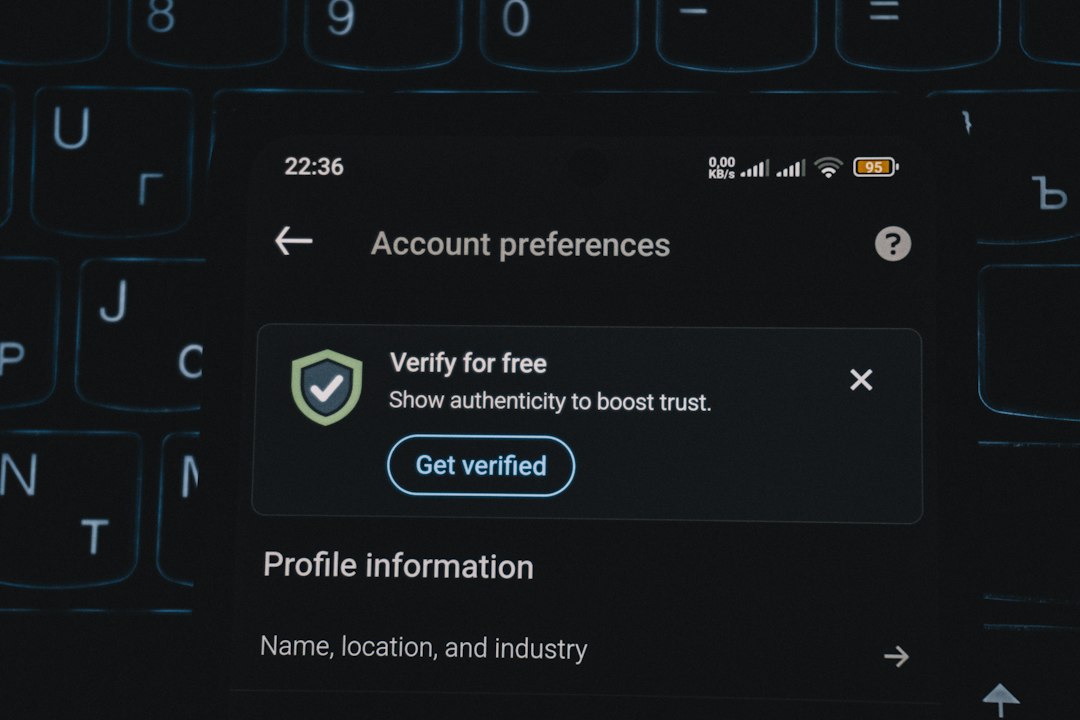
iVerify is not a magic malware remover. No iPhone app is. But it can be useful because it checks security settings, looks for signs of jailbreak or tampering, and gives clear steps to improve protection. It is built for people who want a more serious mobile security check without guessing through every menu.
iVerify is strongest in these areas:
- Security checkups: It flags weak settings and risky choices.
- Device integrity checks: It can warn about signs linked to compromise.
- Guided fixes: It tells users what to change next.
- Threat education: It explains common attack methods in plain terms.
It is less useful if you expect one big “scan and delete” button. iOS does not allow that kind of deep scan for normal apps.
Other mobile protection apps: useful, but limited
Apps like Malwarebytes Mobile Security, Lookout, Norton 360, McAfee Security, and Avast Mobile Security can add helpful layers. Many focus on phishing links, unsafe Wi Fi, identity alerts, VPN features, and breach monitoring.
These tools can help if you often use public Wi Fi, click links from text messages, or manage work accounts on your phone. They are also helpful for families, since scam texts and fake delivery links are now common.
But be realistic. A mobile protection app cannot break Apple’s sandbox rules. It cannot inspect every private app folder. It cannot promise to remove advanced spyware with one tap. If an app claims that, be skeptical.
Apple security versus iVerify and similar apps
| Protection | Best for | Main limit |
|---|---|---|
| Apple built in security | Blocking most common threats by default | Can be hard to interpret when something feels wrong |
| iVerify | Security checks, risk signs, guided hardening | Not a classic antivirus scanner |
| Other protection apps | Phishing defense, VPN, identity alerts, unsafe Wi Fi warnings | Quality varies, and some features cost extra |
When to get expert help
Get help if you are being stalked, threatened, or targeted because of your job. Also get help if private messages were exposed, your Apple ID keeps changing, or unknown profiles return after removal. Contact Apple Support, your workplace security team, or a digital safety group.
For everyday users, the best plan is simple: keep iOS updated, use a strong Apple ID password, remove unknown profiles, ignore fake virus pop ups, and use iVerify or a trusted mobile security app if you want extra checks. Do not panic, but do not ignore clear warning signs either.