


The quickest way to put a tick or check mark in a PDF is to use the PDF editor’s comment, fill, or text tool, then place the symbol exactly inside the box. If the PDF is a form, use the built-in checkbox field. If it is a flat scanned document, add a check mark as text, a stamp, or a drawn mark.
TLDR: Open the PDF in a trusted editor, select a checkbox if the form supports it, or use a text tool to insert a ✓ symbol. For example, an HR assistant processing 120 onboarding forms can save about 30 to 45 minutes by using reusable check mark stamps instead of printing and scanning each file. If the document contains legal, medical, or financial details, use offline software rather than a random upload site. Always save a copy before editing.
Why Adding a Tick to a PDF Can Be Annoying
PDFs are designed to preserve layout, not always to be easy to edit. That is why a simple tick can take longer than expected. A form may have clickable boxes. Another PDF may only look like a form but is really a flat image. Honestly, it feels like some PDFs were built to waste 90 extra seconds on the smallest task.
The method you choose depends on the type of PDF:
- Interactive form: You can click the checkbox directly.
- Flat PDF: You need to add a symbol, stamp, or drawing.
- Scanned PDF: You may need annotation tools or optical character recognition before editing.
- Signed PDF: Editing may break or invalidate the signature.
Method 1: Use a Built-In Checkbox Field
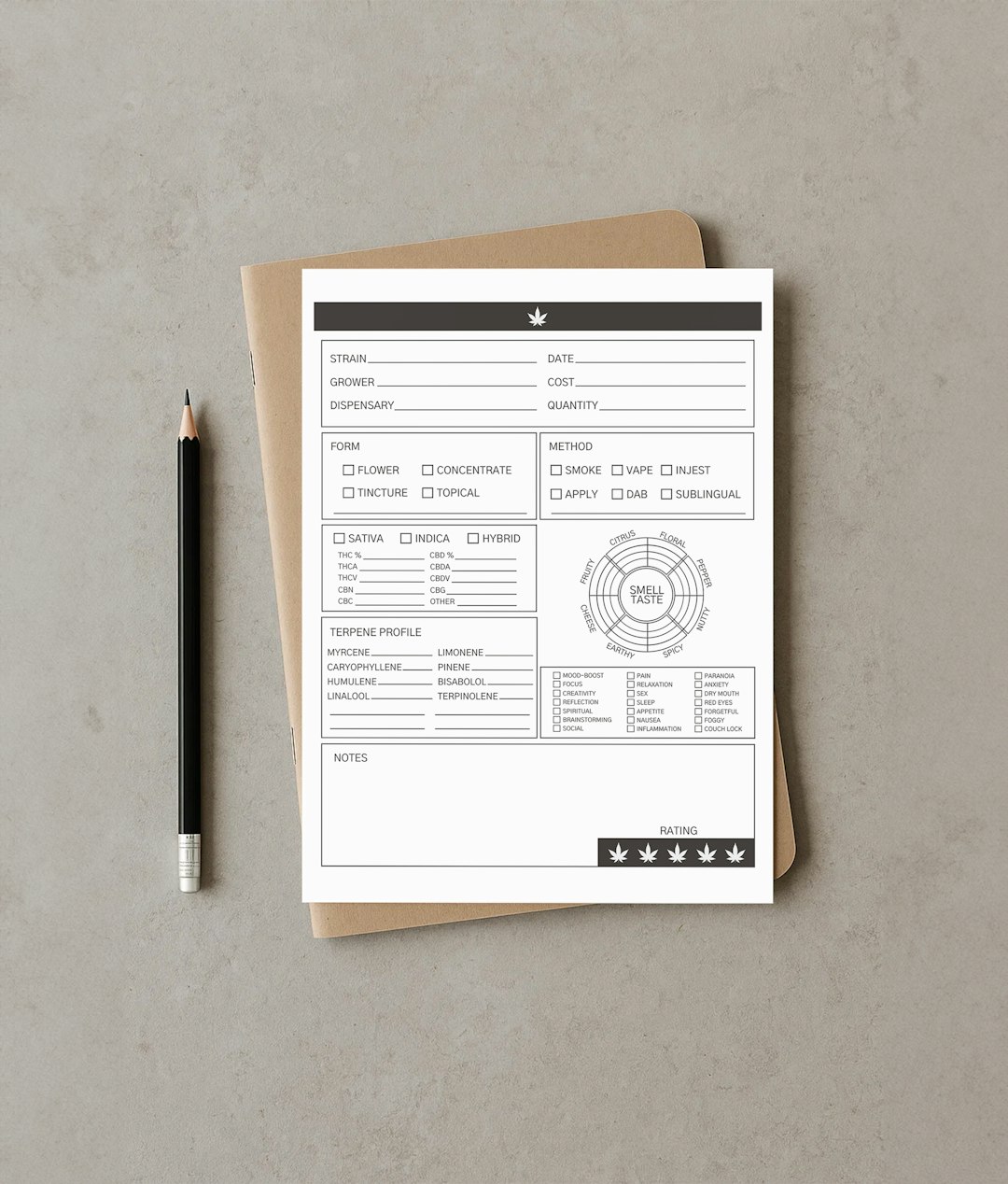
This is the cleanest option. If the PDF was created as a fillable form, the checkbox should respond when you click it.
- Open the PDF in a reputable PDF reader or editor.
- Move your cursor over the checkbox.
- Click once inside the box.
- Confirm that a tick, cross, or filled mark appears.
- Save the completed file under a new name.
If nothing happens, the PDF is probably not interactive. The boxes may just be printed shapes on the page. In that case, use one of the methods below.
Method 2: Add a Check Mark with the Text Tool
The text tool works well when the PDF is flat but still allows comments or annotations. You simply add the check mark as a character.
- Open the PDF.
- Select Text, Add Text, or Comment, depending on the app.
- Click inside the checkbox area.
- Type ✓ or ✔.
- Adjust the font size so the mark fits neatly.
- Set the color to black, blue, or another required color.
- Save the file.
You can copy these symbols directly: ✓ ✔ ☑. The plain tick ✓ is usually the safest choice because it looks professional and prints clearly.
If the symbol appears as a square or odd character, change the font. Fonts such as Arial, Segoe UI Symbol, Helvetica, and DejaVu Sans usually handle the character well.
Method 3: Use the Stamp Tool
Many PDF editors include stamps. Some have a ready-made check mark stamp. Others let you create one.
This is useful if you need to mark many boxes across several pages. It drives me crazy when a document has 40 checkboxes and no working fields. A reusable stamp fixes that problem fast.
- Open the Stamp or Comment panel.
- Select a check mark stamp, if available.
- Click where the tick should appear.
- Resize or move the stamp as needed.
- Repeat for other boxes.
For office workflows, stamps are often more consistent than freehand drawing. They also look cleaner when printed or archived.
Method 4: Draw the Tick by Hand
If you only need a quick mark, use the drawing or pencil tool. This works best on tablets and touchscreens, but it can also work with a mouse.
- Select Draw, Pencil, or Ink.
- Choose a thin line width.
- Draw the tick inside the box.
- Undo and retry if it looks messy.
Use this method for casual documents, internal reviews, or drafts. For formal files, a text symbol or stamp usually looks better.
How to Do It in Common PDF Tools
Adobe Acrobat Reader or Acrobat Pro
Open the file and try clicking the checkbox first. If it is not interactive, select Fill & Sign, then choose the check mark option. Place it over the box and resize it. Acrobat is reliable for this task, but some menus are buried deeper than they should be.
Preview on Mac
Open the PDF in Preview. Click the Markup button, then use the text tool or shapes. Type ✓ into a small text box and drag it into place. Preview is simple, free, and suitable for most personal forms.
Microsoft Edge
Edge can open PDFs and allows basic annotations. Use the drawing tool for a handwritten tick, or use text if your version supports adding text boxes. It is fine for quick checks, but not ideal for precise form completion.
Google Drive and Browser-Based Editors
Some browser tools let you add text, marks, or drawings. They are convenient, but use caution. Do not upload tax forms, ID scans, bank documents, contracts, or medical records to unknown services. Check the privacy policy first. Better yet, use offline software for sensitive files.
iPhone, iPad, and Android
On iPhone or iPad, open the PDF and use Markup. Add text, a signature, or a drawn tick. On Android, a PDF app such as Adobe Acrobat, Xodo, or Foxit usually offers annotation tools. A stylus makes the mark cleaner, but text symbols are still more consistent.
How to Keep the Tick in the Right Place
Placement matters. A careless check mark can create confusion, especially on compliance forms, insurance documents, consent forms, or employment paperwork.
- Zoom in before placing the tick.
- Use a small font size, often between 12 and 18 points.
- Match the document style if other marks are already present.
- Do not cover nearby text or form labels.
- Print preview the document before sending it.
If the tick shifts after saving, flatten the PDF. Flattening turns annotations into fixed page content. This reduces the chance that the mark moves or disappears when opened in another app.
When a Tick Is Not Enough
A check mark is not the same as a digital signature. Ticking a box may confirm a choice, but it may not prove identity or intent. If the file is a contract, legal consent, government form, or regulated business document, follow the required signing process.
Use a proper e-signature tool when the document requires:
- Signer identity records
- A timestamp
- An audit trail
- Tamper evidence
- Long-term document retention

Best Practice Checklist
- Keep the original file. Save edits as a copy.
- Use a standard check mark symbol. Avoid decorative marks.
- Use offline tools for sensitive PDFs. Privacy matters.
- Flatten annotations before sending final documents.
- Open the file after saving to verify the tick appears correctly.
- Confirm legal requirements before relying on a tick as consent.
Final Advice
For most PDFs, the best approach is simple: try the checkbox first, then use Fill & Sign, a text symbol, or a stamp if the box is not interactive. Use drawing only when speed matters more than appearance. For official records, keep the file clean, readable, and secure. A small tick can carry real meaning, so place it carefully and save the final version properly.