


Knowing your printer’s IP address is essential when you need to add a printer to a computer, troubleshoot a connection problem, configure advanced settings, or allow multiple devices on the same network to print reliably. A printer’s IP address is its network identifier, similar to a mailing address, and it tells computers, phones, and routers where to send print jobs. While the steps vary slightly depending on the printer brand, operating system, and network setup, the process is usually straightforward if you know where to look.
TLDR: You can usually find your printer’s IP address from the printer’s built-in screen, a printed network configuration page, your computer’s printer settings, or your router’s connected devices list. On Windows, check Printer Properties or the printer port; on macOS, check Printers & Scanners. If the printer has a display, the IP address is often listed under Network, Wireless, or TCP/IP settings. For the most reliable result, compare the address shown on the printer with the one shown in your router or computer settings.
What Is a Printer IP Address?
A printer IP address is a numerical label assigned to a printer when it connects to a network. It usually looks like 192.168.1.45 or 10.0.0.23. This address allows other devices on the same network to locate and communicate with the printer.
Most home and office printers receive an address automatically from the router using DHCP, which stands for Dynamic Host Configuration Protocol. In practical terms, your router gives the printer an available address when it joins the network. Some offices use a static IP address, meaning the printer keeps the same address permanently. Static addresses are useful in business environments because they reduce the chance of connection problems when multiple people rely on the same printer.
It is important to understand that a printer IP address is not the same as a serial number, model number, or email address. It is specifically a network address used for communication within your local network.
Method 1: Check the Printer’s Display Screen
If your printer has a built-in display, this is often the fastest and most direct way to locate its IP address. The exact menu names vary by manufacturer, but most modern printers place network details in a settings or wireless menu.
On the printer’s control panel, look for menu options such as:
- Settings
- Network Settings
- Wireless Settings
- Wi Fi Status
- TCP/IP Settings
- Network Summary
Once inside the network menu, look for a line labeled IP Address, IPv4 Address, or simply Address. In most home networks, the address will begin with 192.168, 10, or 172.
If your printer is connected by Wi Fi, confirm that it is connected to the same wireless network as your computer or phone. If the printer is connected to a guest network or a different office network, your device may not be able to reach it even if the IP address is correct.
Method 2: Print a Network Configuration Page
Many printers can print a network configuration page or status report. This page usually includes the printer’s IP address, MAC address, wireless network name, connection status, and other technical details. This method is especially useful when the printer has a small screen or no display at all.
The option is typically found under a menu such as Reports, Information, Network, or Tools. Depending on the model, you may see labels such as:
- Network Configuration Page
- Wireless Network Test Report
- Printer Status Report
- Configuration Report
- System Information Page
After printing the page, look for IPv4 Address or IP Address. Avoid confusing it with the MAC Address, which is a different identifier made up of letters and numbers, often separated by colons.
This printed report is one of the most trustworthy sources because it comes directly from the printer itself. If the report says the printer is disconnected or has an address beginning with 169.254, the device may not be properly connected to your router. In that case, reconnect the printer to the network and print the report again.
Method 3: Find the Printer IP Address on Windows
Windows provides several ways to find a printer’s IP address. The steps may differ slightly between Windows 10 and Windows 11, but the general process is similar.
- Open Settings.
- Select Bluetooth & devices or Devices.
- Choose Printers & scanners.
- Select your printer from the list.
- Click Printer properties or Manage, then open printer properties.
- Go to the Ports tab.
In the Ports tab, look for a checked port that contains an IP address. It may appear as a standard TCP/IP port, such as 192.168.1.50. If the port name is not obvious, select the port and click Configure Port. The IP address may be listed under Printer Name or IP Address.
You can also check through the classic Control Panel:
- Open Control Panel.
- Select Devices and Printers.
- Right click your printer.
- Choose Printer Properties.
- Review the Ports or Web Services tab.
Some printer drivers display the IP address under the Web Services tab rather than the Ports tab. If available, this area may also show a clickable web page address for the printer’s embedded web server.
Method 4: Find the Printer IP Address on macOS
On a Mac, the printer’s IP address can usually be found in the system printer settings. The exact wording may vary depending on the macOS version, but the process is generally consistent.
- Open the Apple menu.
- Select System Settings or System Preferences.
- Choose Printers & Scanners.
- Select your printer from the list.
- Click Options & Supplies or review the printer details panel.
Look for a field labeled Location, URL, Address, or Device URI. The IP address may appear inside a longer address, such as ipp://192.168.1.45/ipp/print. In that example, the printer’s IP address is 192.168.1.45.
If you added the printer using AirPrint, macOS may show the printer name rather than a clear IP address. In that case, use the router method or print a network configuration page from the printer.
Method 5: Check Your Router’s Connected Devices List
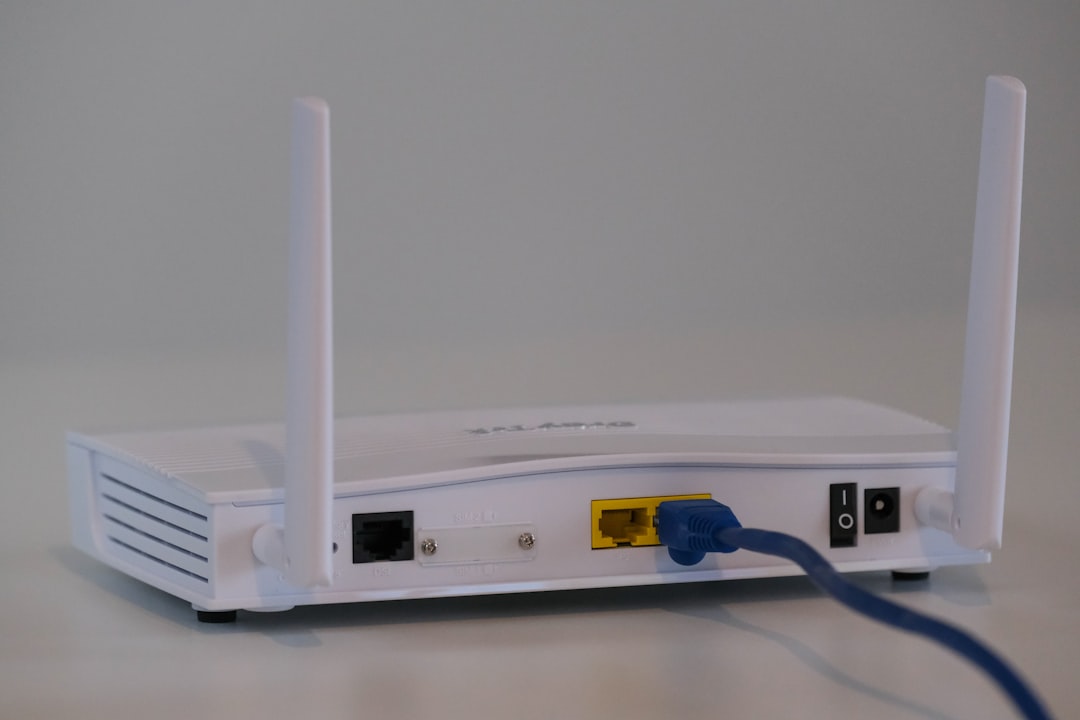
Your router keeps a record of devices connected to your network. This often includes computers, phones, tablets, smart TVs, and printers. Checking the router is useful when you cannot access the printer screen or when your computer settings do not clearly show the address.
To use this method, you need to log in to your router’s administration page. The router address is commonly 192.168.1.1, 192.168.0.1, or 10.0.0.1. You can usually find the login details on a label attached to the router, unless they have been changed.
Once logged in, look for sections named:
- Connected Devices
- Attached Devices
- Device List
- LAN Devices
- DHCP Clients
- Network Map
Find your printer by its name, manufacturer, or MAC address. The entry should show its current IP address. If several unknown devices are listed, compare the MAC address shown on the router with the MAC address printed on the printer’s network report.
Method 6: Use the Printer’s Embedded Web Server
Many network printers have an embedded web server, sometimes called an EWS. This is a built-in management page that opens in a web browser when you enter the printer’s IP address. While this method requires you to know or discover the IP address first, it is useful for confirming details and checking network configuration.
For example, if the printer IP address is 192.168.1.45, type that address into a browser on a device connected to the same network. If the printer supports a web interface, a management page should open. From there, you can often view network settings, supply levels, security settings, and firmware information.
Use caution when changing settings in the embedded web server. Incorrect network changes can make the printer temporarily unreachable. If you are in a workplace, consult your IT administrator before modifying printer configuration.
Method 7: Use Command Line Tools
For users comfortable with technical tools, command line utilities can help identify a printer’s IP address. These methods are useful in offices or troubleshooting situations, but they require careful interpretation.
On Windows, you can open Command Prompt and use:
- arp -a to display recently detected network devices
- ping to test communication with a known printer name or address
- netstat in some cases to review active connections
On macOS or Linux, you can use tools such as:
- arp -a
- ping
- lpstat -v to view printer device information
- dns-sd on macOS to browse Bonjour printer services
These commands may show device names, network addresses, or service records. However, they can be less clear than checking printer settings or the router, especially on networks with many devices.
Understanding Static and Dynamic Printer IP Addresses
If your printer’s IP address changes occasionally, it is probably using a dynamic address assigned by the router. This is normal in many homes, but it can cause problems if a computer was configured to use the printer at an old address. For example, the computer may keep sending print jobs to 192.168.1.42 even though the printer is now at 192.168.1.57.
To avoid this problem, you can reserve an IP address for the printer in your router settings. This is often called a DHCP reservation or address reservation. It tells the router to give the same IP address to the printer every time. This is usually safer than manually setting a static IP address on the printer because the router remains in control of address assignments.
In business environments, printers often use static or reserved addresses so that print servers, user computers, and administrative tools can find them consistently.
Common Problems When Locating a Printer IP Address
If you cannot find the printer’s IP address, consider the following possibilities:
- The printer is offline: Make sure it is powered on and not in an error state.
- The printer is not connected to the network: Reconnect it to Wi Fi or verify the Ethernet cable.
- Your device is on a different network: A computer on a guest network may not see the printer.
- The printer has a self assigned address: An address beginning with 169.254 usually indicates that the printer did not receive a proper address from the router.
- The printer name is unclear: Some routers identify devices by manufacturer or generic names, making them harder to recognize.
If you see more than one possible printer address, print a network configuration page and compare the details. The direct report from the printer is usually the best reference point.
Security Considerations
A printer IP address is normally only useful inside your local network, but it should still be handled responsibly. Printers can store documents, network credentials, email settings, and administrative passwords. If you open a printer’s web management page, make sure default administrator passwords have been changed, particularly in an office.
Avoid exposing a printer directly to the internet unless there is a specific, professionally managed requirement. In most cases, remote printing should be handled through secure vendor services, a VPN, or managed print infrastructure rather than open network access.
Final Checklist
To locate your printer’s IP address with confidence, follow this practical order:
- Check the printer’s screen under Network or Wireless settings.
- Print a Network Configuration Page.
- Check Printers & scanners on Windows or macOS.
- Log in to your router and review connected devices.
- Use command line tools only if the simpler methods do not provide a clear answer.
Once you have the address, write it down or save it with your printer documentation. If the printer is important for daily work, consider setting a DHCP reservation in your router so the address remains stable. A reliable printer IP address makes setup easier, reduces connection failures, and gives you a clearer path for troubleshooting whenever printing problems occur.