

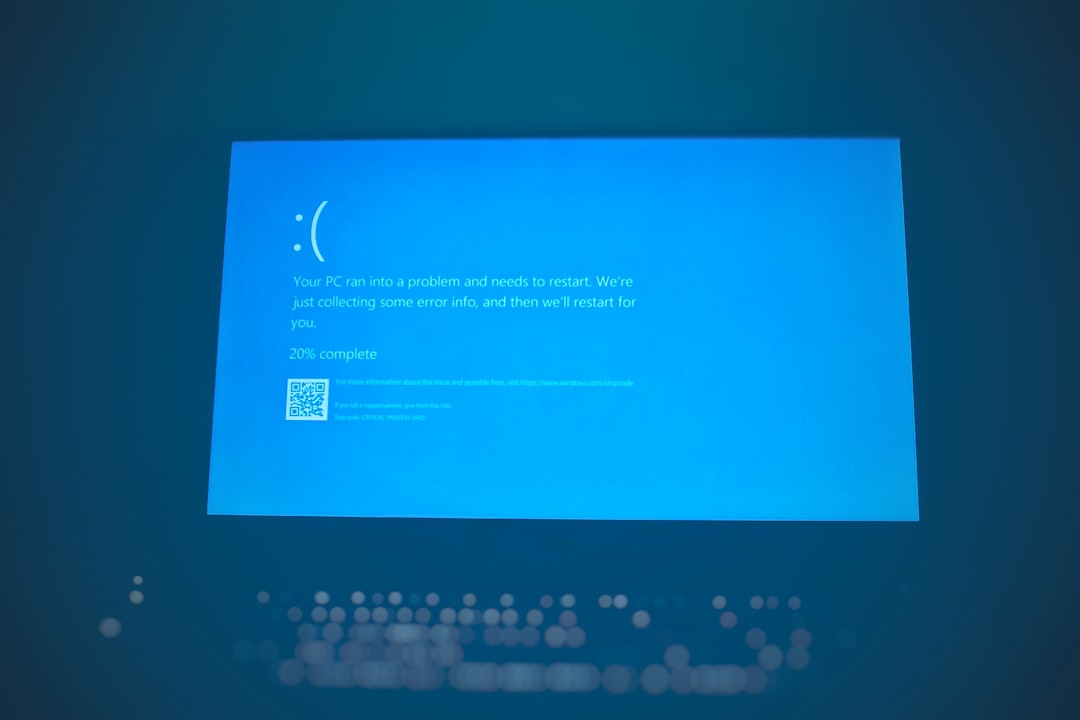
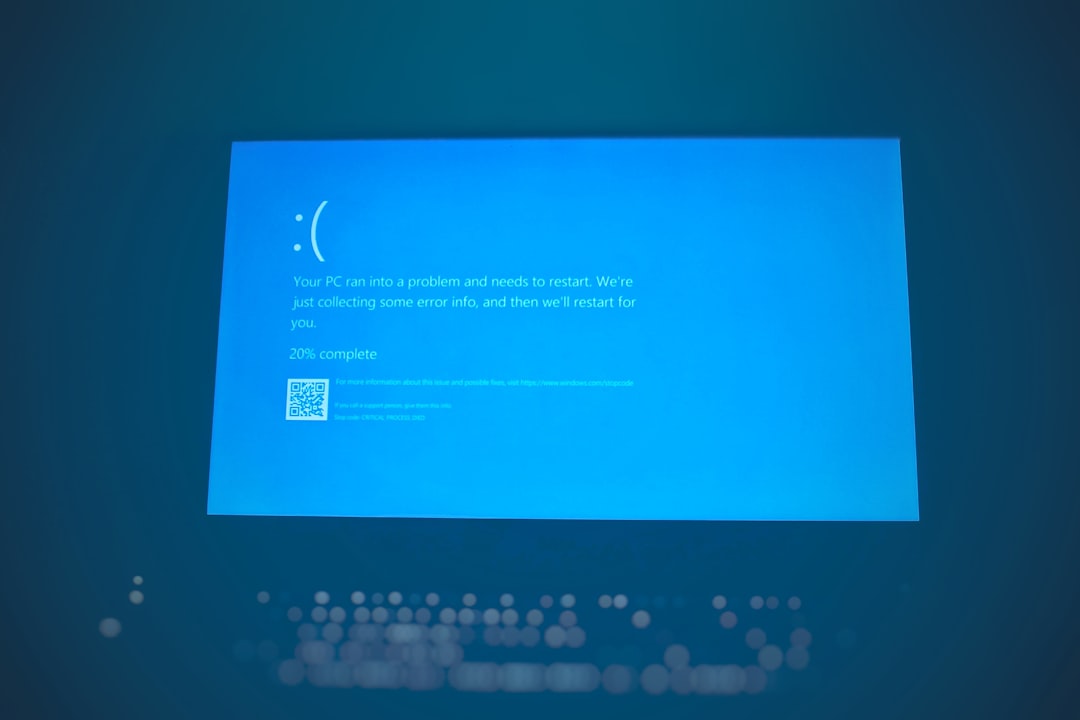
Few things are more frustrating than seeing your computer suddenly display the message “Your PC ran into a problem and needs to restart.” This error, commonly known as the Blue Screen of Death (BSOD), is Windows’ way of telling you that a critical system issue has occurred. While it may look alarming, this error is often fixable with a structured and careful approach.
TL;DR: The “Your PC ran into a problem” error is usually caused by faulty drivers, corrupted system files, hardware issues, or recent updates. Start by noting the error code, then boot into Safe Mode, update or roll back drivers, and run system repair tools like SFC and DISM. Check hardware components and uninstall problematic updates if necessary. In most cases, systematic troubleshooting resolves the issue without requiring a full system reset.
Understand What the Error Means
The error message appears when Windows encounters a critical failure it cannot recover from safely. To prevent further damage, the system halts and displays a blue screen along with a stop code such as:
- CRITICAL_PROCESS_DIED
- IRQL_NOT_LESS_OR_EQUAL
- PAGE_FAULT_IN_NONPAGED_AREA
- SYSTEM_SERVICE_EXCEPTION
These stop codes provide important clues. Always write down the exact error message before your system restarts. This information helps pinpoint whether the root cause is related to drivers, memory, disk corruption, or software conflicts.
Common Causes of the Error
Several underlying problems can trigger this message. The most common include:
- Corrupted or outdated drivers
- Faulty RAM or failing hardware
- Corrupted system files
- Recent Windows updates
- Malware infections
- Overheating components
Understanding these root causes allows you to approach troubleshooting methodically rather than randomly trying fixes.
Step 1: Boot Into Safe Mode
If the error occurs repeatedly and prevents normal startup, booting into Safe Mode is essential. Safe Mode starts Windows with only the minimal set of drivers and services.
- Restart your PC.
- Interrupt startup three times to trigger the recovery environment.
- Select Troubleshoot → Advanced options → Startup Settings.
- Click Restart and choose Safe Mode.
If your system runs normally in Safe Mode, the problem is likely driver- or software-related rather than hardware failure.
Step 2: Update or Roll Back Drivers
Driver issues are among the leading causes of this error. Newly installed or outdated drivers can conflict with system processes.
To update drivers:
- Right-click the Start button and select Device Manager.
- Locate devices with warning icons.
- Right-click the device and select Update driver.
If the problem started after a recent update, consider rolling back:
- Open Device Manager.
- Right-click the device.
- Select Properties → Driver tab.
- Click Roll Back Driver (if available).
Graphics card drivers and network drivers are particularly common triggers for BSOD errors.
Step 3: Run System File Checker and DISM
Corrupted system files often cause critical system crashes. Windows provides built-in utilities to repair them.
Run System File Checker (SFC):
- Open Command Prompt as Administrator.
- Type:
sfc /scannow - Press Enter and wait for completion.
If issues are found and not fully repaired, run the DISM tool:
- In Command Prompt, type:
DISM /Online /Cleanup Image /RestoreHealth - Press Enter.
After completion, restart your system. These tools repair deep Windows image corruption that may be invisible to the user.
Step 4: Check Your Hardware
Hardware malfunctions can trigger persistent blue screen errors. Key areas to inspect include:
Check RAM
Use Windows Memory Diagnostic:
- Press Windows + R.
- Type
mdsched.exeand press Enter. - Select Restart now and check for problems.
If errors appear, one or more RAM modules may need replacement.
Check Hard Drive
Run a disk check:
- Open Command Prompt as Administrator.
- Type:
chkdsk /f /r - Press Enter.
This scans for bad sectors and attempts data recovery. If your disk shows recurring errors, replacement should be considered immediately.
Monitor System Temperature
Overheating CPUs or GPUs can crash your system. Ensure:
- Cooling fans are operational.
- Dust buildup is removed.
- Thermal paste is not degraded (if applicable).
Step 5: Uninstall Recent Windows Updates
Occasionally, a newly released Windows update may introduce instability. If problems began after a recent update:
- Go to Settings → Windows Update.
- Select Update history.
- Click Uninstall updates.
- Remove the most recent update.
Restart and observe whether the issue persists. If stability returns, you may temporarily pause updates until a patch is released.
Step 6: Scan for Malware
Malicious software can damage system files and interfere with drivers. Perform a full system scan using:
- Windows Security built-in antivirus
- Reputable third-party antivirus software
Select a Full Scan rather than a quick scan to ensure complete coverage.
Step 7: Use System Restore
If the PC was functioning correctly days or weeks earlier, System Restore can revert system files and drivers to a stable point without affecting personal data.
- Boot into the recovery environment.
- Select Troubleshoot → Advanced options.
- Choose System Restore.
Pick a restore point dated before the issue began.
Step 8: Reset or Reinstall Windows (Last Resort)
If none of the above steps resolve the issue, performing a system reset may be necessary.
To reset Windows:
- Go to Settings → System → Recovery.
- Select Reset this PC.
- Choose Keep my files if you want to preserve personal documents.
This reinstalls Windows and removes problematic software or deep system corruption. Always back up important data before proceeding.
Preventing Future Blue Screen Errors
While not all system crashes can be prevented, you can significantly reduce risk by following best practices:
- Keep Windows and drivers updated.
- Avoid installing unverified third-party drivers.
- Maintain adequate cooling and clean hardware regularly.
- Install reputable security software.
- Create periodic system restore points.
Routine maintenance dramatically lowers the chance of encountering critical blue screen failures.
When to Seek Professional Help
If your system continues to crash despite thorough troubleshooting, you may be facing:
- Motherboard failure
- Power supply instability
- Deep firmware corruption
- Severe storage device failure
At this stage, professional diagnosis is recommended. Prolonged troubleshooting on failing hardware may risk data loss.
Final Thoughts
The “Your PC ran into a problem” error may seem alarming at first glance, but in most situations it is manageable. By identifying the stop code, isolating software conflicts, repairing corrupted files, and evaluating hardware health, you can restore system stability effectively.
The key is a structured approach rather than panic. Address the most common causes first, document changes you make, and proceed methodically. With patience and careful troubleshooting, most Windows systems can recover fully without requiring major repairs.