

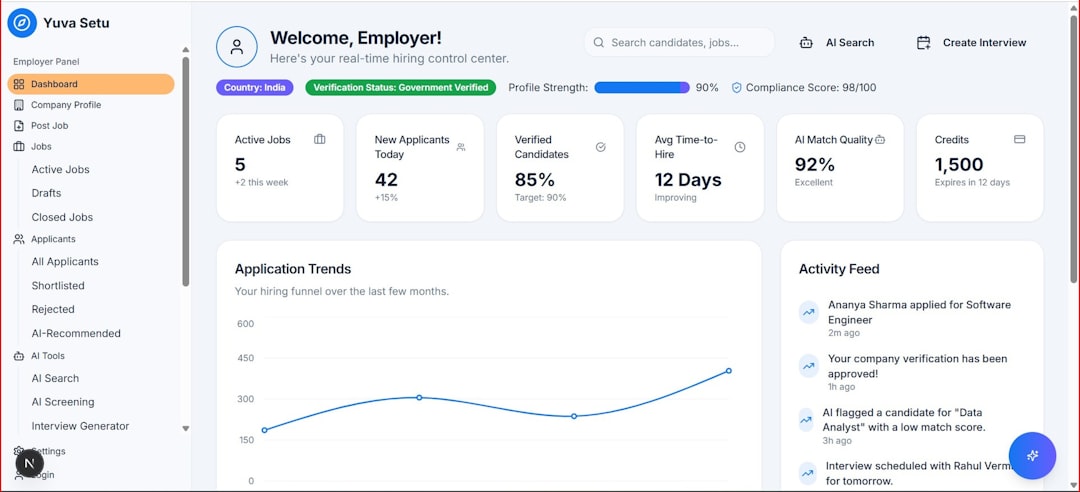
Gumroad and MailerLite should be connected with a no-code automation tool for most sellers, while direct API or webhook setups fit larger stores with custom tagging rules. The cleanest setup adds every Gumroad buyer to the right MailerLite group, stores purchase details as custom fields, and starts a targeted email sequence based on the product bought.
TLDR: A practical Gumroad and MailerLite integration sends new buyers into product-specific MailerLite groups, then starts automated welcome, onboarding, upsell, and retention emails. For example, a creator selling a $29 template could tag buyers as Template Customers, send 5 setup emails over 10 days, and offer a $79 bundle on day 14. If 1,000 buyers enter that flow and 6% accept the bundle, the automation adds 60 extra sales without manual follow-up. Most sellers use Zapier, Make, Pabbly, or a custom webhook because Gumroad and MailerLite do not always provide the exact native connection each seller expects.
Why Gumroad and MailerLite work well together
Gumroad handles checkout, payments, files, license keys, subscriptions, and product delivery. MailerLite handles newsletters, visual automations, forms, landing pages, segmentation, and email reports. Together, they create a simple sales machine for creators selling ebooks, courses, templates, presets, memberships, coaching, or digital tools.
The main goal is not just to move an email address from one tool to another. The real goal is to send the right message after the right purchase. A buyer of a beginner ebook should not get the same email as a buyer of a premium course. That is where groups, tags, custom fields, and workflows matter.
Image not found in postmetaMain setup options
1. Zapier setup
Zapier is often the fastest option. A seller creates a Zap with Gumroad as the trigger and MailerLite as the action. The trigger can be a new sale. The action usually creates or updates a subscriber, adds that subscriber to a MailerLite group, and fills custom fields such as product name, sale date, price, or order ID.
The catch is that Zapier can feel a bit expensive once a store has many purchases or several product-specific workflows. It also adds small delays. A buyer may wait 20 to 90 seconds before appearing in MailerLite. That is fine for marketing emails, but it can feel annoying when a seller expects instant tagging.
2. Make setup
Make works well for sellers who need more control. It can filter sales by product, route buyers into different groups, update fields, and handle more complex logic. For example, one route can send ebook buyers into a 7-day onboarding flow, while another sends membership buyers into a renewal reminder flow.
Make is often cheaper for high-volume setups, but it takes more care to configure. The visual builder is powerful, yet one misplaced filter can send buyers to the wrong group. Testing is not optional.
3. Pabbly Connect setup
Pabbly Connect is another no-code option. It suits small brands that want a fixed-cost tool for moving purchase data between apps. The setup pattern is similar: Gumroad sale trigger, MailerLite subscriber action, then group assignment.
It is useful for basic workflows. For advanced rules, such as separating refunded orders from active buyers, the seller should check available triggers and fields before building the whole system.
4. Custom webhook and API setup
A custom setup uses Gumroad webhooks and the MailerLite API. This is the best choice for larger brands, developers, and sellers with strict data rules. It can send purchase events to a server, clean the data, then create or update subscribers in MailerLite.
This method supports better error handling, custom logs, and very specific rules. For example, the system can remove a buyer from an upsell sequence after a refund, update a subscription status, or track total customer value. The tradeoff is cost. Someone has to build and maintain it.
5. Manual CSV import
Manual import is the fallback. Gumroad exports customer lists, and MailerLite can import subscribers from CSV files. This works for small launches, one-time campaigns, or sellers with fewer than 50 sales per month.
Honestly, it feels like busywork after the second import. Manual lists get stale fast. They also increase the risk of sending the wrong message to the wrong buyer.
Recommended data fields to pass into MailerLite
A basic integration should send more than an email address. Better data creates cleaner email workflows.
- Email address: the buyer’s email.
- Name: useful for personalization.
- Product name: used to trigger the correct workflow.
- Product ID: more reliable than product name if names change.
- Purchase date: useful for timed follow-ups.
- Price and currency: useful for customer value segments.
- Order ID: useful for support.
- License key or variant: useful for software or template sellers.
- Subscription status: useful for memberships.
- Refund status: useful for suppressing promos or access emails.
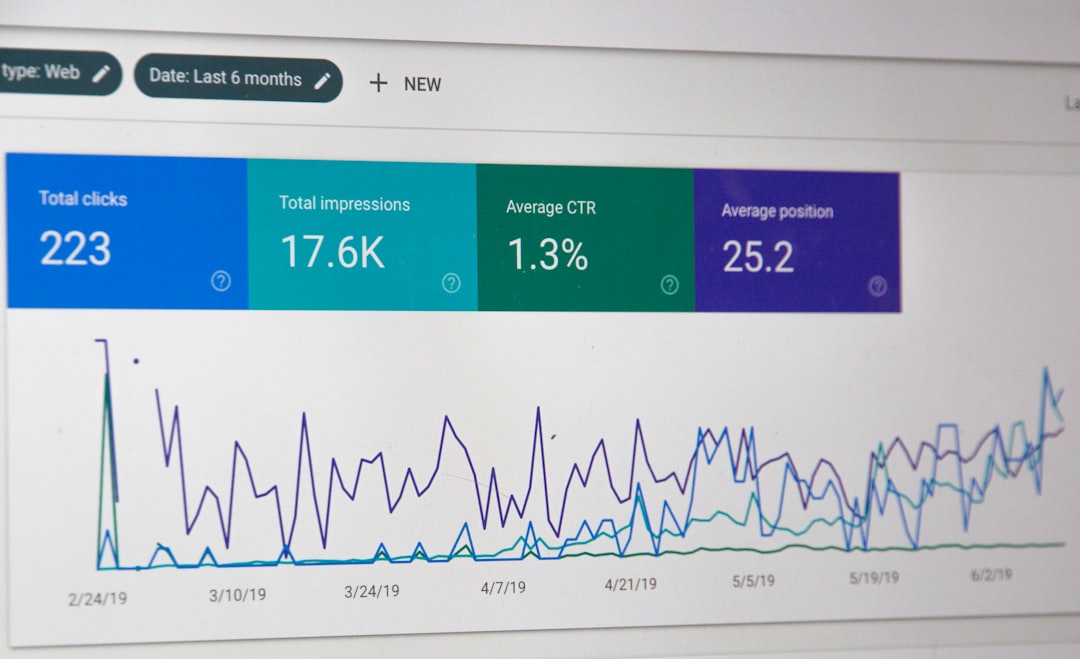
Core automated email workflows
Welcome and delivery workflow
This workflow starts right after purchase. It thanks the buyer, explains how to access the product, and gives the first action step. Gumroad already sends receipts and delivery details, so MailerLite should not simply repeat that email. It should add value.
A strong first email may include a quick-start checklist, support contact, product tutorial, and expected results. For a course, it could say, “Start with lesson one today. It takes 12 minutes.” Short instructions reduce refunds and support tickets.
Onboarding workflow
Onboarding emails help buyers use the product. A template seller might send one email on setup, one on customization, one on common mistakes, and one on advanced use. A course seller might send lesson reminders and small wins.
A simple structure works well:
- Day 0: welcome and quick-start guide.
- Day 2: best first step.
- Day 5: common mistakes to avoid.
- Day 8: example results or case study.
- Day 12: invitation to reply with questions.
Upsell and cross-sell workflow
After the buyer has had time to use the product, MailerLite can send a related offer. The timing matters. Selling too soon can feel pushy. Waiting too long can miss the moment of interest.
For many digital products, days 7 to 21 work well. A $19 ebook buyer may receive an offer for a $99 workshop. A preset buyer may receive a bundle offer. A free product buyer may receive a starter kit offer.
Customer education workflow
Some workflows should not sell at all. They should teach. Educational emails can include tutorials, use cases, customer examples, and product updates. These emails build trust and increase future sales without shouting about discounts every week.
Subscription retention workflow
For memberships sold through Gumroad, MailerLite can support retention. Subscribers can receive usage tips, renewal reminders, bonus content, and win-back emails. If a cancellation or failed payment event is available through the chosen connector, the seller can move that customer into a save or recovery sequence.
Refund and cancellation cleanup
Refunded buyers should not keep receiving upgrade offers for the product they returned. This is where many setups break. A clean integration updates the subscriber’s status, removes them from buyer-only groups if needed, and adds an internal field such as Refunded Product A.
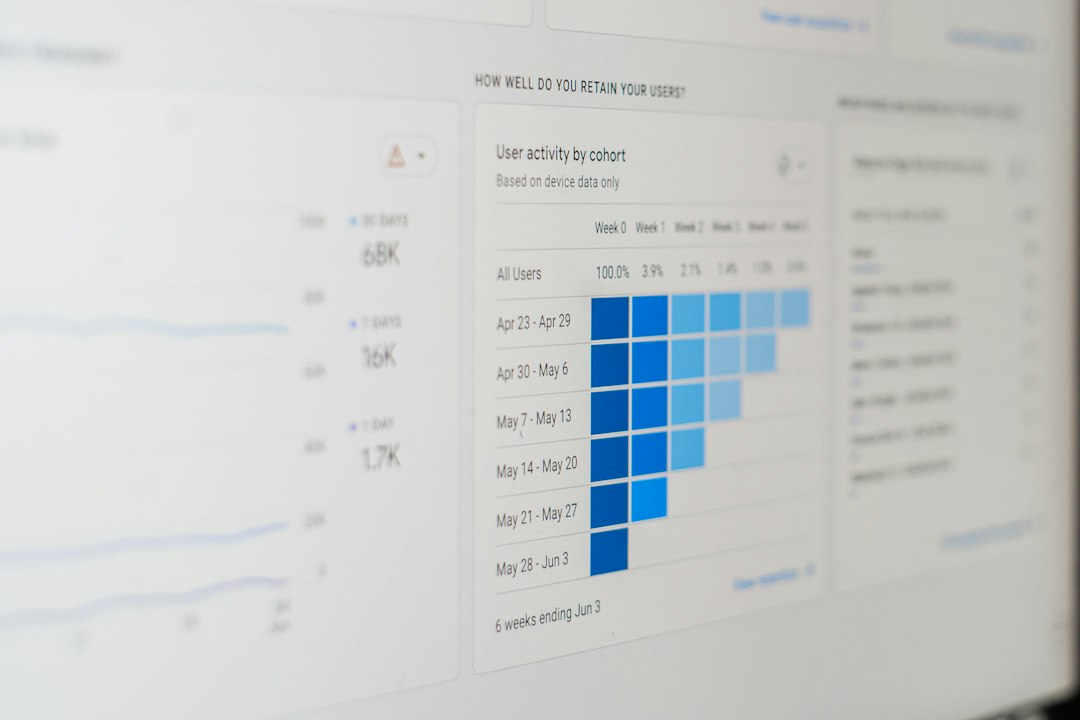
Best practices for a clean setup
- Use one group per product: this keeps workflows clear.
- Use custom fields for details: product name, total spend, date, and status should not be squeezed into group names.
- Test with a low-cost product: a $1 test purchase can reveal broken fields.
- Check consent rules: transactional emails and marketing emails are not the same thing.
- Avoid duplicate workflows: one buyer should not receive three welcome sequences after buying a bundle.
- Track revenue by segment: compare buyers, free subscribers, repeat buyers, and refunded customers.
Common mistakes
The most common mistake is adding every buyer to one general list. That makes future targeting messy. Another mistake is using product names as the only rule. If the seller renames a product in Gumroad, the workflow may fail.
Another issue is ignoring refunds. A buyer who refunded a product yesterday should not get a glowing “how are you enjoying it?” email today. It drives sellers crazy because the fix is usually simple: pass refund or order status into MailerLite when the automation tool supports it.
FAQ
Can Gumroad connect directly to MailerLite?
Some sellers may find limited direct or third-party connection options, but most reliable setups use Zapier, Make, Pabbly Connect, or a custom webhook with the MailerLite API.
What is the easiest setup for beginners?
Zapier is usually the easiest. A simple automation can add each new Gumroad buyer to a MailerLite group and start a welcome sequence.
What should happen after a Gumroad purchase?
The buyer should be added or updated in MailerLite, assigned to the correct product group, and entered into a relevant email workflow.
Can refunded buyers be removed from workflows?
Yes, if the connector or custom setup passes refund data. The workflow can then remove the buyer from sales emails or move them into a separate segment.
Is MailerLite good for Gumroad sellers?
Yes. It is strong for creator newsletters, digital product onboarding, automations, and simple segmentation. It works especially well for ebooks, courses, templates, memberships, and downloadable products.
How many emails should a post-purchase workflow include?
Most products need 4 to 7 emails across 10 to 21 days. More complex courses or memberships may need longer sequences with education, reminders, and renewal prompts.