

Use Google Play Store for Android apps. Use a PC app store for Windows apps. That is the safest, least annoying rule. Google says Play Protect scans over 200 billion apps every day to help spot bad behavior [source: Google]. Still, no store is magic. Bad apps can slip through.
TLDR: Google Play Store is for Android phones, tablets, watches, and some Chromebooks. A PC app store, like Microsoft Store, is for Windows laptops and desktops. For example, if you want WhatsApp on an Android phone, use Google Play; if you want Spotify on a Windows PC, use Microsoft Store or the official Spotify site. A safe rule is this: get 90% of your apps from official stores, and only use websites when you fully trust the maker.
What is the main difference?
The Google Play Store is built for Android. It handles phone apps, games, movies, books, and subscriptions. It also updates apps in the background. Nice and simple.
A PC app store is usually a store on your computer. On Windows, that often means the Microsoft Store. But PC app shopping is messier. You may also download apps from websites, Steam, Epic Games, Adobe, GitHub, or the app maker’s own page.
Honestly, it feels like PC apps still live in three different eras at once. One app installs with one click. Another gives you a weird setup wizard from 2009. Another asks you to close your browser for no clear reason.
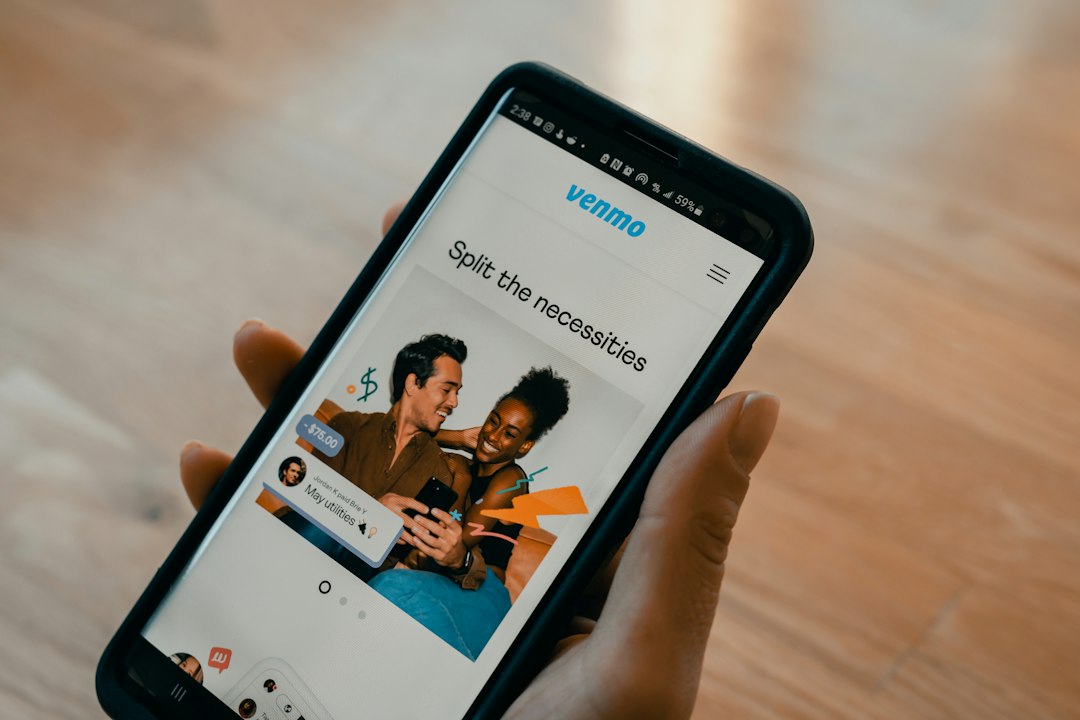
Google Play Store: simple and phone friendly
Google Play is made for small screens and touch controls. You tap. It installs. You open the app. Done.
It also checks app permissions. That means you can see if a flashlight app wants your location. Spoiler: it probably should not.
- Best for: Android phones and tablets.
- Install style: Tap Install.
- Updates: Usually automatic.
- Payments: Uses your Google account.
- Risk level: Lower, but not zero.
PC app stores: more power, more mess
PC app stores can be great. Microsoft Store makes installs easier. Apps are often checked. Updates are cleaner. Uninstalling is usually less painful too.
But PCs allow more freedom. That is good for power users. It is bad for people who click fake download buttons. And wow, those buttons are everywhere.
- Best for: Windows laptops and desktops.
- Install style: Store install, EXE file, MSI file, or launcher.
- Updates: Store updates, app updates, or manual updates.
- Payments: Store account, website account, or license key.
- Risk level: Depends on where you download from.
Safety: which one is safer?
Google Play is usually safer than random APK sites. It has app review, scanning, reviews, and permission controls. But fake cleaners, copycat games, and shady VPNs still appear sometimes.
Microsoft Store is usually safer than random download sites. It lowers the chance of grabbing malware from a fake “Download Now” button. Microsoft also explains that Store apps are checked for security and family safety rules [source: Microsoft].
The risky zone is outside the store. This includes cracked apps, fake driver tools, “free premium” editors, and unknown APK files. Expect to waste time on these. Sometimes it is only ads. Sometimes it is spyware. Sometimes your browser gets five new toolbars like it is 2011 again.
Installation tips for Google Play
- Check the developer name. Fake apps often use similar names.
- Read recent reviews. Sort by newest. Old five star reviews can hide new problems.
- Check permissions. A calculator does not need your microphone.
- Avoid unknown APK files. Only sideload if you know the source.
- Keep Play Protect on. Do not turn it off to install sketchy apps.
Installation tips for PC app stores
- Try Microsoft Store first. It is clean and fast for many common apps.
- Use the official website next. Type the address yourself if possible.
- Skip “download mirror” sites. They often add junk installers.
- Watch file names. “ChromeSetup.exe” makes sense. “Chrome FREE fast installer 2026.exe” does not.
- Do not ignore Windows warnings. They are annoying, but often useful.
- Uncheck extras. Some installers try to add browsers, search tools, or trials.
Updates matter more than people think
Old apps are soft targets. They may have bugs that attackers already know about. Stores help by pushing updates for you.
Google Play is very good at this. Microsoft Store is also good, but many PC apps update outside the store. Zoom, Adobe apps, game launchers, and printer tools may each run their own updater.
It drives me crazy that some PC apps need a full restart after a tiny update. A 30 second job turns into a two minute detour. Still, take the update. It is better than leaving holes open.
Which should you choose?
If you are on Android, use Google Play Store first. It is the normal home for Android apps. It is safer than random APK sites. It is also easier for refunds, updates, and subscriptions.
If you are on Windows, try the Microsoft Store first. If the app is not there, use the official website. For games, Steam and Epic Games are common trusted options. For open source tools, use the project’s official page or its verified GitHub page.
Quick safety checklist
- Use official stores when possible.
- Check the developer.
- Read new reviews.
- Question strange permissions.
- Avoid cracked apps.
- Keep your system updated.
Simple rule: If an app sounds too good to be true, treat it like a raccoon holding a gift card. Cute? Maybe. Safe? Probably not.