

If a blue screen suddenly tells you to call “Microsoft Support,” do not call, do not click, and do not pay. A real Windows Blue Screen of Death does not ask for gift cards, remote access, or a subscription cleanup tool. Treat any BSOD-style warning inside a browser as suspicious until proven otherwise.
TLDR: Fake BSOD scams imitate a Windows crash screen to scare users into calling a fake support number or installing remote access software. In one common office scenario, 3 out of 25 employees may call the number if the alert uses full-screen mode, loud audio, and a countdown timer. A real BSOD usually shows a stop code and then restarts; it does not display a phone number or demand payment. Press Esc, Alt + F4, or Ctrl + Shift + Esc, then scan the system before doing anything else.
What Is a Fake Blue Screen of Death?
A fake Blue Screen of Death, often called a fake BSOD, is a scam page or malicious program that copies the look of a Windows crash. It may show a blue background, white text, scary error codes, and claims like “Your PC has been blocked” or “Critical security failure detected.”
The goal is simple: panic. Scammers want you to believe your computer is broken, infected, or locked by law enforcement. Then they offer the “solution,” which is usually a phone number, a remote support session, or a paid repair package.
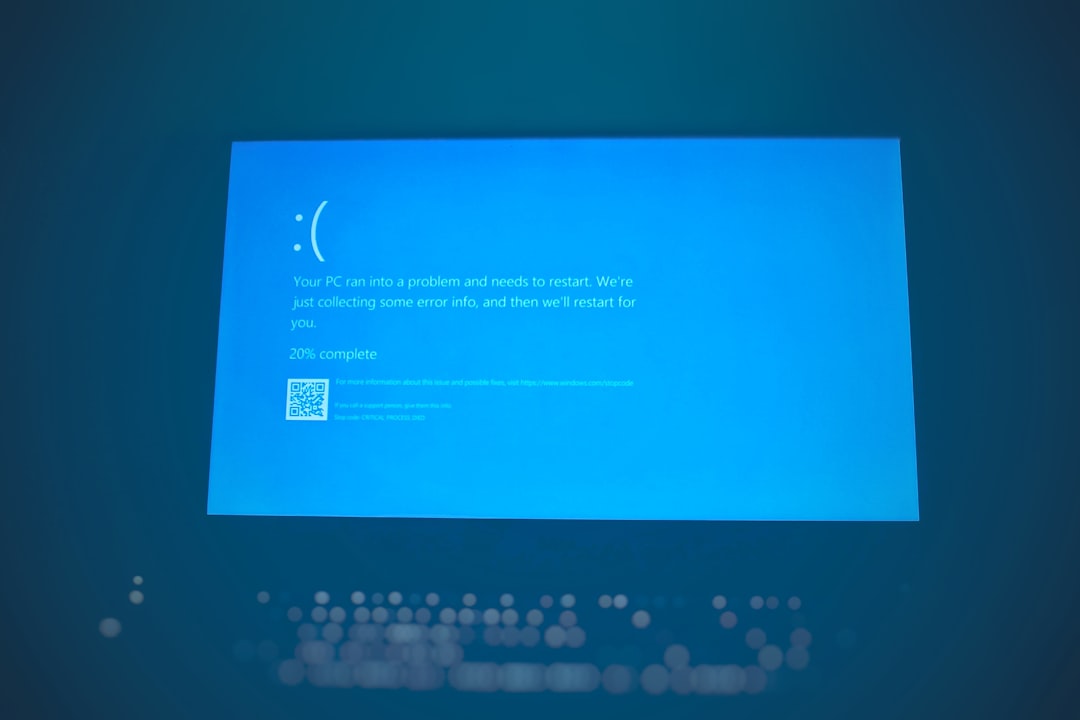
Real Windows crashes are annoying, but they are usually brief. Windows may collect data, display a stop code, and restart. A fake BSOD often stays on screen and pushes you to act fast. That pressure is the scam.
How Fake BSOD Scams Work
Most fake BSOD attacks start in the browser. You may click a bad ad, mistype a web address, open a shady download page, or visit a hacked site. The page then switches to full-screen mode and plays an alarm sound. It may also keep reopening dialog boxes so closing the page feels harder than it should.
Honestly, it feels like the browser is broken because every click takes three seconds longer than usual and the warning keeps bouncing back. That is by design. The page wants you frustrated enough to call the number.
Common scam steps include:
- Scare message: The page claims your files, passwords, or bank details are exposed.
- Fake authority: It may use Microsoft logos, Windows colors, or fake technician IDs.
- Urgent phone number: The alert says support is available only through the number shown.
- Remote access request: The “agent” asks you to install software so they can control your PC.
- Payment demand: You are pushed into paying for fake cleanup, antivirus, or lifetime support.
Some versions go further. A malicious app may launch at startup and show a fake crash screen before you can use the desktop. Others may lock the browser in kiosk-style full screen. A few may bundle adware, credential stealers, or unwanted security tools.
How to Tell a Real BSOD from a Fake One
A real BSOD appears at the system level. It usually covers the entire screen, shows a sad face on newer Windows versions, mentions that the PC ran into a problem, and includes a stop code such as IRQL_NOT_LESS_OR_EQUAL or CRITICAL_PROCESS_DIED. It does not behave like a web page.
A fake BSOD often has obvious tells:
- It shows a phone number. Microsoft does not put support numbers on crash screens.
- It appears inside a browser tab. If you can see Chrome, Edge, or Firefox around it, it is not a real BSOD.
- It asks for money. Real Windows errors do not request credit cards, crypto, wire transfers, or gift cards.
- It uses threats. Claims about police action, account deletion, or permanent data loss are red flags.
- It has spelling mistakes. Many fake alerts use awkward wording or odd grammar.
- It blocks closing attempts. Repeating popups are a browser trick, not proof of infection.
One useful test is the keyboard. Press F11 to exit full screen. Try Alt + F4 to close the active window. Or press Ctrl + Shift + Esc to open Task Manager and end the browser process. If that works, the “blue screen” was fake.
What to Do If You See a Fake BSOD
Stay calm. The alert’s job is to make you rush. Do not use the phone number on screen. Do not install tools suggested by the warning. Do not type passwords while the page is open.
- Disconnect if needed. Turn off Wi-Fi or unplug Ethernet if the page keeps loading new warnings.
- Close the browser. Use Alt + F4 or Task Manager if the normal close button is blocked.
- Do not restore tabs. When the browser reopens, choose a fresh session.
- Clear site data. Remove cookies, cache, and pop-up permissions from the suspicious site.
- Run a scan. Use Microsoft Defender or another trusted security tool.
- Check installed apps. Remove unfamiliar remote access tools, “PC cleaners,” or toolbars.
- Change passwords. Do this from a clean device if you gave access to a scammer.
If you already called the number and allowed remote access, act faster. Disconnect from the internet. Shut the PC down if the remote session is still active. Contact your bank if payment details were shared. Report the incident to your IT team, bank, or local cybercrime reporting service.
How to Protect Windows Systems
Good protection is less about one magic tool and more about layers. Fake BSOD scams rely on weak browsing habits, outdated software, and users who feel trapped.
- Keep Windows updated. Security patches reduce risk from drive-by downloads and browser exploits.
- Use Microsoft Defender SmartScreen. It can block known malicious sites and unsafe downloads.
- Install browser updates quickly. Chrome, Edge, and Firefox patch scam-friendly bugs often.
- Block popups and abusive notifications. Review site permissions every few weeks.
- Use standard user accounts. Daily work should not require administrator rights.
- Back up files. Use File History, OneDrive, or an offline backup drive.
- Train users with examples. Show staff what a fake BSOD looks like before they meet one.
It drives me crazy that many scam pages still work because users are trained to “call support” when something looks technical. A simple rule helps: trusted support never starts from a random pop-up. If you need Microsoft support, open the official site yourself or use the Get Help app in Windows.

When the Alert Might Signal a Bigger Problem
Not every fake BSOD means malware is installed. Many are just aggressive web pages. Still, repeated alerts can point to adware, a bad browser extension, or notification spam.
Check extensions first. Remove anything you do not recognize, especially coupon tools, download helpers, search managers, and “security” add-ons you never installed on purpose. Then review startup apps in Task Manager. Unknown entries that launch at sign-in deserve a closer look.
Also check browser notification permissions. Scam sites often trick users into clicking Allow. After that, they can send fake virus alerts even when the browser is not open. Remove permission for sites with strange names or random strings of letters.
The Safe Rule to Remember
A fake BSOD wins only if you believe the screen and follow its instructions. Slow down. Close the browser. Scan the PC. Ask a trusted person or IT technician if you are unsure.
No real Windows crash screen will ask you to call a number, buy support, or hand over remote access. That one rule blocks the heart of the scam.