

Pixel art is tiny, bright, and full of charm. It looks simple. But making a great sprite can take time. The good news is this: pixel art generators can help you start faster. Some are made for quick fun. Others are serious tools for games, icons, stickers, and animation.
TLDR: If you are new, start with Piskel, Pixilart, or PixelMe. They are friendly, fast, and easy to learn. If you are a professional, try Aseprite, Lospec Pixel Editor, Stable Diffusion, or Leonardo AI for more control. AI tools are great for ideas, but you may still need to clean up the pixels by hand.
What Is a Pixel Art Generator?
A pixel art generator is a tool that helps you create pixel-style images. It may turn a photo into pixel art. It may build sprites from text prompts. It may help you draw with pixel brushes and grids.
Some tools are better for beginners. They keep things simple. Others are better for professionals. They offer layers, animation, palettes, export settings, and more control.
Think of it like cooking. A beginner tool is a sandwich maker. A pro tool is a full kitchen. Both can make something tasty.
1. Piskel: Best Free Starter Tool
Piskel is a classic choice for beginners. It runs in your browser. It is free. It is easy to understand.
You can draw sprites, make simple animations, and export your work. The interface is clean. The grid makes pixel work feel natural.
Best for: new artists, students, hobby game makers.
- Pros: free, simple, good for animation.
- Cons: not as advanced as professional software.
- Fun use: make a tiny walking cat or a blinking robot.
2. Pixilart: Best for Community and Practice
Pixilart is more than a tool. It is also a community. You can draw pixel art, share it, and see what others are making.
This is great for beginners. You can learn by looking. You can try daily challenges. You can get inspired fast.
The editor is simple. It has brushes, shapes, layers, and animation features. It feels playful. That matters. When a tool feels fun, you use it more.
Best for: young artists, hobbyists, social creators.
3. PixelMe: Best for Turning Photos into Pixel Avatars
PixelMe is great when you want quick results. It can turn a photo into a pixel avatar. This is useful for profile pictures, stickers, and cute character ideas.
You upload an image. The tool gives it a pixel look. You can then adjust the result. It is not perfect every time, but it is fast.
Best for: avatars, profile images, quick social posts.
- Pros: very fast, beginner friendly, fun results.
- Cons: less control than drawing by hand.
4. Pixel It: Best for Simple Image Conversion
Pixel It is a handy tool for turning images into pixel art. It works well if you want to reduce detail and make a photo look retro.
You can adjust things like block size and color. This gives you more control over the pixel style. It is nice for posters, icons, and reference images.
Best for: quick conversions and retro effects.
Use it when you have a picture already. Then polish the result in another editor if needed.
5. Lospec Pixel Editor: Best for Clean Pixel Work
Lospec Pixel Editor is simple, but it feels more serious. It is great for people who care about color palettes. Lospec is known for its palette library, and that is a big deal.
Good pixel art often has limited colors. A strong palette makes your art look clean. It also gives your work a clear mood.
Best for: artists who want better colors and sharper control.
- Pros: clean editor, strong palette options, no clutter.
- Cons: fewer fancy AI features.
6. Aseprite: Best Professional Pixel Art Tool
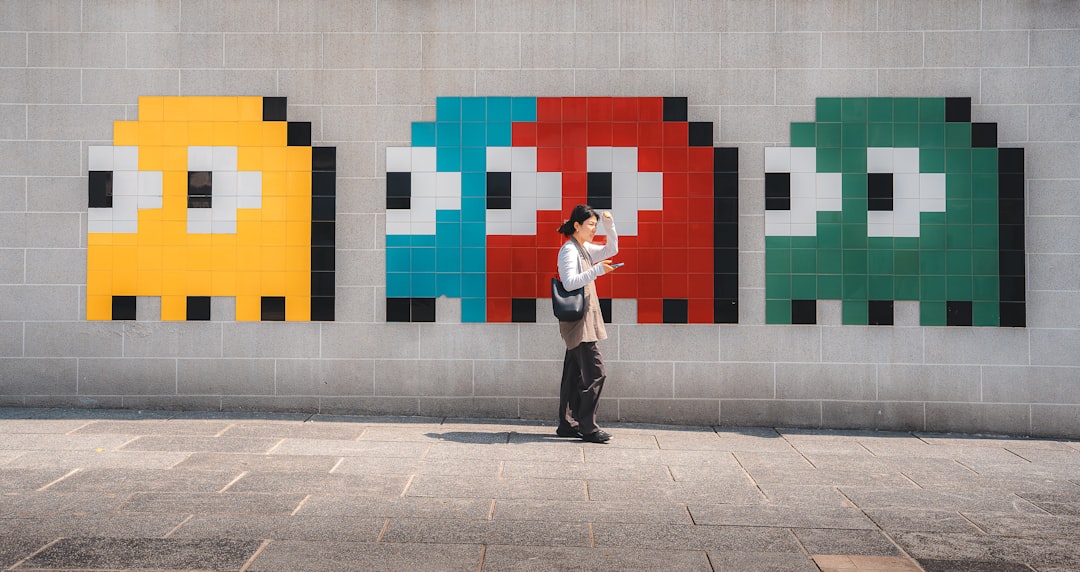
Aseprite is one of the best tools for serious pixel artists. It is not just a generator. It is a full pixel art studio.
You can draw sprites, animate frames, manage layers, edit palettes, and export sprite sheets. Game artists love it. Indie developers love it too.
It takes more time to learn. But the reward is huge. You get control over every tiny square.
Best for: game developers, animators, professional pixel artists.
- Pros: powerful, great animation tools, industry favorite.
- Cons: not free, more learning needed.
- Pro tip: use AI for rough ideas, then finish in Aseprite.
7. Stable Diffusion: Best AI Option for Full Control
Stable Diffusion can create pixel art from text prompts. You can ask for a knight, a cozy shop, a spaceship, or a monster. The results can be wild and cool.
It is powerful because you can use models, settings, seeds, and image references. That means more control. But it also means more setup.
For true pixel art, you may need to resize the image, reduce colors, and clean the edges. AI often creates “fake pixels.” They look pixel-like, but the grid may be messy.
Best for: professionals, concept artists, advanced hobbyists.
8. Leonardo AI: Best for Fast Game Concept Art
Leonardo AI is popular for game assets and concept art. It can make characters, items, backgrounds, and tiles in a pixel-inspired style.
It is easier to use than a local AI setup. You type a prompt. You choose settings. Then you generate images.
It is useful for mood boards and early ideas. A game team can explore many styles fast. Then an artist can clean and rebuild the best images.
Best for: game teams, concept work, fast visual ideas.
9. Recraft: Best for Clean Graphic Styles
Recraft is strong for design assets. It can create icons, illustrations, and style sets. It may not be a pure pixel art editor, but it can help with pixel-style graphics.
It is useful when you need a consistent look. This matters for menus, app icons, buttons, and UI elements.
Best for: designers, UI makers, icon creators.
How to Choose the Right Tool
Do not pick the fanciest tool first. Pick the tool that matches your goal.
- If you are brand new: try Piskel or Pixilart.
- If you want a pixel avatar: try PixelMe.
- If you want photo conversion: try Pixel It.
- If you care about palettes: try Lospec Pixel Editor.
- If you make games: use Aseprite.
- If you want AI ideas: try Stable Diffusion or Leonardo AI.
Tips for Better Pixel Art Results
Pixel art is not just “small art.” It has rules. Tiny choices matter.
- Use fewer colors. Simple palettes look cleaner.
- Start small. Try 16 by 16 or 32 by 32 pixels.
- Check the silhouette. Your character should be clear in black.
- Avoid too much detail. Tiny art can get messy fast.
- Clean AI results. Fix odd edges and random colors.
- Zoom out often. Pixel art must look good at real size.
Beginner vs Professional Tools
Beginner tools help you learn without stress. They are friendly. They are quick. They let you play.
Professional tools help you finish polished work. They support better workflows. They save time on big projects.
The best path is simple. Start easy. Build skill. Then move to deeper tools when you need them.
Final Pick
If you want one beginner pick, choose Piskel. It is free, clear, and fun. If you want one professional pick, choose Aseprite. It is built for real pixel production.
If you want AI help, use Stable Diffusion for control or Leonardo AI for speed. Just remember this. AI is a helper, not a magic wand. The best pixel art still needs taste, cleanup, and a bit of love.
So grab a tool. Make a tiny sword. Draw a frog wizard. Build a space burger. Pixel art is small, but the fun is huge.