


So your Modrinth server won’t connect. Annoying, right? You’re ready to play. Friends are waiting. Snacks are open. And boom. “Can’t connect to server.” Deep breath. This is fixable. Let’s walk through it step by step and get you back in the game fast.
TLDR: If your Modrinth server is not connecting, check your internet first. Then confirm the server is running and the IP and port are correct. Make sure your mods and game versions match the server. If it still fails, look at firewall, port forwarding, or server logs for clues.
Why Your Modrinth Server Isn’t Connecting
There are only a few common causes. That’s good news. Fewer things to troubleshoot.
- The server isn’t running
- Wrong IP address or port
- Version mismatch
- Mods don’t match
- Firewall blocking connection
- Port forwarding not set up
- Server crashed
Let’s tackle them one by one.
1. Is the Server Actually Running?
This sounds obvious. But it’s the most common issue.
Open your server console.
Do you see text scrolling? Do you see a message like:
“Done” or “Server started”?
If not, your server may have:
- Failed to start
- Crashed during launch
- Been closed by accident
Restart it. Watch for red error messages. Those are clues.
If it crashes instantly, scroll up in the console. Look for words like:
- Error
- Failed
- Exception
Copy that message. That’s your hint.
2. Double-Check the IP Address and Port
This is a tiny detail that causes big headaches.
If you’re playing on the same computer as the server, use:
- localhost
Or:
- 127.0.0.1
If you’re joining from another device in your house:
- Use the local IP (something like 192.168.X.X)
If friends are joining from outside your home:
- Use your public IP
- Add the correct port (default is 25565)
It should look like this:
123.45.67.89:25565
No extra spaces. No typos. One wrong number means no connection.
3. Game Version Must Match
This one trips up everyone.
Your Modrinth server might be running:
- 1.20.1
- 1.19.4
- 1.18.2
If your game is on 1.20.4, it will not connect.
No negotiation. No partial credit.
Here’s how to fix it:
- Open Modrinth app
- Check the server profile version
- Match your game version exactly
Same numbers. Same loader type.
Forge cannot connect to Fabric. Fabric cannot connect to Quilt. They need to match.
4. Mods Must Match Too
This is huge for Modrinth servers.
If the server has 42 mods installed, your client needs the same mods.
And the same mod versions.
If even one mod is:
- Missing
- Outdated
- Different version
You may see errors like:
- Mod mismatch
- Incompatible mod set
- Registry errors
Easiest fix?
Use the same Modrinth profile file that created the server.
Export the modpack. Share it. Install it fresh.
Clean installs solve drama.

5. Firewall Is Blocking It
Firewalls protect you. But sometimes they overprotect you.
On Windows:
- Open Windows Security
- Click Firewall and Network Protection
- Allow an app through firewall
Make sure:
- Java(TM) Platform SE Binary is allowed
Both private and public networks.
If you skip this, players outside your network cannot join.
Mac users?
- Check System Settings
- Network
- Firewall
Allow Java there too.
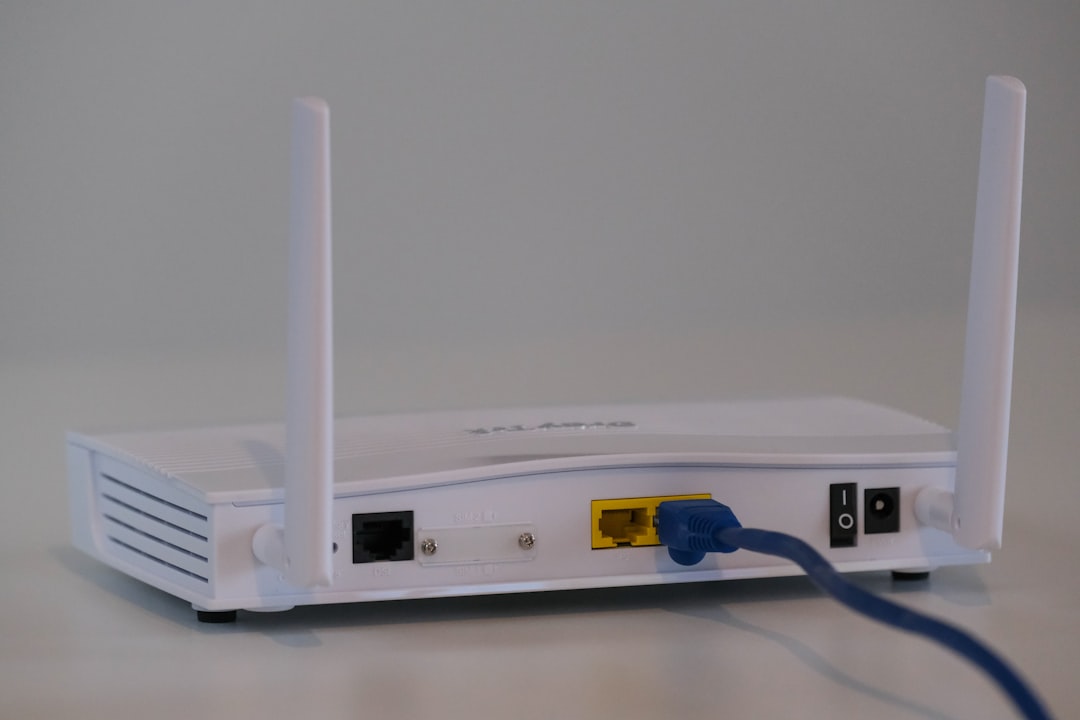
6. Port Forwarding (For Friends Outside Your House)
If your friends can’t connect, but you can, this is likely the issue.
You need to forward port 25565 in your router.
Basic idea:
- Log into your router (usually 192.168.1.1)
- Find Port Forwarding section
- Add new rule
- Forward port 25565 to your local IP
Set:
- Protocol: TCP (or TCP/UDP)
- Internal port: 25565
- External port: 25565
Save. Restart router.
Done.
No port forwarding = no external players.
7. Server Crashed Silently
Sometimes the server starts.
Then crashes quietly.
Check the logs folder inside your server directory.
Open:
- latest.log
Scroll to the bottom.
You might find:
- Memory errors
- Mod conflicts
- Missing dependencies
Memory error?
Add more RAM to your server startup command.
Example:
-Xmx4G (allocates 4GB RAM)
Too many heavy mods need more memory.
Quick Comparison: Common Problems and Fixes
| Problem | Symptoms | Fast Fix |
|---|---|---|
| Server Not Running | Connection refused | Start or restart server |
| Wrong Version | Incompatible client | Match game version exactly |
| Mod Mismatch | Registry or mod errors | Install identical modpack |
| Firewall Block | Friends cannot join | Allow Java in firewall |
| No Port Forwarding | External timeout error | Forward port 25565 |
| Low RAM | Server crashes on load | Increase memory allocation |
8. Internet Problems
Yes. Sometimes it really is your Wi-Fi.
Test this:
- Open a browser
- Run a speed test
If your connection drops or spikes, your server might disconnect players.
Restart:
- Router
- Modem
Wait 2 minutes before turning back on.
Old-school fix. Still works.
9. Using the Wrong Java Version
Minecraft cares about Java versions.
Newer Minecraft versions often need newer Java.
Example:
- 1.20+ may require Java 17
- Older versions may use Java 8
If Java is wrong, server may crash at launch.
Check your console. It usually tells you.
Install correct Java version. Update your launch command if needed.
10. Corrupted World Files
This one hurts.
If your world file gets corrupted:
- Server may fail to start
- Players may time out
Fix options:
- Restore from backup
- Delete corrupted region files
- Generate new world
Always keep backups. Always.
Fast Troubleshooting Checklist
If you like speed, use this:
- Is server running?
- Correct IP and port?
- Versions match?
- Mods identical?
- Firewall allowing Java?
- Port 25565 forwarded?
- Enough RAM allocated?
- Internet stable?
Go top to bottom. You’ll find it.
When All Else Fails
If nothing works:
- Create a fresh server folder
- Reinstall mods cleanly
- Test with no mods first
If a vanilla server works, the issue is a mod.
Add mods back slowly.
Test after each batch.
Yes, it’s tedious.
But it works.
You’ll Be Back Online Soon
Server issues feel dramatic. But they’re usually small mistakes.
One checkbox. One number. One mod version.
Stay calm. Check the basics. Read the logs.
Modrinth servers are powerful. But they depend on details.
Once you fix it, gameplay feels even better.
Now go restart that server. Your world is waiting.