

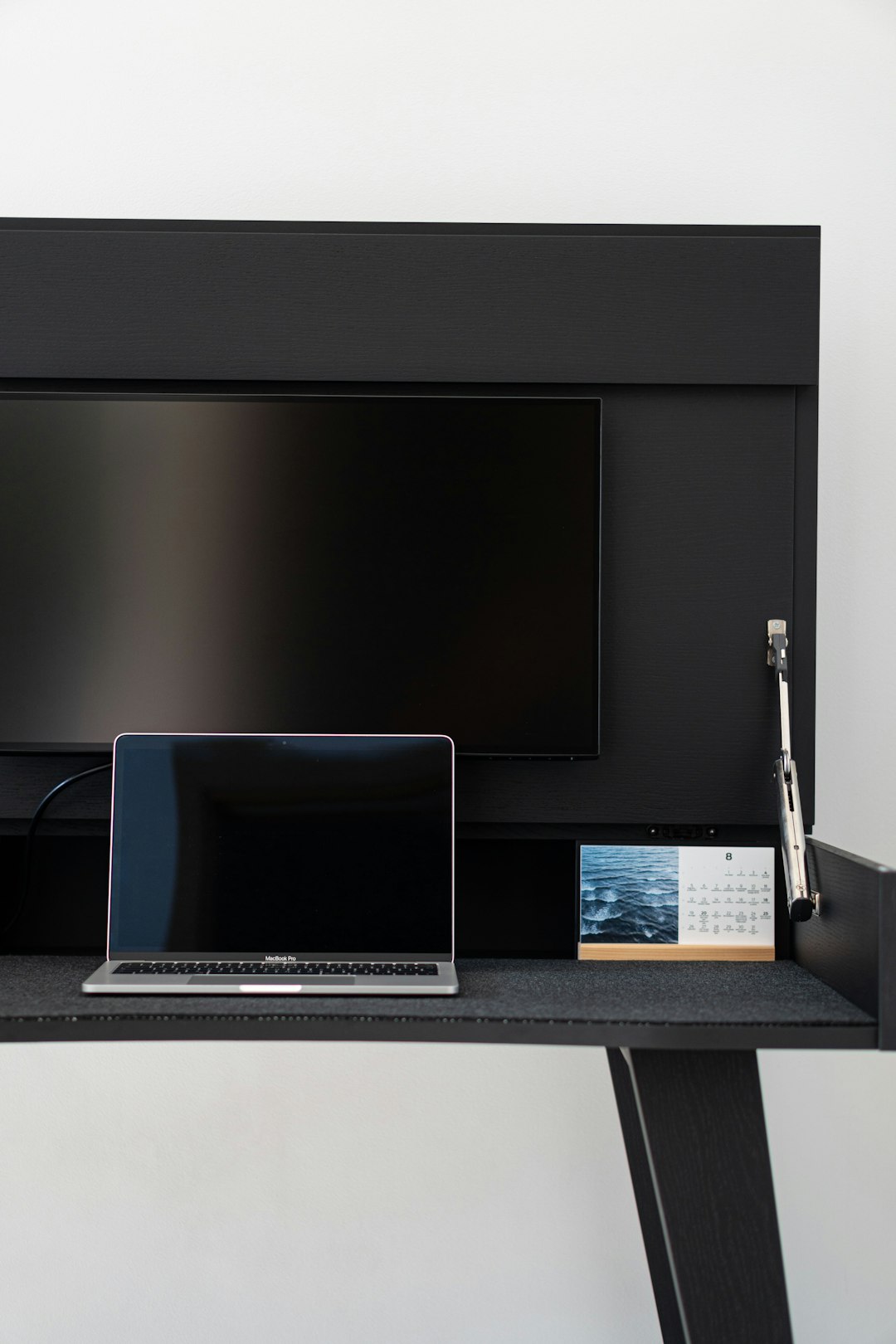
DisplayPort is famous for crisp video. But many people forget it also handles audio. That tiny cable can carry rich, surround sound along with stunning visuals. If you use a monitor, TV, or docking station, this matters more than you think.
TLDR: DisplayPort supports high-quality digital audio along with video in one cable. It can transmit multi-channel surround sound and advanced audio formats. Most modern GPUs and monitors support it automatically. However, compatibility depends on your devices and setup, so knowing a few key details will save you time and frustration.
Let’s break it down into the top five things you need to know about DisplayPort audio support. Simple. Clear. No tech headaches.
1. DisplayPort Carries Both Audio and Video
This is the big one. DisplayPort transmits audio and video together through a single cable. No extra audio wire needed.
Think of it like a digital highway. One road. Two types of traffic. Both arrive at the same time.
Here’s what that means for you:
- No separate 3.5mm audio cable
- No extra optical cable
- Less clutter behind your desk
- Simpler setup process
If your monitor has built-in speakers, DisplayPort can send sound directly to them. If your monitor has an audio-out jack, it can pass that sound to external speakers or headphones.
But remember one important thing. Both devices must support audio over DisplayPort. Most modern graphics cards do. Many monitors do. Some very old ones do not.
Quick tip: If you plug in your DisplayPort cable and see video but hear no sound, check your operating system’s sound output settings. It may still be set to your old speakers.
2. It Supports High-Quality Audio Formats
DisplayPort is not just basic stereo sound. It is much more powerful than that.
Here’s what it can handle:
- Stereo (2 channels)
- 5.1 surround sound
- 7.1 surround sound
- High bit rate audio
- Compressed and uncompressed formats
It supports audio formats like:
- PCM
- DTS
- Dolby Digital
- Dolby TrueHD (device dependent)
This makes DisplayPort perfect for:
- Gaming setups
- Home theater PCs
- Professional editing stations
- Streaming and content creation
Many people compare DisplayPort to HDMI. And honestly, for audio quality, they are very similar.
Here’s a simple comparison chart:
| Feature | DisplayPort | HDMI |
|---|---|---|
| Audio Support | Yes | Yes |
| Multi Channel Audio | Up to 7.1 | Up to 7.1 |
| High Definition Formats | Supported | Supported |
| Primarily Used For | PC Monitors | TVs and Home Theater |
| Locking Connector | Often Yes | No |
For PC users, DisplayPort often wins. It was designed with computers in mind.
That means high bandwidth. High refresh rates. And solid audio performance.
3. Your Graphics Card Plays a Big Role
Here’s something many people miss.
The monitor does not generate the sound. Your graphics card outputs the digital audio signal.
If your GPU supports DisplayPort audio, you are good to go. Almost all modern GPUs from NVIDIA, AMD, and Intel support it.
But older graphics cards? Not always.
If you are troubleshooting, check this checklist:
- Make sure your GPU drivers are updated
- Check sound settings in Windows or macOS
- Select your monitor as the default playback device
- Ensure the monitor speakers are enabled in its menu settings
Sometimes the issue is simple. The system just does not switch audio output automatically.
In Windows, you can fix it like this:
- Right click the sound icon
- Select “Playback devices” or “Sound settings”
- Choose your DisplayPort monitor
- Set it as default
Problem solved in seconds.
Also worth noting: If you use a laptop with DisplayPort over USB C, audio still works the same way. As long as the port supports DisplayPort Alt Mode, you get both video and audio.
4. Adapters Can Affect Audio Support
Adapters are convenient. But they can complicate things.
If you use a DisplayPort to HDMI adapter, audio usually still works. That is because HDMI also supports audio.
But not all adapters are equal.
There are two main types:
- Passive adapters
- Active adapters
Passive adapters rely on dual mode DisplayPort (DP++). Most modern GPUs support this.
Active adapters convert the signal. They are better for complex setups or long cable runs.
If you use:
- DisplayPort to DVI → No audio support
- DisplayPort to VGA → No audio support
Why?
Because DVI and VGA do not carry audio signals.
This is where many users get confused. They assume the problem is the monitor. But the real issue is the adapter removing the audio signal entirely.
Rule of thumb: Digital to digital keeps audio. Digital to analog usually does not.
5. Multi Monitor Setups Change Audio Behavior
DisplayPort is amazing for multi monitor setups. Especially with daisy chaining.
But audio can behave differently.
Here is what happens:
- Each monitor with speakers appears as a separate audio device
- You must choose which one outputs sound
- Only one device usually plays audio at a time
If you connect:
- Two monitors with speakers
- One monitor and one TV
- A docking station with audio output
Your system may show multiple playback options.
This is normal.
For gamers, streamers, and remote workers, this flexibility is great. You can send:
- Game audio to one screen
- Video playback to another display
- Work calls through a docking station
But it requires manual selection sometimes.
Mac users will find audio selection under Sound in System Settings. Windows users will find it in the taskbar sound menu.
Also important. If you are using DisplayPort MST (Multi Stream Transport) hubs, audio may only pass through certain configurations. Always check device documentation if audio disappears in daisy chain mode.
Bonus: DisplayPort vs HDMI for Audio
People often ask. Which is better for audio?
The honest answer?
They are nearly identical in audio quality.
Both support:
- High resolution audio
- Surround sound
- Compressed and lossless formats
The difference is usually about use case.
- Use DisplayPort for PC monitors and high refresh rate gaming.
- Use HDMI for TVs and home theaters.
For most users, either will sound fantastic.
Common Problems and Quick Fixes
Let’s make this ultra practical.
If your DisplayPort audio is not working, try this rapid checklist:
- Restart your computer
- Reconnect the cable
- Update GPU drivers
- Select correct playback device
- Check monitor volume settings
- Test with another cable
Most issues are software based. Not hardware failures.
Also note: Very cheap cables can cause signal instability. While rare, using a certified cable is always smart.
Final Thoughts
DisplayPort audio support is powerful. And often overlooked.
It delivers:
- Clean digital sound
- Surround support
- Simple single cable setup
- Strong compatibility with modern GPUs
The key is understanding your setup. Check your graphics card. Check your monitor. Be careful with adapters. Select the right playback device.
Once everything is configured, DisplayPort becomes one of the easiest and cleanest ways to move both stunning video and immersive audio from your computer to your display.
One cable. Big performance. Zero drama.