


Microphone quality is critical in professional communication, content creation, remote work, and online collaboration. Yet many users are unaware that software—not hardware—may be altering how their voice sounds. Operating systems, conferencing platforms, drivers, and background applications can apply enhancements, filters, compression, or noise suppression without your explicit knowledge. Understanding whether your microphone signal is being modified is essential for maintaining audio fidelity and ensuring consistent performance.
TLDR: Software can quietly modify your microphone audio through filters, enhancements, noise suppression, or automatic gain control. To determine if this is happening, you should compare raw and processed recordings, check system-level audio enhancements, test in different applications, monitor real-time signal behavior, examine driver settings, and use professional audio analysis tools. Running controlled recordings across different configurations is the most reliable method. Identifying the source of alteration ensures accurate, high-quality audio capture.
1. Compare Raw vs. Processed Recordings
The most reliable method for detecting software interference is to compare a raw input recording with one captured through your usual applications. This helps reveal compression, equalization (EQ), or noise suppression that may be applied automatically.
Here’s how to conduct a controlled comparison:
- Step 1: Record audio using a basic recording tool (e.g., system voice recorder) with all enhancements disabled.
- Step 2: Record the same script in your conferencing app (Zoom, Teams, Discord, etc.).
- Step 3: Compare both files using headphones in a quiet environment.
Listen for:
- Unnatural background silence (aggressive noise gating)
- Sudden volume adjustments (automatic gain control)
- Flattened or compressed vocal dynamics
- Muffled high frequencies or boosted bass

If the two recordings sound noticeably different despite identical microphone positioning and tone, software processing is likely involved.
2. Check Operating System Audio Enhancements
Modern operating systems often apply built-in audio processing—even when users assume they are getting clean input.
Windows:
- Navigate to Sound Settings → Input → Device Properties
- Open Additional Device Properties
- Check the “Enhancements” or “Advanced” tab
macOS:
- Open System Settings → Sound
- Review Input device configuration
- Check installed audio drivers or third-party control panels
Common system-level alterations include:
- Noise Suppression
- Acoustic Echo Cancellation
- Loudness Equalization
- Beamforming
Disable enhancements temporarily and re-test. If your microphone suddenly sounds more dynamic, more natural, or noisier (but clearer), system processing was modifying your signal.
3. Test Across Multiple Applications
Different applications apply varying levels of processing to improve intelligibility during communication. For example, many conferencing platforms automatically activate:
- AI noise suppression
- Speech isolation filters
- Automatic gain control
- Bandwidth compression
To test whether an app is altering your audio:
- Record locally using a digital audio workstation (DAW) such as Audacity.
- Record within conferencing software using its built-in test feature.
- Compare tonal warmth, breath sounds, room reverb, and dynamic range.
Many conferencing tools prioritize speech clarity over natural sound. As a result, your voice may appear thinner or slightly metallic due to aggressive filtering designed for low-bandwidth conditions.
If your recording in a DAW preserves room characteristics but the conferencing app removes them entirely, algorithmic modification is occurring.
4. Monitor Real-Time Signal Behavior
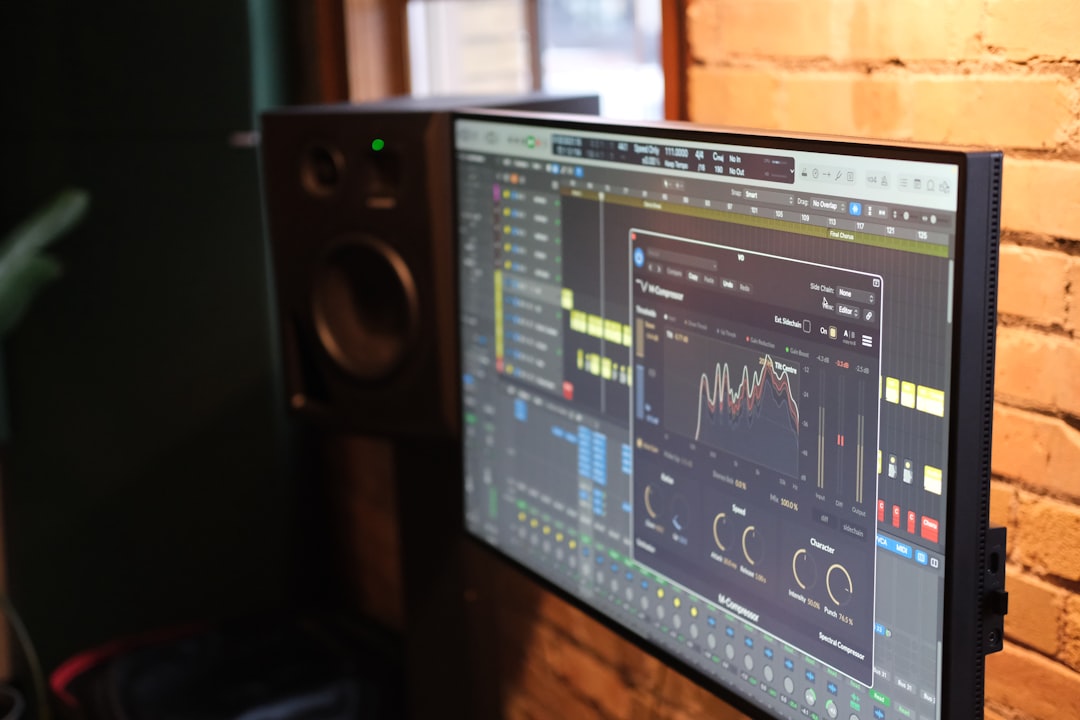
Watching how your microphone signal behaves in real time can reveal hidden processing. Use audio meters in recording software to monitor:
- Peak levels
- Dynamic fluctuation
- Noise floor
Signs of automatic gain control (AGC):
- Volume increases when you speak quietly
- Volume decreases after loud speech
- Consistent level even when you change mic distance
Signs of noise gating:
- Background sound disappears abruptly when you stop speaking
- First syllable of sentences is clipped
If your mic input level fluctuates unnaturally without physical movement or voice change, software is likely intervening.
5. Inspect Audio Drivers and Manufacturer Software
Microphone drivers and companion software often include built-in processing. USB microphones and headset microphones commonly include dedicated control panels that apply:
- EQ presets
- Compression
- Voice enhancement profiles
- Noise reduction
Open your device manager or manufacturer control utility and examine:
- Active sound profiles
- Enabled DSP features
- Firmware enhancements
Temporarily switch to a generic system driver (if available) and repeat your recording test. If the microphone sounds more neutral afterward, the proprietary software was altering quality.
This is particularly common in:
- Gaming headset control suites
- Webcam audio utilities
- Laptop audio enhancement packages
6. Use Audio Analysis Tools for Objective Measurement
Subjective listening tests are important, but objective analysis provides confirmation. Audio analysis software can visualize exactly what is happening to your voice signal.
Below is a comparison of commonly used tools for analyzing microphone audio:
| Tool | Primary Use | Spectrum Analysis | Free Version | Best For |
|---|---|---|---|---|
| Audacity | Audio recording and editing | Yes | Yes | Basic waveform and frequency checks |
| REW | Room and frequency analysis | Yes | Yes | Detailed spectral comparisons |
| Adobe Audition | Professional editing | Advanced | No | Professional diagnostics |
| Ocenaudio | Lightweight audio editing | Yes | Yes | Quick visual inspections |
With these tools, examine:
- Frequency spectrum differences – Look for artificial dips or boosts.
- Dynamic range compression – Check if peaks are flattened.
- Noise floor consistency – Excessive smoothing may indicate suppression.
If raw audio shows greater variability and fuller frequency distribution compared to processed recordings, you have concrete evidence of software modification.
Additional Warning Signs Software Is Modifying Your Mic
- People report inconsistent volume despite consistent speaking distance.
- Your voice sounds different across apps on the same device.
- Background environment disappears completely during silence.
- Your microphone sensitivity settings reset automatically.
Unusual behavior often results from overlapping processing layers. For instance, your operating system, communication app, and hardware driver may all apply independent enhancements simultaneously.
How to Maintain Clean Microphone Input
Once you confirm software alteration, consider the following best practices:
- Disable all enhancements at the operating system level.
- Turn off automatic gain control in conferencing apps.
- Use direct monitoring when possible.
- Update drivers—but avoid optional “audio enhancement suites.”
- Record test samples after any system update.
For professional environments—such as podcasting, broadcasting, legal recording, or voice-over work—reducing unintended processing is critical to audio authenticity and legal reliability.
Final Thoughts
Software altering microphone quality is more common than most users realize. From system-level enhancements to AI-driven noise suppression and automatic gain adjustments, modern platforms frequently modify voice input in pursuit of clarity and efficiency. While these adjustments may benefit casual communication, they can compromise sound accuracy and authenticity.
A disciplined testing approach—recording controlled samples, disabling enhancements, comparing applications, inspecting drivers, and analyzing spectral data—provides definitive answers. By methodically reviewing each layer in your audio chain, you can determine whether your microphone signal remains untouched or is being digitally reshaped.
Maintaining full awareness of your audio pipeline ensures that what others hear truly reflects your original voice—unfiltered, consistent, and professionally reliable.