

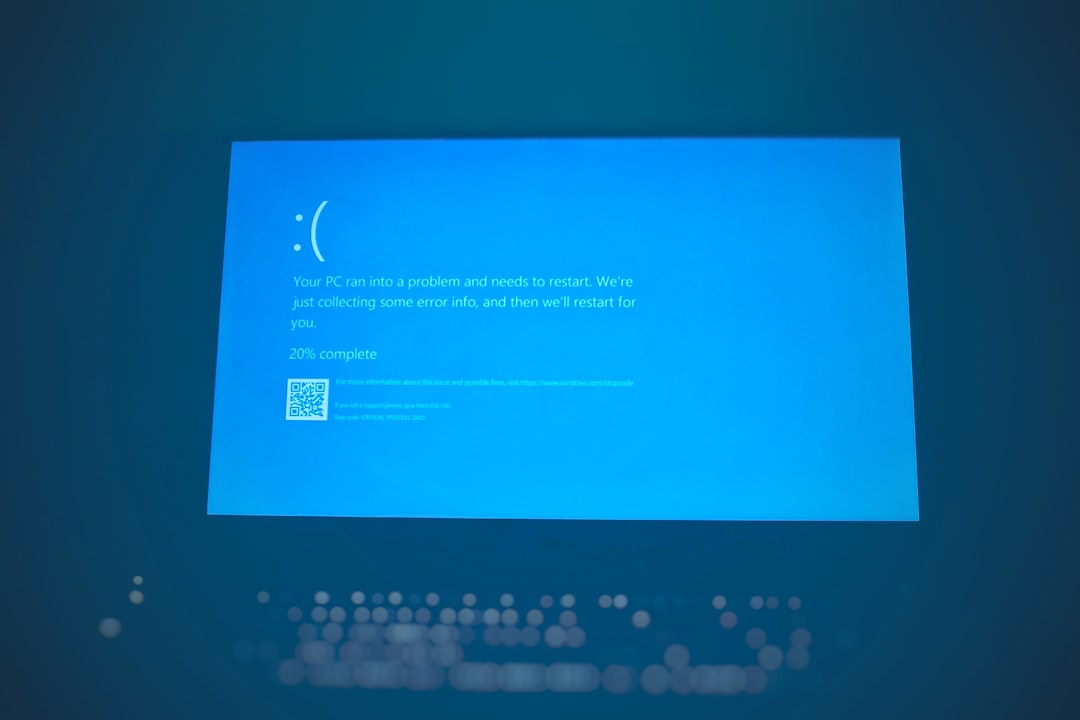
Service Control Manager Error 7023 is a common Windows issue that appears when a service terminates unexpectedly with an error. It can prevent critical Windows components from functioning properly and may disrupt networking, audio, updates, or system security. Although the error message often looks complex, it is usually caused by misconfigured services, corrupted system files, or registry problems. With the right troubleshooting steps, this issue can typically be resolved without advanced technical expertise.
TL;DR: Service Control Manager Error 7023 occurs when a Windows service stops unexpectedly due to misconfiguration, corrupted files, or dependency issues. Users can fix it by checking Event Viewer logs, restarting or reconfiguring services, repairing system files, and ensuring dependencies are running. In some cases, updating drivers or modifying registry entries may be necessary. Following a structured troubleshooting process usually resolves the error completely.
Understanding Service Control Manager Error 7023
The Service Control Manager (SCM) is a core Windows component responsible for starting, stopping, and managing system services. When a service fails to start or terminates improperly, Windows logs Error 7023 in the Event Viewer. The error message generally states:
- “The [Service Name] service terminated with the following error: [specific error message].”
This message means that a particular service encountered a problem and Windows had to shut it down. The underlying cause varies depending on the affected service.

Common Causes of Error 7023
Several factors can trigger Service Control Manager Error 7023. Understanding them helps narrow down the correct solution.
- Corrupted system files – Missing or damaged Windows files can prevent services from starting correctly.
- Incorrect service configuration – A service may be set to start improperly or use invalid login credentials.
- Disabled dependencies – Some services rely on others; if dependent services are not running, Error 7023 may appear.
- Registry errors – Incorrect registry entries can disrupt service operations.
- Outdated or faulty drivers – Certain services depend on hardware-related drivers.
- Malware or system corruption – Harmful software may interrupt services.
How to Fix Service Control Manager Error 7023
The following step-by-step solutions are arranged from simplest to more advanced. It is recommended to follow them in order.
1. Check Event Viewer for Detailed Information
Before applying fixes, identifying the exact service causing the error is crucial.
- Press Win + R and type eventvwr.msc.
- Navigate to Windows Logs > System.
- Look for entries marked as Error with Event ID 7023.
- Note the service name and specific error description.
This information will guide the repair process.
2. Restart the Affected Service
Sometimes, the issue is temporary.
- Press Win + R, type services.msc, and press Enter.
- Locate the affected service.
- Right-click and choose Restart.
If the service restarts successfully without errors, the problem may have been temporary.
3. Ensure All Dependent Services Are Running
Services often rely on other services to function correctly. If dependencies are stopped, Error 7023 may occur.
- Open the service properties by double-clicking it in Services.
- Go to the Dependencies tab.
- Make sure all listed services are running.
If any are stopped, start them manually.

4. Run System File Checker (SFC)
Corrupted system files are a major cause of service failures. Windows includes a built-in repair tool.
- Open Command Prompt as Administrator.
- Type: sfc /scannow
- Press Enter and wait for the scan to complete.
If corrupted files are found, Windows will automatically attempt repairs.
5. Use DISM to Repair Windows Image
If SFC does not resolve the issue, try using DISM (Deployment Image Servicing and Management).
- Open Command Prompt as Administrator.
- Run the following commands:
- DISM /Online /Cleanup-Image /CheckHealth
- DISM /Online /Cleanup-Image /ScanHealth
- DISM /Online /Cleanup-Image /RestoreHealth
After completion, restart the computer and check if the error persists.
6. Check Service Log On Settings
Services typically run under specific system accounts. If credentials are incorrect, the service may fail.
- Open services.msc.
- Right-click the affected service and select Properties.
- Go to the Log On tab.
- Ensure it is set to the correct account (often Local System account).
If unsure, consult Microsoft documentation for the specific service.
7. Update Device Drivers
If the failing service is hardware-related (e.g., audio or networking), outdated drivers might be responsible.
- Right-click the Start button and select Device Manager.
- Find the relevant hardware device.
- Right-click and select Update driver.
Restart the system after updating.
8. Modify Registry Entries (Advanced)
Warning: Incorrect registry changes can cause system instability. Back up the registry before proceeding.
- Press Win + R, type regedit, and press Enter.
- Navigate to:
HKEY_LOCAL_MACHINE\SYSTEM\CurrentControlSet\Services\[ServiceName] - Check relevant entries such as ImagePath and configuration values.
If incorrect paths or values are detected, correct them carefully.
Image not found in postmeta9. Perform a System Restore
If the error began recently, restoring the system to a previous working state may solve the problem.
- Type Create a restore point in the Windows search bar.
- Click System Restore.
- Select a restore point created before the issue appeared.
10. Scan for Malware
Malicious software can interfere with system services.
- Run a full scan using Windows Security.
- Alternatively, use a trusted third-party antivirus solution.
Quick Comparison of Repair Methods
| Method | Difficulty Level | Recommended When | Risk Level |
|---|---|---|---|
| Restart Service | Easy | Temporary or random error | Low |
| Check Dependencies | Easy | Service fails immediately on startup | Low |
| SFC Scan | Moderate | Suspected file corruption | Low |
| DISM Repair | Moderate | SFC fails to fix issue | Low |
| Registry Edit | Advanced | Misconfigured service path | High |
| System Restore | Moderate | Recent system changes caused issue | Medium |
Preventing Future Service Errors
To minimize the risk of encountering Service Control Manager Error 7023 again, consider these preventive measures:
- Keep Windows updated to ensure services function with the latest patches.
- Install reliable drivers from trusted manufacturers.
- Avoid altering services unless necessary.
- Create regular restore points before major system changes.
- Use antivirus protection to prevent malware interference.
Conclusion
Service Control Manager Error 7023 can appear alarming, but it is usually fixable through systematic troubleshooting. By checking the Event Viewer, verifying service configurations, repairing system files, and ensuring dependencies function correctly, most users can resolve the issue efficiently. More advanced solutions such as registry adjustments and system restoration should be used cautiously but can be highly effective when simpler methods fail. A proactive maintenance approach greatly reduces the likelihood of this error recurring.
Frequently Asked Questions (FAQ)
- What does Service Control Manager Error 7023 mean?
It means a Windows service terminated unexpectedly due to a specific error, which is detailed in the Event Viewer log. - Is Error 7023 dangerous?
The error itself is not dangerous, but the failed service may impact system functionality, such as networking or security features. - Can Error 7023 fix itself?
In rare cases, restarting the service or rebooting the system may resolve it temporarily, but persistent errors require troubleshooting. - Do I need to edit the registry to fix Error 7023?
Not usually. Registry editing is only necessary if the issue stems from incorrect service configuration paths. - Will reinstalling Windows fix Service Control Manager Error 7023?
Yes, reinstalling Windows would resolve the issue, but it should be considered a last resort after all other troubleshooting steps fail. - How do I identify which service caused the error?
Open Event Viewer, navigate to Windows Logs > System, and look for Event ID 7023 entries. The affected service name will be listed there.