


You’re surfing the web, happily clicking around, and BOOM — your browser screams, “This network is blocking encrypted DNS traffic.” Huh? What does that even mean? And more importantly — how do you fix it?
TL;DR
This error means something — like your network or device — is stopping encrypted DNS requests. This could affect your privacy and screw up some websites. The fix could be as simple as changing your settings or switching your DNS provider. Stick around and we’ll make it easy (and fun)!
What Is Encrypted DNS Anyway?
Let’s break it down.
- DNS is the internet’s phone book. It turns website names (like cats.com) into IP addresses.
- Encrypted DNS, like DoH (DNS over HTTPS) or DoT (DNS over TLS), puts those lookups inside a locked box. So nobody snoops.
Usually, your device sends unencrypted DNS requests. That means your ISP (or your school, or your job) can see every site you want to visit.
Encrypted DNS keeps that private. But some networks? They hate that.
Why Networks Block Encrypted DNS
Some networks want control. Full stop.
- Schools may block it to watch browsing habits or limit bad sites.
- Workplaces might block encrypted DNS to enforce security policies.
- Hotel Wi-Fi or public networks? They just want to hijack your traffic with popups.
And ISPs in some countries? Yeah, they may want to snoop too.

How Do You Know It’s Being Blocked?
Here’s how to tell. You might see messages like:
- “This device tried to use encrypted DNS and failed”
- “Firefox detected that the network is blocking DoH”
- “Can’t reach DNS server”
Usually, browsers like Firefox and Chrome will warn you. They try to use encrypted DNS, and when it fails — they freak out (maybe with reason).
Step-by-Step: How to Fix It
Let’s get to the good part. Here’s how to beat the blockers and restore your sweet, sweet DNS privacy.
1. Try Another Network
First things first. Is it your network?
- Try switching to a mobile hotspot.
- Try your home Wi-Fi, if you’re not on it already.
If encrypted DNS works somewhere else, your original network is the villain.
2. Use a VPN
This is the easiest fix in many cases. VPNs encrypt all your traffic — including DNS.
- Choose a solid VPN (ProtonVPN, Mullvad, NordVPN, etc).
- Turn it on. Boom. Now your connection is encrypted end-to-end.
No more DNS blocking. Just smooth sailing and private browsing.
3. Change Your Browser Settings
Modern browsers have encrypted DNS built in. But you might need to turn it on (or tweak it).
Firefox
- Go to Settings > General > Network Settings.
- Click Enable DNS over HTTPS.
- Try different providers like Cloudflare or NextDNS.
Chrome (or Brave, Edge, etc)
- Go to Settings > Security.
- Look for Use Secure DNS.
- Choose your provider or enter a custom one.
Still blocked? Yep, the network’s being a real jerk.
4. Manually Set Your DoH or DoT Provider
Sometimes your device can manually use encrypted DNS — no browser needed.
On Windows 11
- Go to Settings > Network & Internet > Ethernet/Wi-Fi.
- Click Edit DNS Settings.
- Switch to Manual and enable IPv4.
- Add DNS servers like:
- Cloudflare: 1.1.1.1 and 1.0.0.1
- Google: 8.8.8.8 and 8.8.4.4
- NextDNS: Your custom resolver IP
- Choose Encrypted Preferred.
On macOS
- Go to System Settings > Network.
- Select your connection > Advanced > DNS.
- Add server addresses and enable DNS encryption.
Note: iPhones and Androids let you do this too — usually in advanced Wi-Fi settings or via configuration profiles.
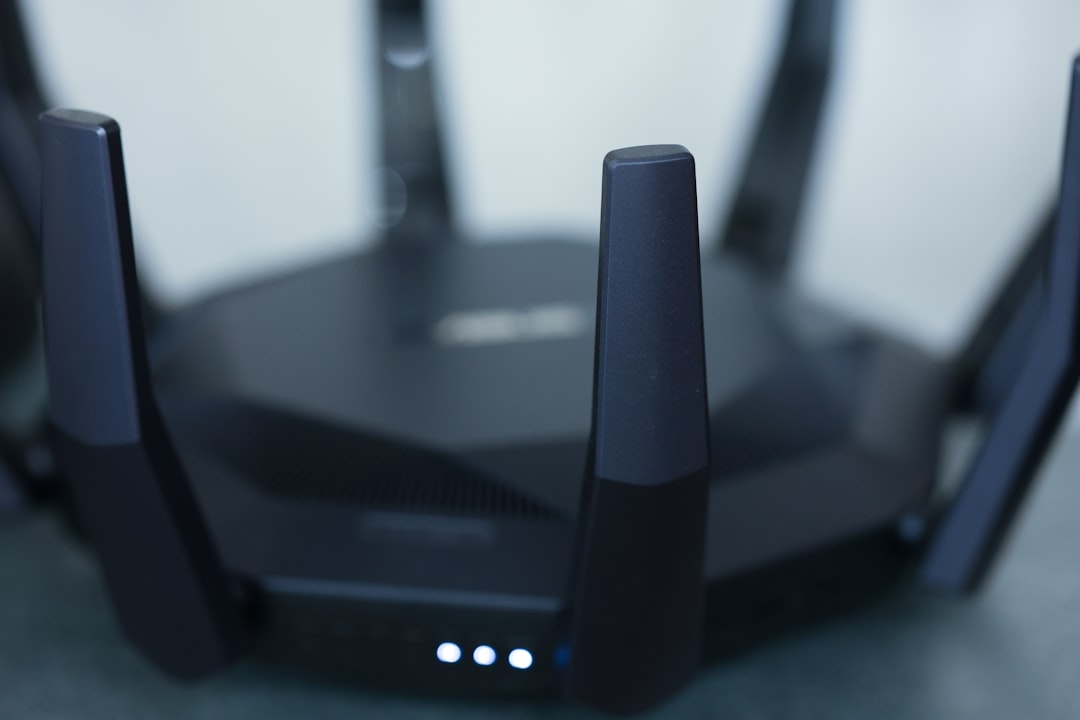
5. Switch to a Router with Encrypted DNS
If you control the router, awesome. You can set it to use encrypted DNS for your whole home.
Some routers support DoH/DoT natively. Examples:
- ASUS routers with Merlin firmware
- OpenWRT routers with encryption modules
- Ubiquiti UniFi setups
The cool part? Every device gets encrypted DNS without setting each one up.
But What If You Can’t Change the Network?
Maybe you’re at school or overseas. Admins won’t let you mess with settings. In that case:
- Use a VPN. Really, it’s your holy grail here.
- Try using a portable browser like Firefox Portable with DoH enabled.
- Use mobile data when privacy is essential.
Some super-restrictive networks may even block VPNs. Yikes. In that case, you may need to use obfuscated VPNs or Tor.
Bonus Tips for Nerds (and Aspiring Nerds)
- Try command line tools like
nslookupordigto see if your DNS resolution is working. - Use Wireshark or Packet Capture to look at your DNS traffic. Is it encrypted?
- Check websites like 1.1.1.1/help to inspect your DNS status online.
If Nothing Works
Some networks use very aggressive methods. They might:
- Block known DoH providers
- Intercept HTTPS traffic with broken certificates
- Reroute DNS requests to their servers
In this case, it may be time to get creative:
- Use a different device.
- Boot from a USB stick with your own OS.
- Find a coffee shop with better Wi-Fi. Seriously.
Final Thoughts
Encrypted DNS is a big deal. It’s your first line of defense against snooping, spying, and shady redirects. When a network blocks it, you lose privacy — and sometimes access to the internet.
The good news? You’ve got options. From built-in browser settings to full-blown router and VPN setups, there’s a fix that will work for you.
Stay curious, stay secure, and don’t let sneaky networks cramp your digital style.