

Use Sage Payments if you want invoices paid inside your accounting flow, then add Stripe or PayPal when customers want familiar checkout options. That is the simple version. Stripe lists a standard U.S. online card rate of 2.9% plus 30¢ per transaction, so fees are easy to estimate before you start [source: Stripe].
TLDR: Sage Payments helps businesses accept money without chasing checks all week. Stripe is great for cards, Apple Pay, and online payments. PayPal is handy when customers already trust their PayPal wallet. For example, if you send 100 invoices a month and 40 customers pay online instead of by bank transfer or check, you could cut a big chunk of manual payment follow-up.
So, what is Sage Payments?
Sage Payments is not just one button. Think of it as the payment side of your Sage accounting setup. It helps connect invoices, customer payments, and your books.
You send an invoice. The customer clicks a payment link. The money lands in your account. Sage can then help match the payment to the invoice.
That sounds small. It is not. Anyone who has hunted through bank deposits on a Friday afternoon knows the pain.
Honestly, it feels like accounting software should have fixed this years ago. Yet many small businesses still copy payment details from one tab to another. That is how mistakes sneak in.

Where Stripe fits in
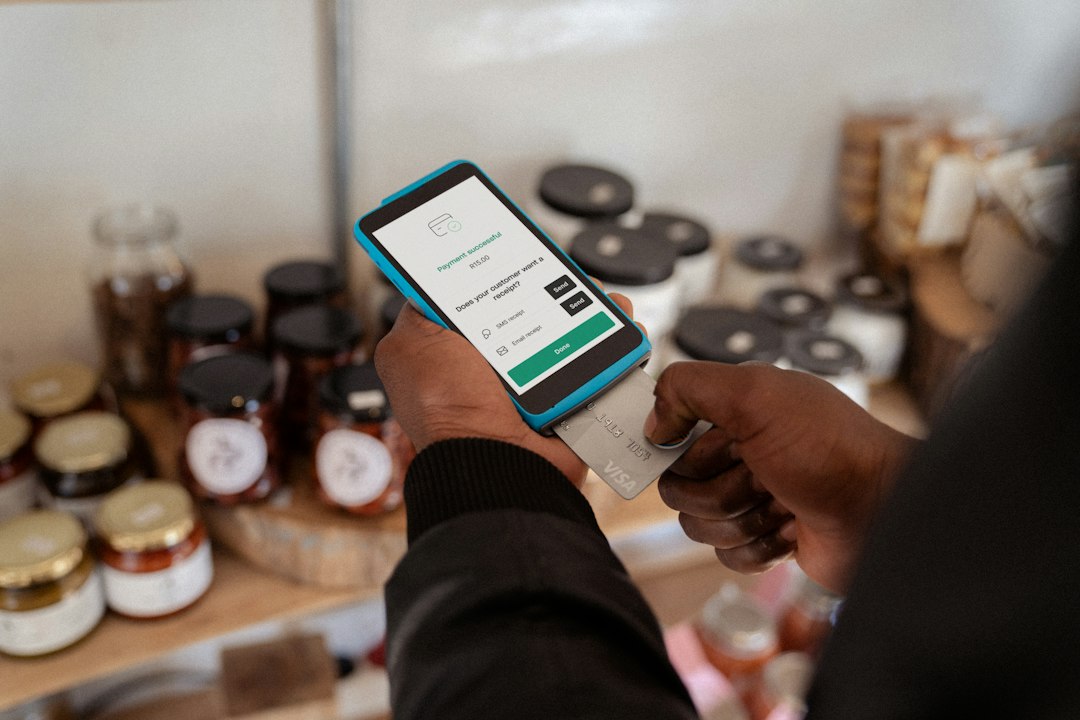
Stripe is one of the best-known payment processors for online cards. It works well for businesses that sell online, invoice clients, or collect payments from a website.
With Stripe, customers can often pay by:
- Credit card
- Debit card
- Apple Pay
- Google Pay
- Some local payment methods, depending on your country
Stripe is popular because it feels modern. It is built for online payments. It also plays nicely with many apps.
In a Sage setup, Stripe can be useful when you want customers to pay invoices fast. You do not want them printing PDFs. You do not want them asking for bank details again. You want the money. Today, if possible.
Where PayPal fits in
PayPal is different. It has a huge name. Many customers already have an account. Some people trust PayPal more than entering card details on a new checkout page.
That matters.
If you sell to consumers, freelancers, or international buyers, PayPal can reduce hesitation. A customer may think, “Fine, I know this button.” Then they pay.
PayPal can help with:
- Quick wallet payments
- International customer payments
- Buyer familiarity
- Card payments through PayPal checkout
The downside? Fees can vary. Settings can feel a bit scattered. It drives me crazy that one small account setting can hide behind three menus. Still, customers like it. That counts.
Stripe vs PayPal for Sage users
Here is the plain-English version.
| Option | Best for | Main perk |
|---|---|---|
| Stripe | Online invoices, card payments, web checkout | Clean card payment flow |
| PayPal | Customers who prefer wallet payments | Strong customer trust |
| Bank payments | Lower-cost transfers | Useful for larger invoices |
If your customers are other businesses, Stripe and bank payments may be enough. If you sell to regular shoppers, PayPal may be worth adding.
Why this matters for cash flow
Cash flow is not glamorous. It is survival.
Say you run a design studio. You send 50 invoices per month. Each invoice averages $600. That is $30,000 in monthly billing.
If slow payments delay just 25% of that money, you are waiting on $7,500. That can affect payroll. It can delay ad spend. It can make tax week feel awful.
Adding card and wallet payment options can make payment feel easy. Easy gets paid faster.
What to check before you turn it on
Do not connect payment tools without checking the basics first. That is how tiny surprises become loud problems.
- Fees: Check card, wallet, refund, and international fees.
- Availability: Not every payment option works in every country.
- Sage product: Features can differ between Sage Accounting, Sage 50, and other Sage tools.
- Settlement time: Ask how long money takes to reach your bank.
- Invoice matching: Make sure payments sync cleanly with invoices.
- Refunds: Know where refunds appear in Sage.
Expect to waste time on setup if your customer records are messy. Duplicate names, old email addresses, and unpaid invoices from 2021 can make things weird. Clean your data first. Future you will be less annoyed.
A simple setup example
Here is a basic use case.
A small fitness studio uses Sage for invoices and records. It offers Stripe for card payments. It adds PayPal for customers who prefer wallet payments. Members get a payment link by email. The owner checks Sage and sees which invoices are paid.
No paper slips. No “Did you send it?” texts. No mystery deposit with no customer name.
Best choice for most small businesses
Start with Stripe if your main goal is card payments. It is clean and widely used. Add PayPal if your customers ask for it, or if you sell to people who like wallet checkout.
Keep the payment mix simple at first. Too many buttons can confuse people. Two good options are better than six messy ones.
Sage Payments works best when it removes boring admin. That is the real win. Not fancy tech. Not buzzwords. Just faster payments, cleaner books, and fewer awkward “just checking in” emails.