

A network security key is just your Wi-Fi password. It is the magic phrase that lets your phone, laptop, TV, and other gadgets join your wireless network. On Windows 11, Microsoft says you can view a saved Wi-Fi password in Settings, which is handy when nobody remembers where the sticky note went [source: Microsoft].
TLDR: Your network security key is usually the same thing as your Wi-Fi password. For example, if your router label says WiFi Key: BlueTiger742, that is the key you type into your device. Most home Wi-Fi passwords are between 8 and 63 characters, so even one wrong letter can ruin your day. You can find it on Windows, macOS, Android, or on the router itself.

What Does “Network Security Key” Mean?
A network security key sounds serious. Like something from a spy movie. But most of the time, it means your Wi-Fi password.
When you connect to Wi-Fi, your device asks for a key. That key proves you are allowed to join the network. Without it, you stay outside. Sad. Offline. Probably staring at a loading wheel.
You may also see it called:
- Wi-Fi password
- Wireless password
- WPA key
- WPA2 key
- Passphrase
They usually mean the same thing. It drives me crazy that different devices use different names for it. But yes, they are often asking for the same password.
How to Find Your Network Security Key on Windows
If your Windows PC is already connected to the Wi-Fi, you can usually reveal the password.
On Windows 11
- Click Start.
- Open Settings.
- Go to Network & internet.
- Click Advanced network settings.
- Choose More network adapter options.
- Right-click your Wi-Fi connection.
- Click Status.
- Click Wireless Properties.
- Open the Security tab.
- Check Show characters.
Your network security key should appear in the box. You may need admin access. If this is a work or school laptop, expect an extra login prompt. Of course.
On Windows 10
The steps are very similar:
- Open Control Panel.
- Go to Network and Sharing Center.
- Click your Wi-Fi network name.
- Choose Wireless Properties.
- Open Security.
- Tick Show characters.
Copy it carefully. Spaces count. Capital letters count too.
How to Find It on macOS
Macs can also show saved Wi-Fi passwords. Apple hides them behind your Mac password, Touch ID, or both. Fair enough.
On Newer macOS Versions
- Open System Settings.
- Click Wi-Fi.
- Find your network.
- Click the Details button.
- Look for Password.
- Use Touch ID or enter your Mac password.
You should see the saved password.
Using Keychain Access
If that option is missing, try this old reliable method:
- Open Keychain Access.
- Search for your Wi-Fi network name.
- Double-click the network.
- Check Show password.
- Enter your Mac login details.
Honestly, it feels like this takes 30 seconds longer than it should. But it works.
How to Find It on Android
Android makes this easier than it used to. On many phones, you can share a saved Wi-Fi network with a QR code. The password may appear under the code.
- Open Settings.
- Tap Network & internet or Connections.
- Tap Wi-Fi.
- Select your connected network.
- Tap Share.
- Confirm with your PIN, fingerprint, or face unlock.
Now look under the QR code. Some Android phones show the password there.
On Samsung phones, you may only see the QR code. Annoying, yes. In that case, scan the QR code with another phone. Some QR scanner apps can read the password from it.
How to Find It on Your Router
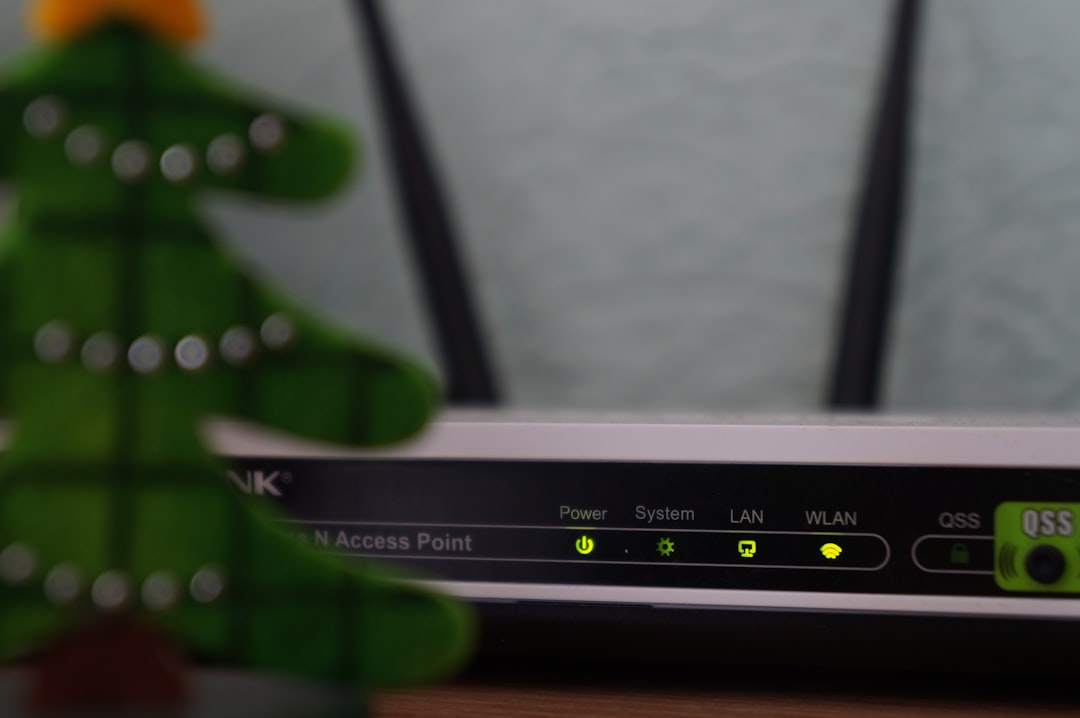
If no device can show the password, go straight to the router. The key may be printed on a sticker.
Look for labels like:
- Wi-Fi Password
- Wireless Key
- Network Key
- WPA Key
- SSID Password
The sticker is often on the back, bottom, or side of the router. If your internet provider gave you the router, check their app too. Many provider apps show the Wi-Fi name and password.
Use the Router Admin Page
You can also check the router settings page.
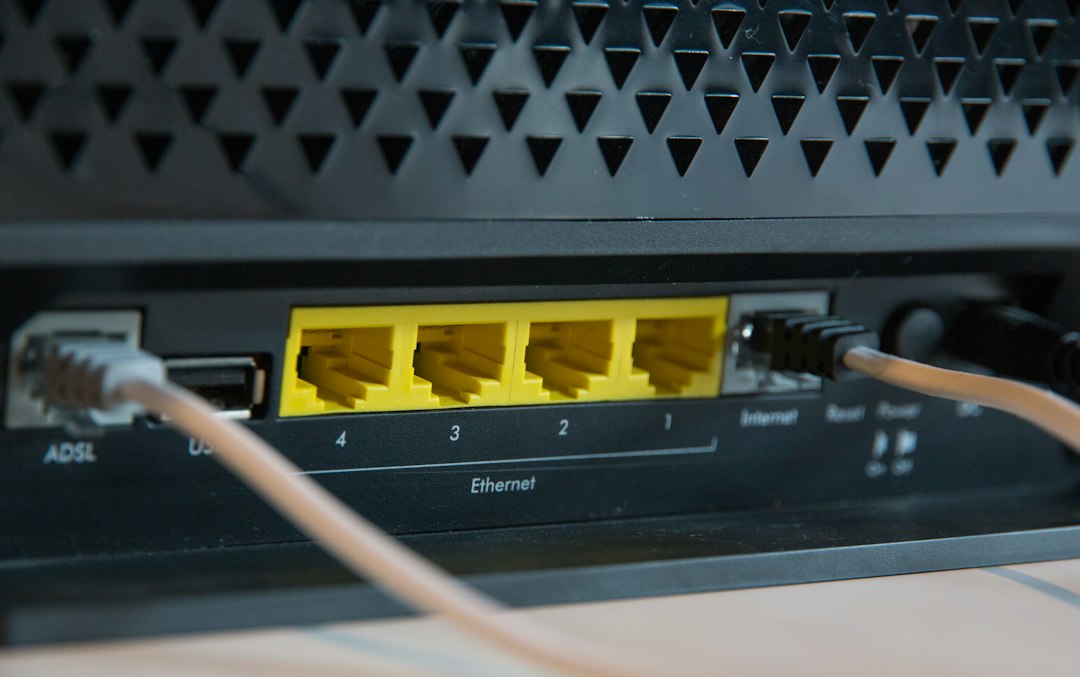
- Connect to the router with Wi-Fi or an Ethernet cable.
- Open a browser.
- Type 192.168.1.1 or 192.168.0.1.
- Sign in to the router.
- Open Wireless or Wi-Fi Settings.
- Find the password field.
If you never changed the router login, the admin details may be on the router sticker. Please change them later. Leaving the default admin login is like leaving your front door open with a snack table outside.
What If You Still Cannot Find It?
You have a few options.
- Ask the person who set up the Wi-Fi. Fastest fix.
- Check your internet provider app. Many show the password.
- Look for old notes. Drawers love eating Wi-Fi passwords.
- Reset the router. Use this only as a last resort.
A router reset wipes custom settings. Your Wi-Fi name and password may go back to the default ones on the sticker. Any smart bulbs, cameras, consoles, and TVs may need to reconnect. Expect groans.
Quick Safety Tips
- Use a password that is at least 12 characters.
- Mix words, numbers, and symbols.
- Do not use your street name or pet name alone.
- Change the default router admin password.
- Use WPA2 or WPA3 security if available.
Your network security key is not scary. It is just the Wi-Fi password wearing a boring name tag. Find it, save it somewhere safe, and spare yourself the next “Wait, what’s the Wi-Fi?” moment.