

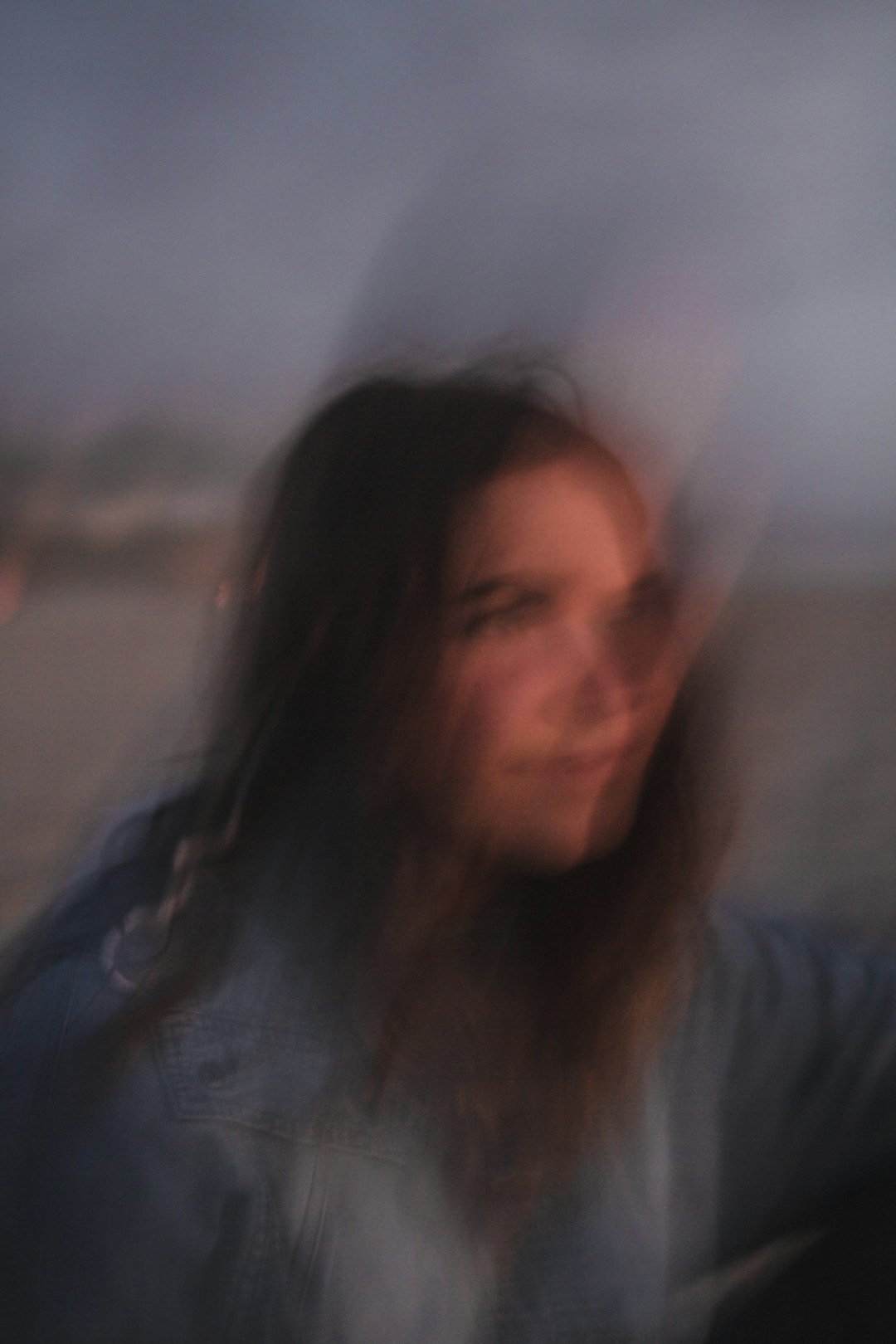
Blurry photos are not always ruined. In many cases, a reliable online unblur image tool can improve edge definition, restore facial details, reduce motion blur, and make an image more usable for printing, ecommerce, social media, or documentation. The key is choosing services that enhance quality without creating unrealistic textures or compromising privacy.
TLDR: The best online unblur tools use AI sharpening, denoising, and detail reconstruction to improve soft or slightly blurred images. They work best on photos with mild motion blur, camera shake, low resolution, or focus issues, but they cannot fully recover information that was never captured. For serious use, choose tools that provide previews, privacy controls, high-resolution exports, and natural-looking results. Always compare the enhanced image against the original before publishing or printing.
What an online unblur tool can realistically do
An online unblur image tool analyzes a photo and attempts to improve perceived sharpness. Modern platforms usually combine several processes: AI sharpening, noise reduction, contrast adjustment, face enhancement, and sometimes resolution upscaling. The result can be impressive when the source image contains enough detail for the software to interpret.
However, it is important to be realistic. If a photo is extremely out of focus, heavily compressed, or taken in very poor light, no tool can perfectly reconstruct the original scene. High-quality unblur tools do not “recover” hidden data in a forensic sense; they estimate and enhance details based on patterns learned from large image datasets. This can be useful, but it also means results should be checked carefully, especially for professional, legal, or archival purposes.
Features that make an unblur tool worth using
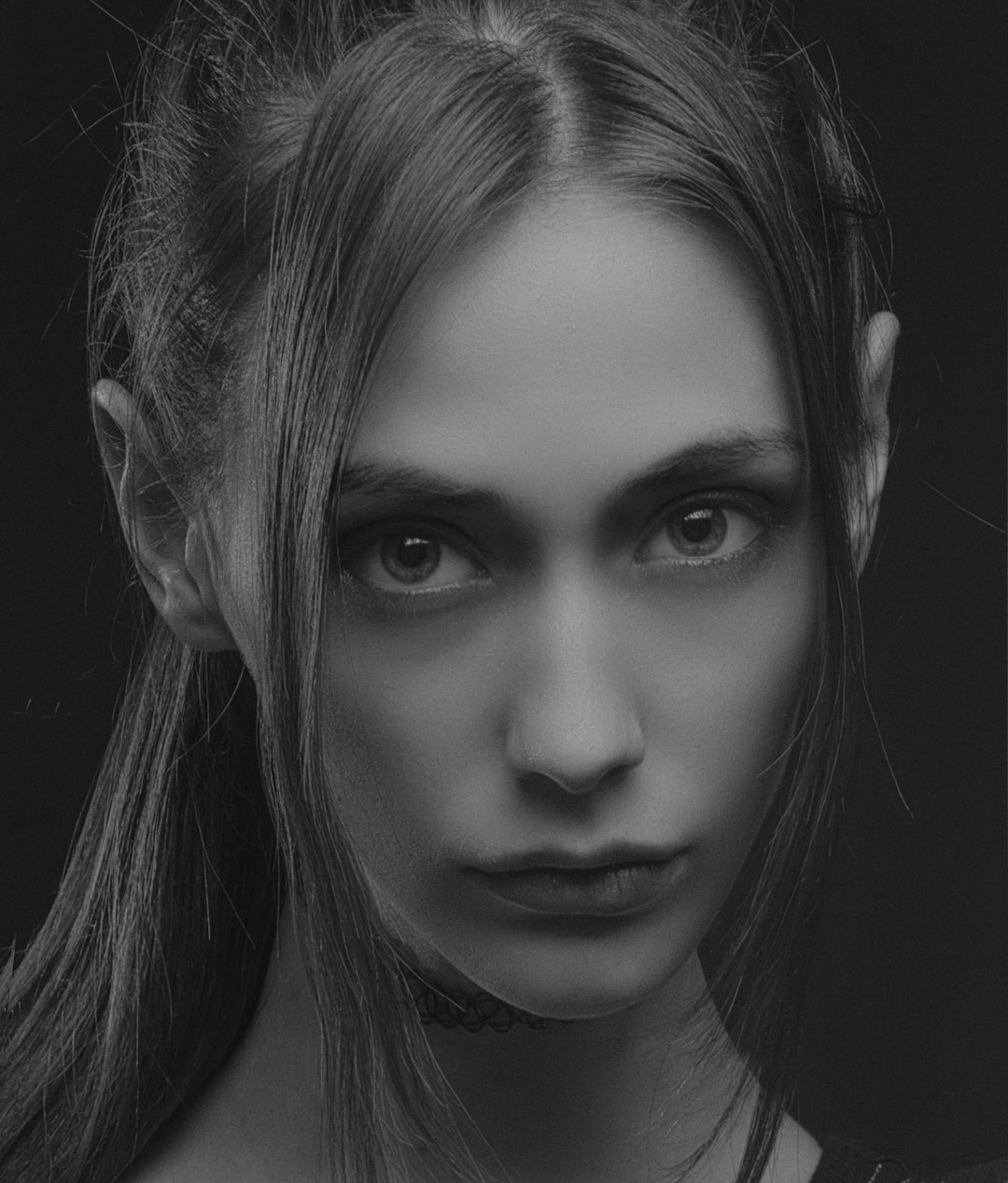
Not every online enhancer deserves your trust. Some produce over-sharpened images with harsh edges, waxy skin, or artificial textures. When evaluating a tool, look for practical features that support both image quality and responsible use.
- Natural detail enhancement: The best tools improve clarity without making the photo look fake or overly processed.
- Before and after preview: A side-by-side comparison helps you judge whether the enhancement is actually better.
- Face and object handling: Good AI tools recognize different image areas and avoid applying the same intensity everywhere.
- Noise reduction: Sharpening can make grain and compression artifacts worse, so denoising is essential.
- High-resolution export: If you need images for print or product listings, export quality matters.
- Privacy transparency: Serious platforms explain how uploaded photos are processed, stored, and deleted.
Online tools that are commonly worth considering
The right tool depends on the type of image you need to fix. A portrait with a slightly soft face requires a different approach from a product photo, scanned document, or travel snapshot. The following categories and examples are among the more practical options for everyday users and small teams.
1. AI photo enhancers for general image sharpening
General AI photo enhancers are suitable for casual and professional use when you need a fast improvement. Services such as Fotor AI Photo Enhancer, VanceAI Image Sharpener, PicWish, and Media.io Image Enhancer are often used for improving soft portraits, product photos, and social media images. They typically offer automatic processing, which is helpful if you do not have editing experience.
These tools are most effective when the blur is moderate. For example, a slightly shaky phone photo can often be made clearer, while an image with severe motion streaking may only improve marginally. A trustworthy workflow is to process the same image at different intensity levels, then choose the version that looks sharp but still believable.
2. Face enhancement tools for portraits
Portraits require special care because people notice unnatural skin, eyes, and hair immediately. Tools such as Remini and similar face-focused AI enhancers can produce strong results on old family photos, selfies, and low-resolution profile pictures. They are designed to rebuild facial detail and improve clarity in eyes, lips, and skin texture.
These services can be useful, but they should be used cautiously. If the AI adds facial features that were not clearly present in the original, the result may look appealing but inaccurate. For personal memories, that may be acceptable; for identification, journalism, or official use, it is not. A serious approach is to keep the original file and label enhanced versions clearly.
3. Upscaling tools with sharpening
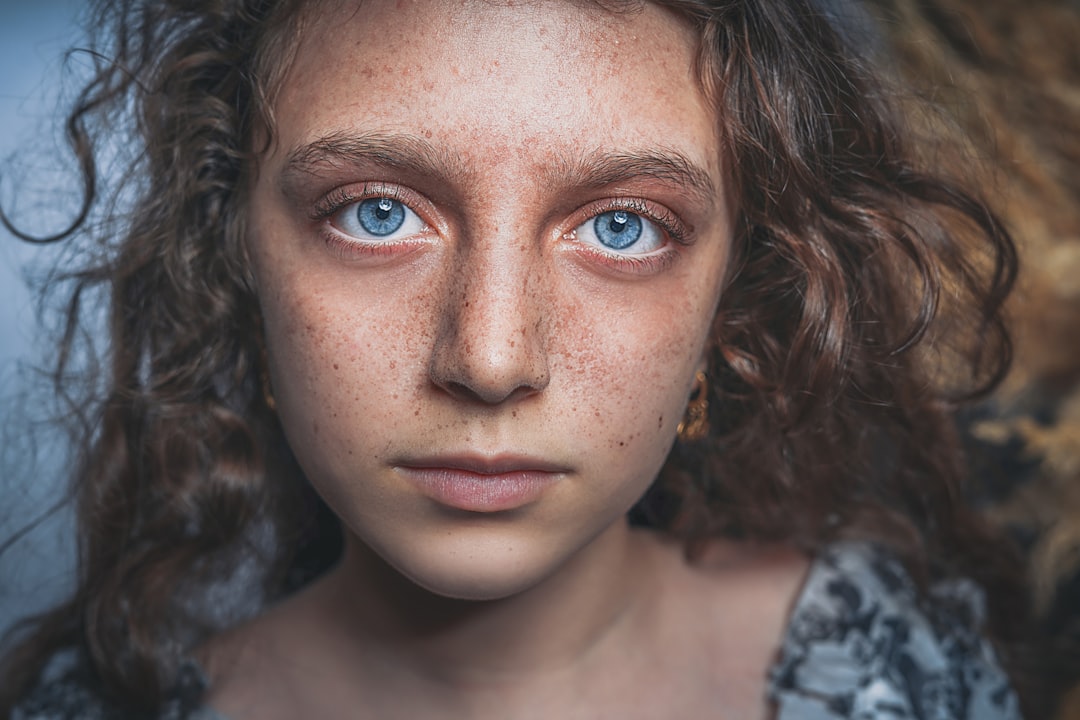
Some images look blurry mainly because they are too small. In that case, an upscaler with built-in sharpening can help. Tools such as Let’s Enhance, Upscale.media, and similar AI upscaling platforms increase image dimensions while improving edge clarity. This is particularly useful for ecommerce thumbnails, real estate images, blog visuals, and older web graphics.
The strongest benefit is that upscaling and unblurring happen together. Instead of simply enlarging pixels, AI upscalers estimate sharper boundaries and cleaner textures. Still, results vary. Product packaging, text, fabric patterns, and architectural lines can sometimes develop artifacts, so inspect important details at full size before using the file commercially.
4. Browser-based editors with manual sharpening controls
Automatic AI is convenient, but manual control is valuable when accuracy matters. Browser-based editors such as Photopea, Pixlr, and Adobe’s online editing options can help you apply sharpening, clarity, contrast, and noise reduction more carefully. These platforms are useful when you want to avoid the “AI look” and make smaller, controlled improvements.
A practical method is to duplicate the image layer, apply sharpening lightly, and reduce the effect if edges become too aggressive. Manual tools may not reconstruct details as dramatically as AI enhancers, but they often produce more predictable and professional-looking results.
How to get better results from any unblur tool
The quality of the final image depends not only on the tool but also on the file you upload and the settings you choose. To improve your chances of success, follow a careful process.
- Start with the best original file. Avoid screenshots or images downloaded from messaging apps if you have the original photo.
- Do not overprocess. Excessive sharpening creates halos, rough skin, and strange textures.
- Use denoising before or during sharpening. This prevents grain from becoming more visible.
- Check important areas at 100% zoom. Faces, text, product labels, and edges should look clean.
- Compare multiple tools. One service may handle portraits better, while another performs better on objects or landscapes.
Privacy and security considerations
Because online unblur tools require uploading images, privacy should be part of your decision. Avoid uploading sensitive documents, private identification images, confidential business photos, or children’s photos unless the service provides clear security policies. Look for information about encryption, file deletion, account controls, and whether images may be used for AI training.
If privacy is critical, consider using a reputable desktop editor instead of an online tool. For everyday photos, online services are usually convenient, but users should still read the terms carefully. A professional-looking website is not enough; trust depends on transparent policies and consistent results.
When not to use an unblur tool
Unblur tools are helpful, but they are not appropriate in every situation. Do not rely on AI-enhanced images as definitive proof in disputes, investigations, or identity verification. AI can invent plausible details, especially in faces, text, license plates, and small objects. If accuracy is more important than appearance, preserve the original and consult an imaging professional.
It is also better to reshoot a photo whenever possible. For product photography, portraits, real estate, or official documentation, a clean original will always outperform an enhanced blurry image. Online tools are best viewed as improvement aids, not replacements for proper capture technique.
Final recommendation
Online unblur image tools are worth using when they are selected carefully and applied with realistic expectations. For quick improvements, AI enhancers such as Fotor, VanceAI, PicWish, Media.io, Remini, Let’s Enhance, and Upscale.media can produce useful results, especially on mild blur and low-resolution images. For more control, browser-based editors with manual sharpening remain valuable.
The most trustworthy workflow is simple: use the highest-quality original, test more than one tool, avoid extreme settings, and compare the final image closely with the source. A good unblur tool should make a photo clearer, not suspiciously perfect. When used responsibly, these services can turn many soft, disappointing images into cleaner, sharper, and more presentable visuals.